Getting started
Device Drivers, Explained Simply
Drivers are the invisible translators between your computer and your hardware. We break down how they operate, why they break, and how to update them safely. Everything here is clear and informative, with no downloads, no updater tool, and no sales pitch.
- No downloads
- No scanning tools

An independent driver magazine
Understand your hardware. Make informed choices.
Independent educational guides to how drivers work, how to update them carefully, and what to do when hardware stops behaving as expected. No downloads, no scanners, nothing to buy.
Issue one. Full guides are live for all eight driver types: graphics, audio, network, printer, chipset, USB, Bluetooth and storage. Setup, Troubleshooting, Safe updates and Learn have their own sections.
Start with your hardware
Pick your driver type
Each type controls different hardware, fails in different ways, and updates through different channels. Choose yours for guides that fit.
Graphics & Display
Frames, colors, resolutionFull guideAudio & Sound
Speakers, mics, DACsFull guideNetwork & Wi-Fi
Internet, Ethernet, adaptersFull guideChipset & Motherboard
Core system communicationFull guideUSB & Peripherals
Keyboards, mice, controllersFull guideBluetooth
Wireless pairing, audioFull guideStorage & Disk
SSDs, HDDs, NVMe, RAIDFull guidePrinter & Scanner
Print output, scanningFull guide
At a glance
Eight driver types, side by side
A quick map of what each driver controls, where updates normally come from, and the symptom people notice first. The Driver Types hub has longer summaries, and each of the eight types has its own full guide.
Graphics & Display
- Controls
- Drawing the screen, resolution, refresh rate, games and video
- Updates from
- Graphics chip maker or PC maker website, Windows Update
- Typical symptom
- Flicker, black screen, wrong resolution
Audio & Sound
- Controls
- Speakers, headphones, microphones, audio jacks
- Updates from
- PC or motherboard maker website, Windows Update
- Typical symptom
- No sound, missing output device
Network & Wi-Fi
- Controls
- Wi-Fi and Ethernet adapters
- Updates from
- PC or adapter maker website, Windows Update
- Typical symptom
- Drops, no networks found
Chipset & Motherboard
- Controls
- How the processor talks to everything else
- Updates from
- PC or motherboard maker website
- Typical symptom
- Instability, devices missing
USB & Peripherals
- Controls
- Ports, hubs, keyboards, mice, controllers
- Updates from
- Mostly built into the OS; device maker for extras
- Typical symptom
- Device not recognized
Bluetooth
- Controls
- Wireless pairing for audio and input
- Updates from
- PC or adapter maker website, Windows Update
- Typical symptom
- Won't pair, keeps dropping
Storage & Disk
- Controls
- SSDs, hard drives, NVMe and RAID controllers
- Updates from
- PC, motherboard or drive maker website
- Typical symptom
- Slow disk, drive missing
Printer & Scanner
- Controls
- Sending pages to print and receiving scans
- Updates from
- Printer maker website, OS built-in printing
- Typical symptom
- Printer offline, driver unavailable
Under the hood
How drivers actually work
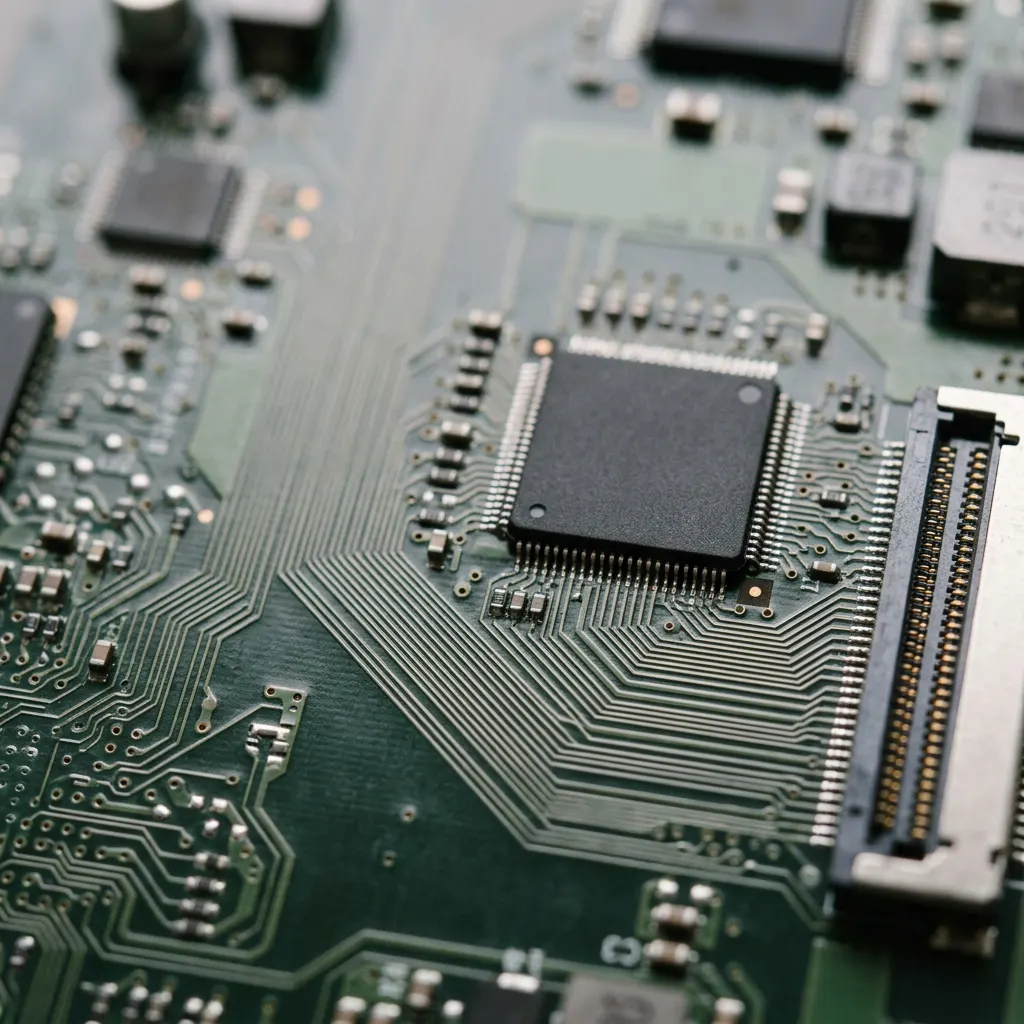
Your apps ask the operating system for something: draw this, play that, send these bytes. The OS hands the request to a driver, and the driver speaks the hardware's own language.
How driver stacks workThe basics
What a driver is, in three layers
A driver is a small piece of software that lets the operating system use a specific piece of hardware without knowing every detail of how it was built.
- 01
Apps and the OS
Programs typically make general requests through the operating system, like "print this page," rather than controlling the device directly.
- 02
The driver
Translates the request into exact commands for one device model, and reports back errors and status.
- 03
The hardware
The chip, port or device does the physical work. When the translator is missing or wrong, things break.
Why it pays off
What this publication is, in numbers
- Driver types covered on this page
- 8
- Downloads or updater tools
- 0
- Step safe-update method
- 5
- Paid services or sales
- 0
Counts describe this site as it exists today.
Why keeping drivers updated matters
System Stability
Well-maintained drivers prevent crashes, freezes, and stop errors from software-hardware mismatches.
Security Patches
Many drivers run with deep system privileges. Vendor updates close vulnerabilities.
Performance
Graphics, storage, and network drivers are tuned over time. A newer driver can unlock better performance from hardware you already own.
Compatibility
New OS versions and applications need current drivers. Updates keep old hardware speaking the same language as new software.
New to drivers?
New to drivers? Start here
No jargon required. The Learn hub starts with what a driver is, follows one request from an app to the hardware, then explains where drivers run.
Find your way
Four ways into the magazine
On the way
Practical guides for your devices
- Safe updates
The 5-step safe driver update method
- Troubleshooting
No sound after an update
- Troubleshooting
Wi-Fi keeps disconnecting
- Troubleshooting
Display flickering or black screen
A word of caution
Don't trust random updater tools
Tools that promise to scan your computer and update everything at once often bundle unwanted software. Your device manufacturer's website and Windows Update are the safer route.
Why updater tools are riskyThe method
The 5-step safe update checklist
- 1
Check
Is something actually wrong? If the device works, you usually don't need a new driver.
- 2
Identify
Find the exact device and current driver version in Device Manager or System Information.
- 3
Get it from the maker
Use Windows Update or your device manufacturer's website. Never a random download site.
- 4
Create a restore point
Give yourself a way back before you change anything.
- 5
Install and verify
Install, restart, and confirm the device behaves. Roll back if it doesn't.
Windows tour
What's inside Device Manager
Right-click Start and choose Device Manager. Each category expands to show your hardware. A yellow warning mark means Windows sees the device but its driver has a problem. Our setup guide walks through every icon and button.
Read the Device Manager guide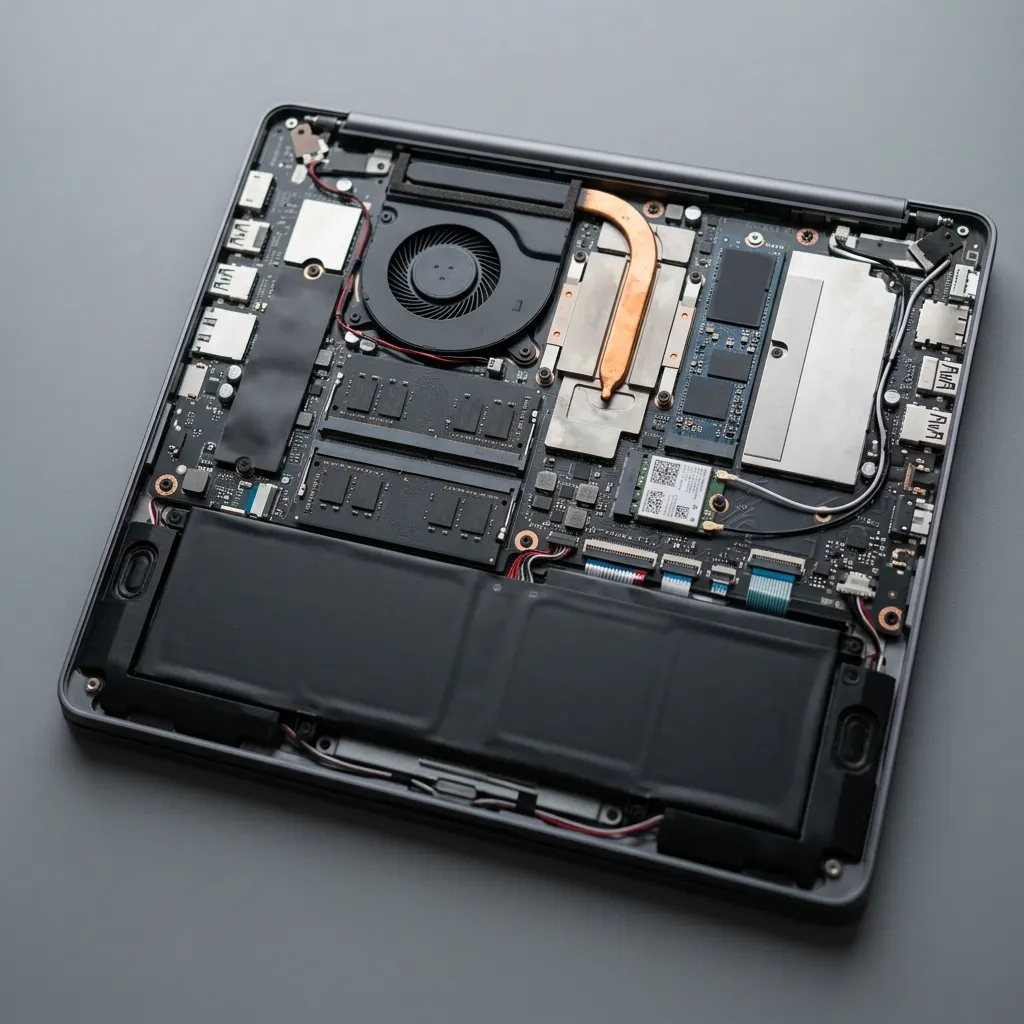
Symptom first
Troubleshooting overview
Start from what you notice. These first moves solve a surprising share of problems before any driver needs replacing.
Screen flickers, goes black or looks stretched
Restart, then check the display adapter in Device Manager. If it started after an update, roll the driver back.
No sound at all
Check the selected output device and mute first. Then look for a warning icon on the audio device.
Wi-Fi drops or finds no networks
Toggle airplane mode, restart the router, then check the network adapter's status and power settings.
USB device not recognized
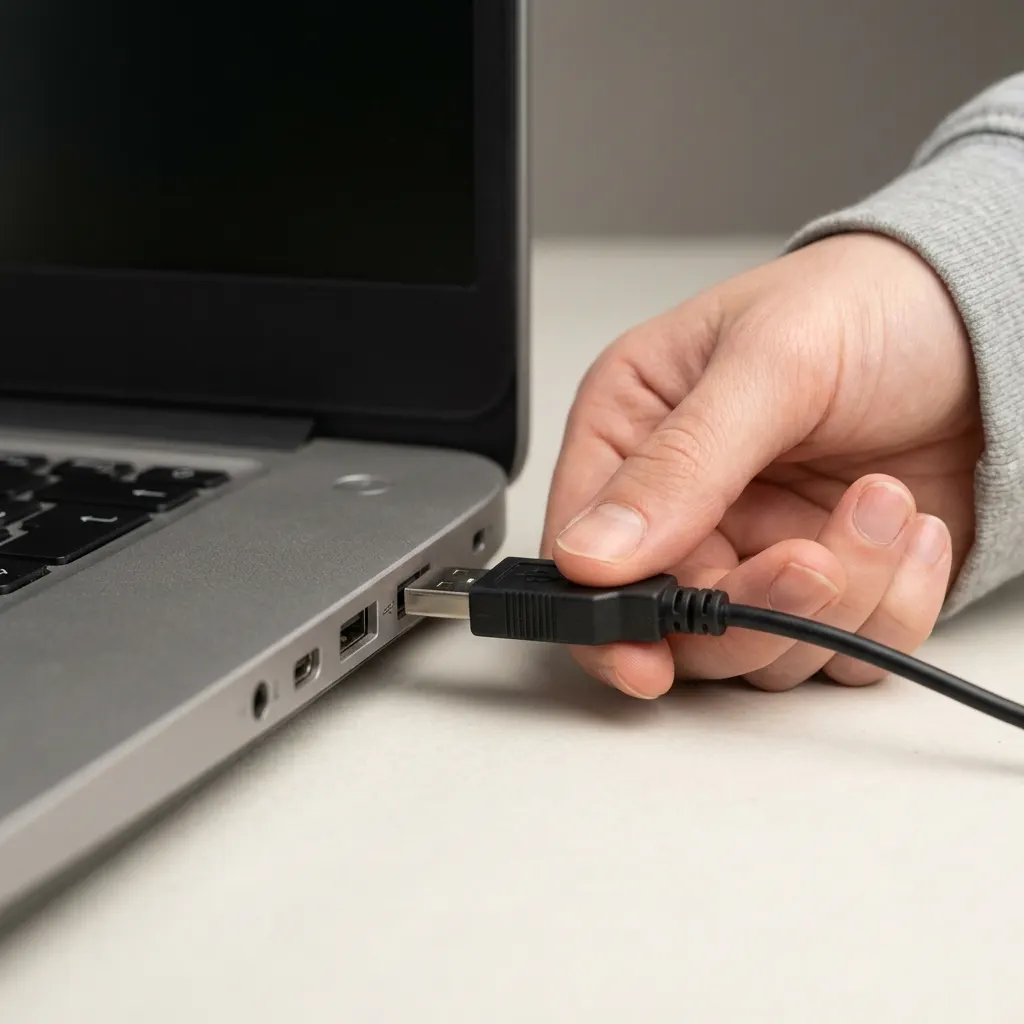
Try another port and cable, unplug hubs, then check for an unknown device with a yellow warning mark.
Before you change a driver
Two habits that prevent most driver trouble
Most driver problems become easy once you know which device is involved and have a way back.

Map your devices
Know what is connected, and to what
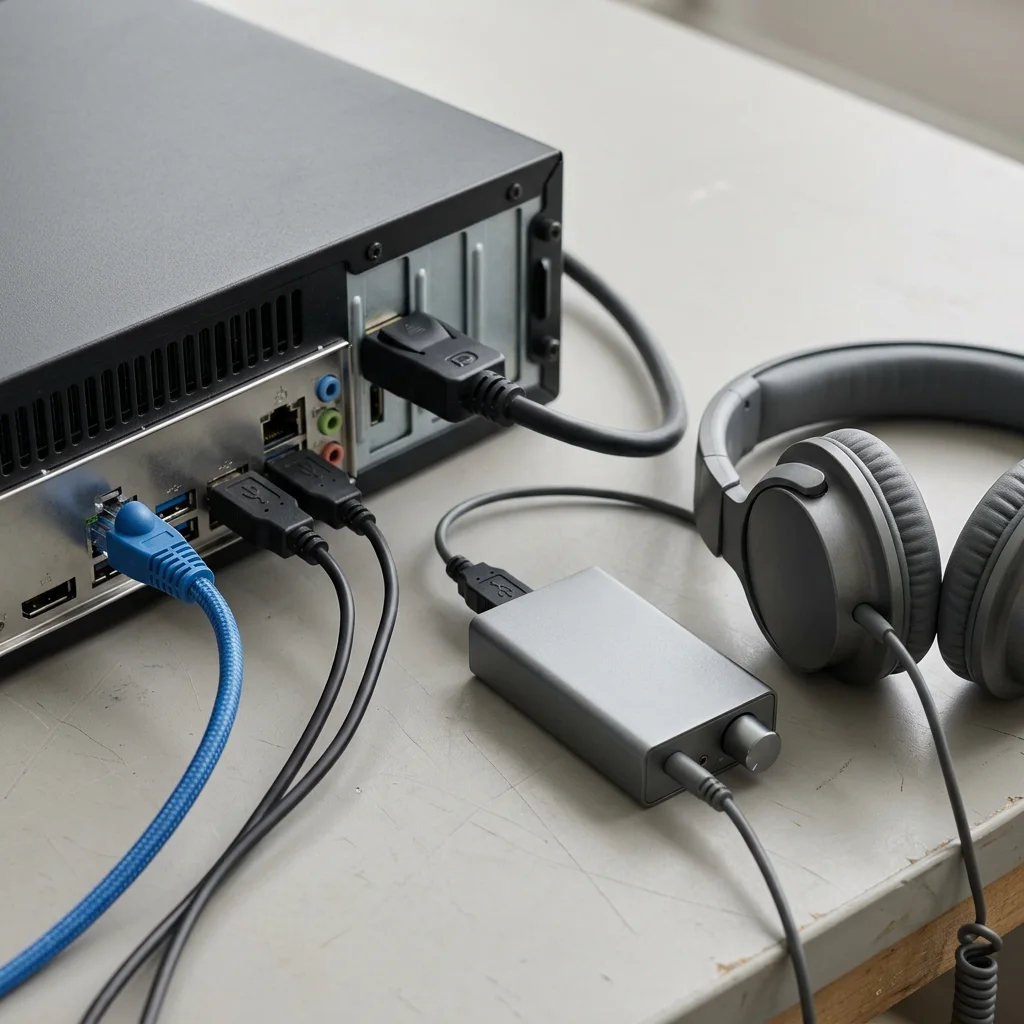
A typical computer talks to many devices at once, each through its own driver. When something breaks, the first job is to name the device involved and the port it uses. That narrows the problem from everything to one driver type.
- Find what is installed: with check installed drivers.
- Compare the eight types: on the driver types hub.

Keep a way back
Change one thing, and know how to undo it
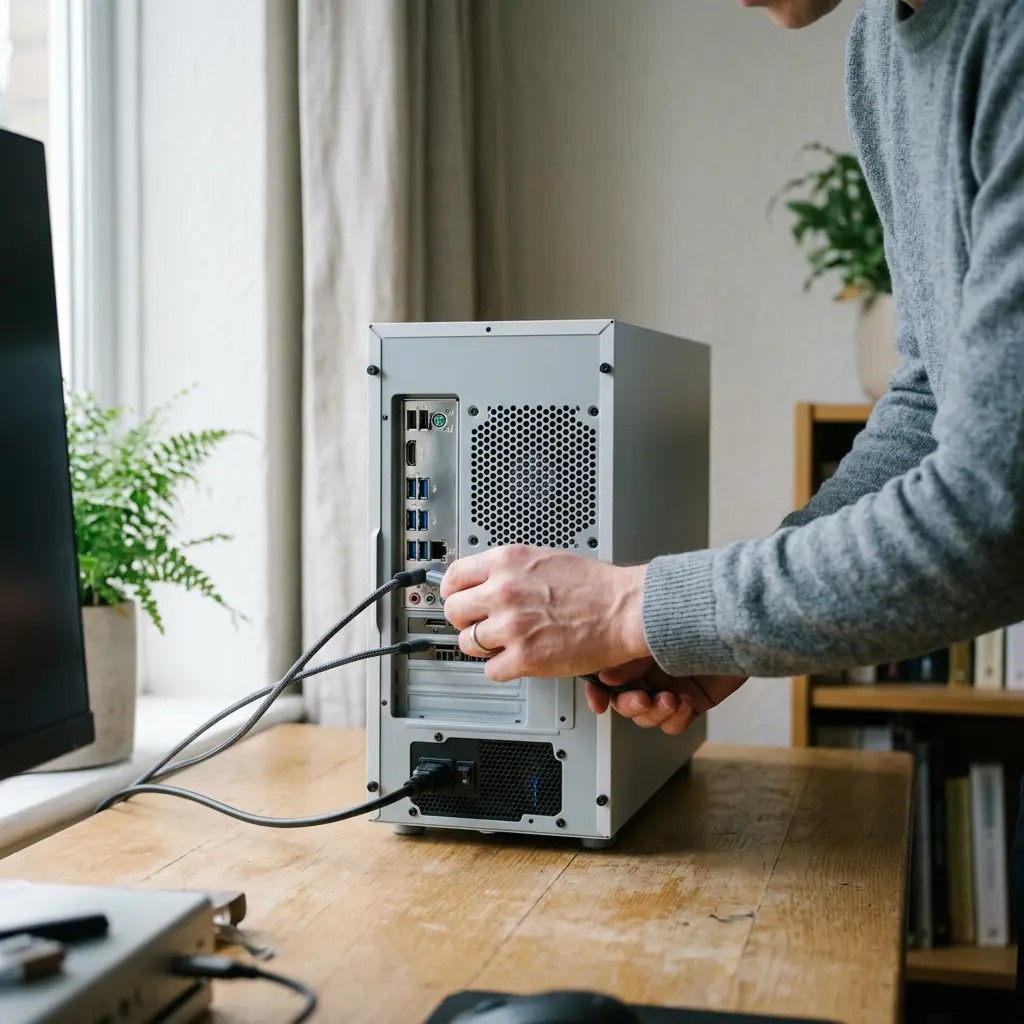
Whether you are installing a driver or reseating a card, the safest approach is the same: one change at a time, a record of what was there before, and a tested way to undo it.
For drivers, that means a restore point, a file backup and knowing how to roll back a driver. For hardware, it means power off, unplugged and anti-static care, or a repair service if you are unsure.
From the editorial desk
New and in progress
Kernel-mode vs user-mode drivers
Why a fault in some drivers can stop the whole system, and why other drivers can still cause problems.
Stay in the loop
A newsletter, when there's something to send
We plan a double opt-in newsletter for new guides. The email service is not connected yet, so the form below is disabled and nothing is collected.
Newsletter not active yet. Sign-up opens once a double opt-in email service is connected. Nothing you type here is sent or saved.