
Troubleshooting
Display flickering, black screen or wrong resolution in Windows 11
Check the cable, monitor input and display settings first, use the Task Manager clue for flicker, then change one display driver only if the evidence points there.
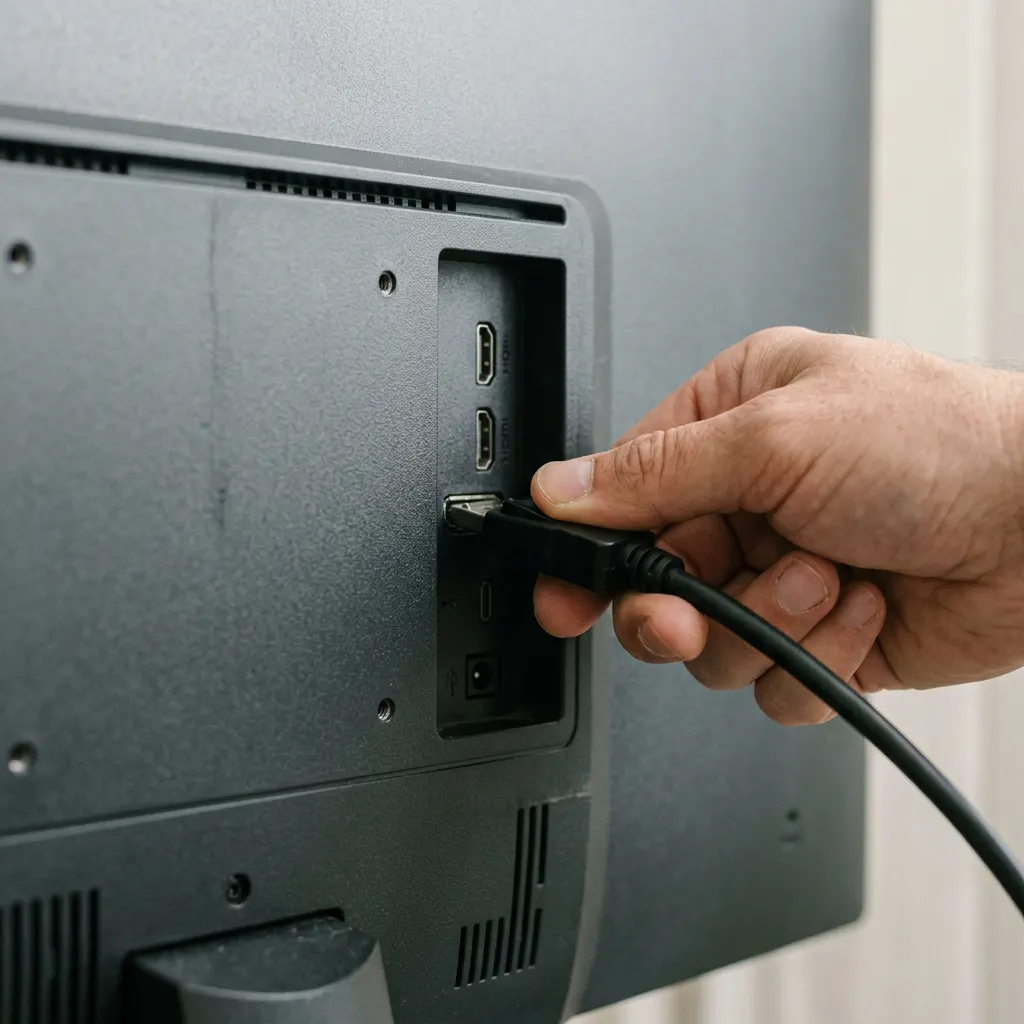
What this section covers
Three display problems often share a cause: the screen flickers, goes black, or shows the wrong resolution with everything stretched or blurry. This Windows 11 guide follows the picture from the computer to your eyes, checking cables, the monitor and settings before any driver. Then it uses a simple clue to tell app flicker from driver flicker, and changes one driver only when the evidence fits. A short macOS note is at the end. For how graphics drivers work, see our graphics and display guide.
Basic checks: cable, monitor, input
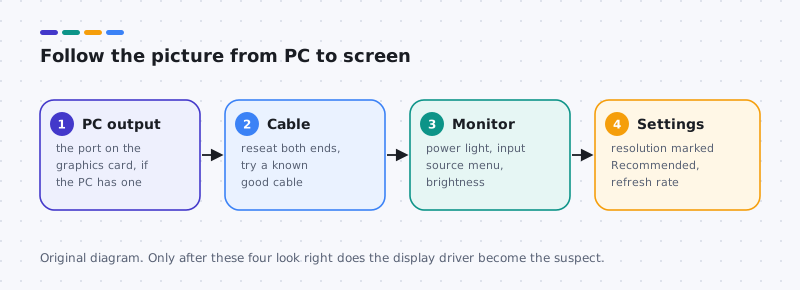
- Check the monitor itself. Is the power light on? Open the monitor’s menu and confirm the input source (HDMI 1, DisplayPort and so on) matches the port you are using. Raise brightness.
- Reseat the cable at both ends, then try a different cable or port if you have one. On desktops with a separate graphics card, plug the monitor into the card’s ports, not the motherboard’s.
- Disconnect extras. Unplug adapters, docks and second monitors, then test with one screen connected directly. Outcome: if the problem stops, add things back one at a time to find the culprit.
Fix the resolution and refresh rate
- Open display settings. Go to Settings > System > Display. Select the right screen at the top if you have several.
- Choose Recommended. Under Display resolution, pick the value labelled (Recommended). Check Scale too; a strange scale can look like a wrong resolution.
- Check refresh rate. Under Advanced display, set Choose a refresh rate to a value your monitor lists. An unsupported rate can cause flicker or a black screen; Windows usually reverts after 15 seconds if you do not confirm.
Flicker: app or driver?
Microsoft describes a quick test for flicker: watch whether Task Manager flickers along with everything else.
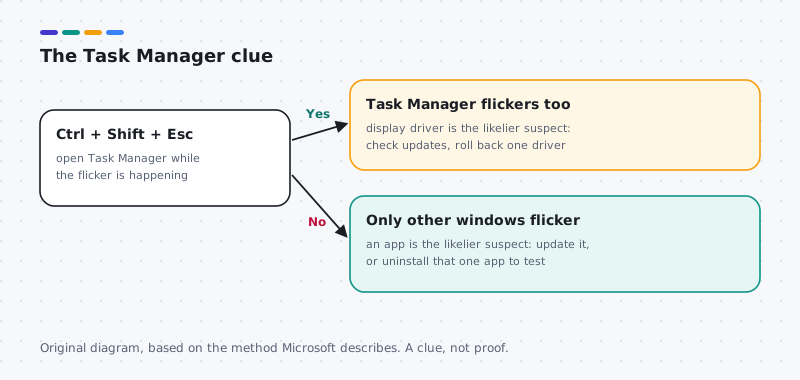
- Press Ctrl + Shift + Esc to open Task Manager while the flicker is happening.
- If only other windows flicker, an app is the likelier cause. Update that app, or uninstall it as a test from Settings > Apps > Installed apps. Apps recently installed or updated are the first suspects.
- If Task Manager flickers too, the display driver is the likelier suspect. Continue below.
Change one display driver, carefully
- Roll back if an update came first. Check Settings > Windows Update > Update history > Driver updates for a display entry. If one landed just before the trouble, use Roll Back Driver for the display adapter in Device Manager. See our roll back guide.
- Check for updates. Use Settings > Windows Update, including Optional updates for display items, as described in our Windows Update drivers guide. On laptops, prefer the computer maker’s package for your model.
- If the screen stays black at startup, open Safe Mode from the recovery environment: Troubleshoot > Advanced options > Startup Settings > Restart, then press 4. Safe Mode uses a basic display driver, so you can roll back from there. Encrypted PCs may ask for a BitLocker recovery key; enter it rather than looking for a way around it. Stop point: if Safe Mode also shows nothing, the monitor, cable or graphics hardware is the likelier cause; contact the maker.
What not to do
- Do not force the PC off over and over to “reset” the screen.
- Do not uninstall every display-related item at once or use driver cleaner or updater tools.
- Do not flash graphics firmware as a guess.
macOS note
This note is separate from the Windows steps. On a Mac, check the cable and adapter, open System Settings > Displays and choose the default resolution option for the screen, and disconnect docks to test. Mac graphics drivers update with macOS itself.
Physical layer
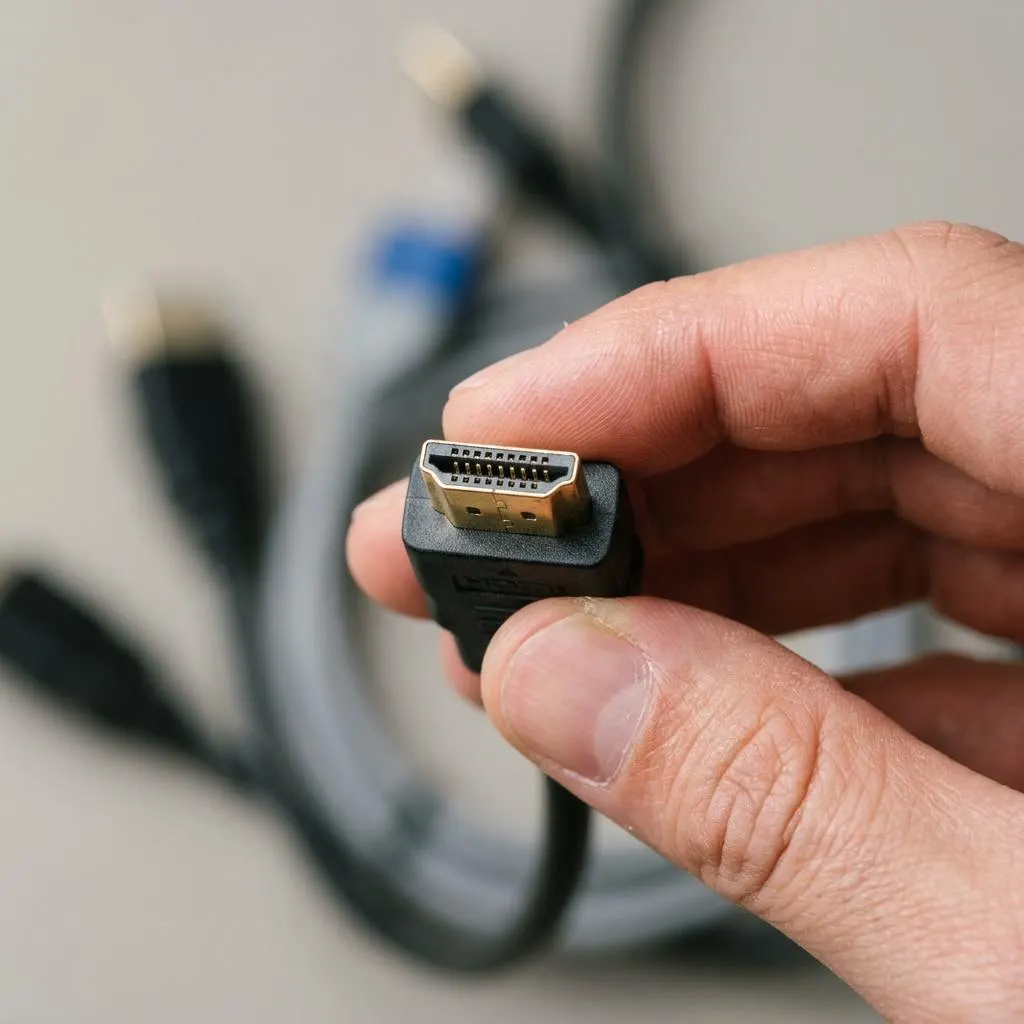
Inspect the cable before the driver
Flicker that comes and goes when you touch the desk, move the monitor, or as the room warms up is very often a connection issue. Video cables carry data at high speeds, and a slightly loose plug or damaged cable can produce flashes, black frames or sparkles long before it fails completely.
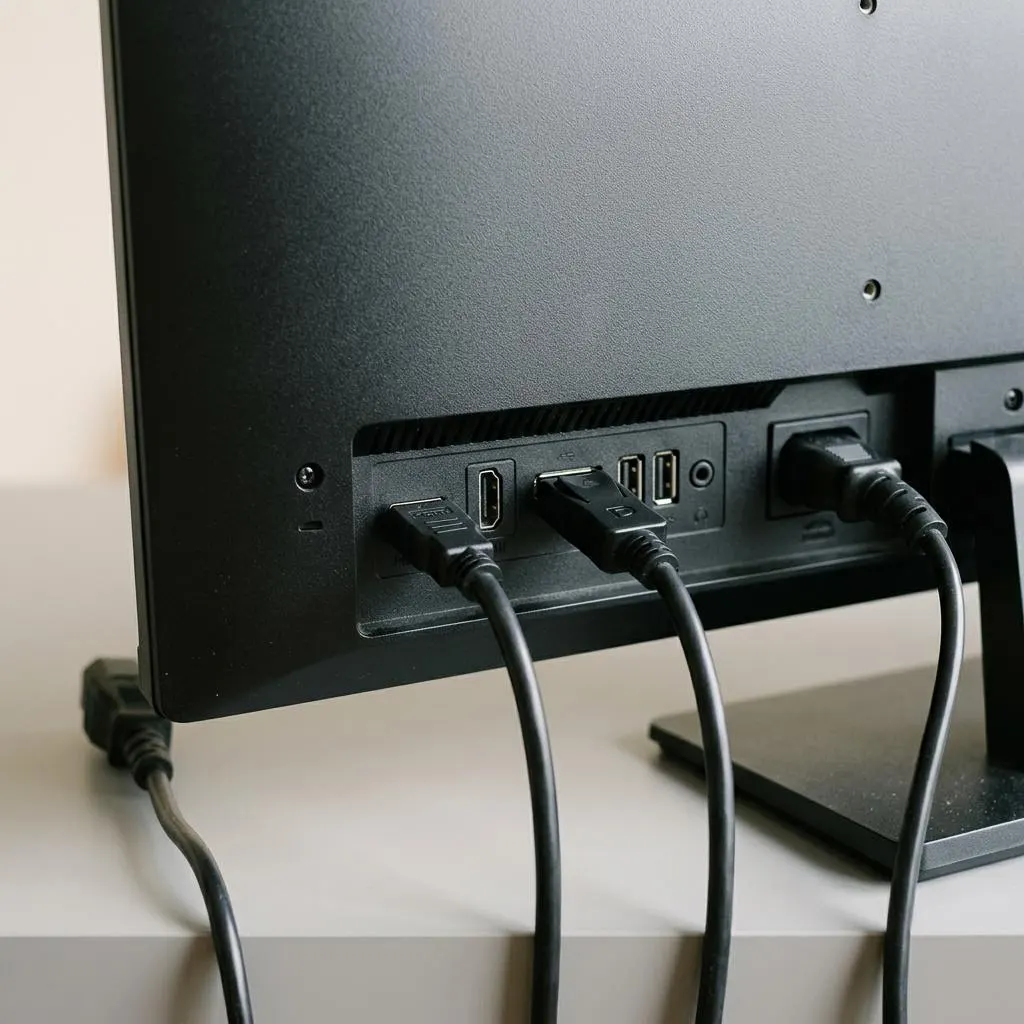
Look at both connectors. Check that the plug sits fully home, that there is no visible damage, and that the cable is not under strain from a tight bend. If you have another cable of the same type, swap it in for a day. A cable swap is free, reversible and rules out a large group of causes.
- Adapters and long cables are common weak points; test without them if you can.
- If flicker also appears in the monitor's own on-screen menu, the problem is not the Windows driver, because the menu is drawn by the monitor itself.
Worked example
Example: a black screen after a graphics driver update
Scenario: after a graphics driver installs, the screen stays black, though the computer appears to be running. A calm sequence:
- Wait a couple of minutes. Driver installs can blank the screen several times.
- Press Windows key + Ctrl + Shift + B. This shortcut restarts the graphics driver in Windows and sometimes brings the picture back.
- Check that the monitor is on the right input, and try the other video output if your computer has one.
- If the screen stays black, start Windows in safe mode through the recovery options, which uses a basic display driver, and roll back the graphics driver from there.
Safe mode and recovery steps are described on Microsoft's support pages. If you cannot reach them, the computer maker's support page or a repair service is the next step, not repeated hard power-offs.
The other end
The monitor has settings and firmware too
Monitors have their own processing: input selection, variable refresh features, overdrive and sometimes HDR modes. A setting in the monitor's menu can cause flicker that no Windows driver change will touch, especially with variable refresh rate features at low frame rates.
As a test, switch off variable refresh or overdrive in the monitor menu and see whether the flicker stops. If it does, you found the trigger. You can leave it off, or check whether the monitor maker documents a firmware update for your model, which follows the monitor maker's own instructions.
Also try the monitor's other input with the matching cable. Inputs on the same monitor can support different refresh rates and features, and moving from one to another can solve both flicker and missing resolution options.
FAQ
Questions people actually ask
What does Windows key + Ctrl + Shift + B do?
It restarts the graphics driver. The screen may go dark briefly and you may hear a beep. It is a quick test when the picture freezes or goes black while the PC itself is still responding, for example music keeps playing. If the whole PC is frozen, it will not help.
Why is my screen resolution wrong after an update?
Windows may be using a basic display driver, or the monitor reported its abilities differently after reconnecting. Open Settings, System, Display, and pick the resolution marked Recommended. If Recommended is missing or very low, check Device Manager for Microsoft Basic Display Adapter.
If Task Manager flickers, is the driver definitely the problem?
No. It is a useful clue that points towards the display driver rather than an app, but cables, monitors and settings can still be involved. Treat it as a reason to check driver updates or roll back one driver, not as proof.
My screen is black at startup. Should I keep restarting?
No. Repeated forced shutdowns can cause more problems. Check the monitor power and input first, then try the graphics driver restart shortcut if the PC seems to be running. If it still fails, use Safe Mode from the recovery environment.