
Driver types
Audio and sound drivers: how they work and how to fix silent speakers
How audio drivers move sound between apps and speakers, how to check them on Windows 11 and macOS, safe update routes, and fixes for no sound or a dead mic.
What this section covers
Sound feels simple until it disappears. This guide shows where the audio driver sits in the chain between an app and your ears, how to check it on Windows 11 and macOS, how to update it through safe channels, and how to work through silent speakers, dead microphones and crackling. Expect the first fixes to be settings, not software: the driver is often the last thing to blame.
How audio drivers work
When an app plays sound, it hands audio to the operating system’s audio engine, which mixes every app together and applies volume. The engine passes that mix to an audio driver, and the driver delivers it to hardware: a codec chip on the motherboard, a USB headset, or a monitor connected over HDMI.
The driver’s other job is to tell the system which outputs and inputs exist. Each one appears as an “endpoint” you can choose, such as Speakers, Headphones or Microphone Array. If a driver fails to load, endpoints vanish from the list, which is why “no output devices found” usually points at the driver.
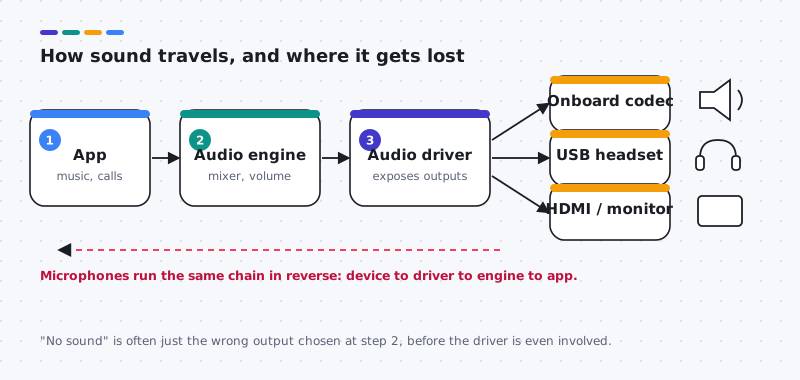
On most Windows PCs, the onboard codec comes from a chip maker such as Realtek, but the driver you should install is usually the one your computer or motherboard maker packages for your model. It can include settings for that board’s jacks and speakers. Microphones use the same chain in reverse, and they add a privacy layer: on both Windows 11 and macOS, an app needs permission before it can hear anything.
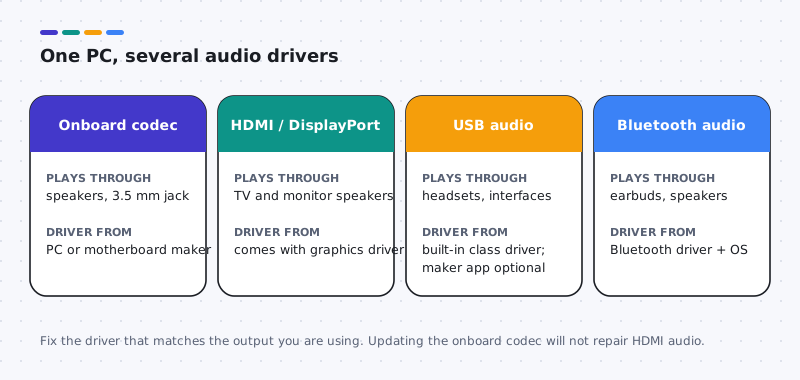
A single computer often runs several audio drivers at once. The onboard codec, HDMI audio from the graphics driver, USB audio and Bluetooth audio are separate paths with separate drivers.
How to check your current audio driver
Windows 11
- Right-click Start and choose Device Manager.
- Expand Sound, video and game controllers. Your sound hardware is listed here; Audio inputs and outputs shows the endpoints.
- Double-click the sound device and open the Driver tab.
- Write down the Driver Provider, Driver Date and Driver Version.
macOS
- Hold Option, open the Apple menu and choose System Information.
- Select Audio in the sidebar to see built-in and connected audio devices.
Built-in Mac audio drivers are part of macOS, so System Information shows devices and formats rather than a separate driver version you can update.
How to update audio drivers safely
- Windows Update. Go to Settings > Windows Update, install what is offered, then look in Advanced options > Optional updates for audio driver updates that match your hardware.
- Your computer or motherboard maker. Enter your exact model on the maker’s website and choose the audio driver for Windows 11 and your processor type. This is the best source for laptops and prebuilt PCs.
- Device Manager. Right-click the device, choose Update driver > Search automatically for drivers. If it says the best driver is installed, that only means Windows has nothing newer, not that nothing newer exists. Use Browse my computer for drivers only with a correct, extracted package from the maker for this exact device.
On a Mac, keep macOS current with System Settings > General > Software Update. That is how built-in audio drivers are updated.
Common audio driver problems and how to fix them
No sound at all
Likely causes: the wrong output device, mute, or a disconnected cable.
- Select the speaker icon in the taskbar and choose the correct output with the arrow next to the volume slider. On a Mac, use System Settings > Sound > Output.
- Check that the app itself is not muted, and try a different app.
- Reconnect the speakers or headphones, then restart the computer.
Sound stopped after an update
Likely causes: the default output changed, or the computer maker’s driver was replaced.
- Recheck the selected output device.
- In Device Manager, compare the driver on the Driver tab with what you noted before.
- If the change broke sound, choose Roll Back Driver if available, or install your computer maker’s audio driver for your model.
“No output devices found” or a yellow warning icon
Likely causes: the audio driver failed to load or is missing.
- Restart first; some driver failures clear on reboot.
- Run Windows Update, including Optional updates.
- Install the audio driver for your exact model from the computer or motherboard maker.
Microphone not picking up sound
Likely causes: privacy permissions, the wrong input device, or a muted mic.
- On Windows 11, open Settings > Privacy & security > Microphone and allow access for the app. On a Mac, use System Settings > Privacy & Security > Microphone.
- Choose the right input in Settings > System > Sound, and check any mute switch on the headset.
- Only if those are correct, check the device in Device Manager.
Crackling, popping or robotic sound
Likely causes: audio enhancements, a format mismatch, or a busy USB hub.
- Turn off audio enhancements for the device in Settings > System > Sound, under the device’s properties.
- Plug USB audio devices directly into the computer instead of a hub.
- If it started after a driver update, roll back and test again.
Two kinds of audio
USB headsets bring their own sound device
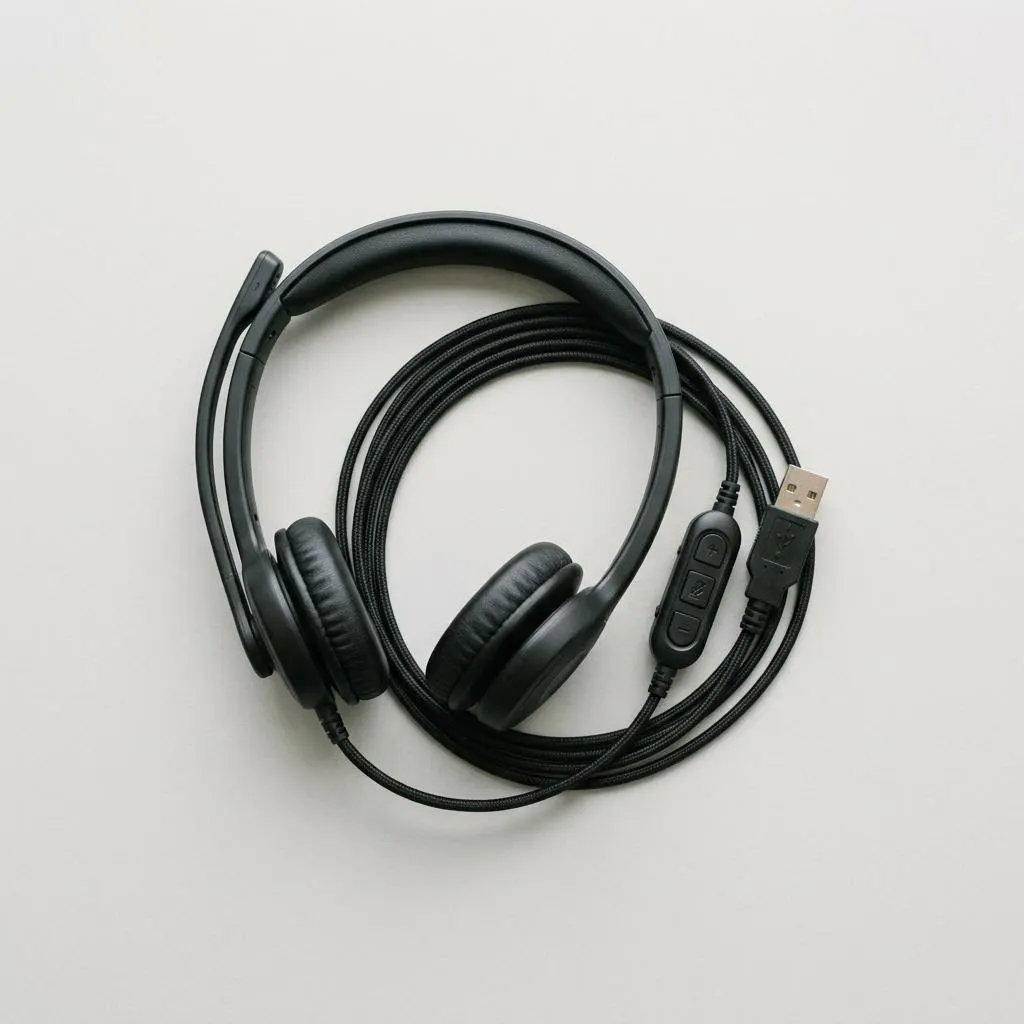
A headset with a 3.5 mm plug uses the computer's onboard sound chip. A USB headset is different: it contains its own audio hardware, and Windows 11 and macOS treat it as a separate playback and recording device, usually with a generic USB audio class driver that ships with the operating system.
That has practical consequences. Updating the onboard Realtek or similar driver will not change a USB headset's behaviour. Equally, if only the USB headset misbehaves, the onboard driver is not the first suspect: try another USB port directly on the computer, and check whether the headset maker offers a companion app for its controls. That app is software for features such as equalizers; it is not normally required for basic sound.
- Two devices named almost the same? One is often the headset's hands-free profile used for calls; pick the stereo one for music.
- Inline mute switch on? It mutes the microphone in hardware; no driver can override it.
Worked example
Example: microphone works in one app but not another
Scenario: your microphone works in the Windows Voice Recorder but a video-call app hears nothing. Because one app hears it, the driver is loading. Work on permissions and routing instead:
- Open Settings, Privacy and security, Microphone. Check that microphone access is on, and that the specific app is allowed. Desktop apps are controlled by the setting that lets desktop apps access the microphone.
- In the call app's own audio settings, choose the input device by name. Apps often keep their own choice and ignore the Windows default.
- Close other apps that may hold the microphone, then retest.
If no app at all can record and Device Manager shows a warning on the audio device, then the driver steps in the main guide apply. On a Mac, the equivalent check is System Settings, Privacy and Security, Microphone.
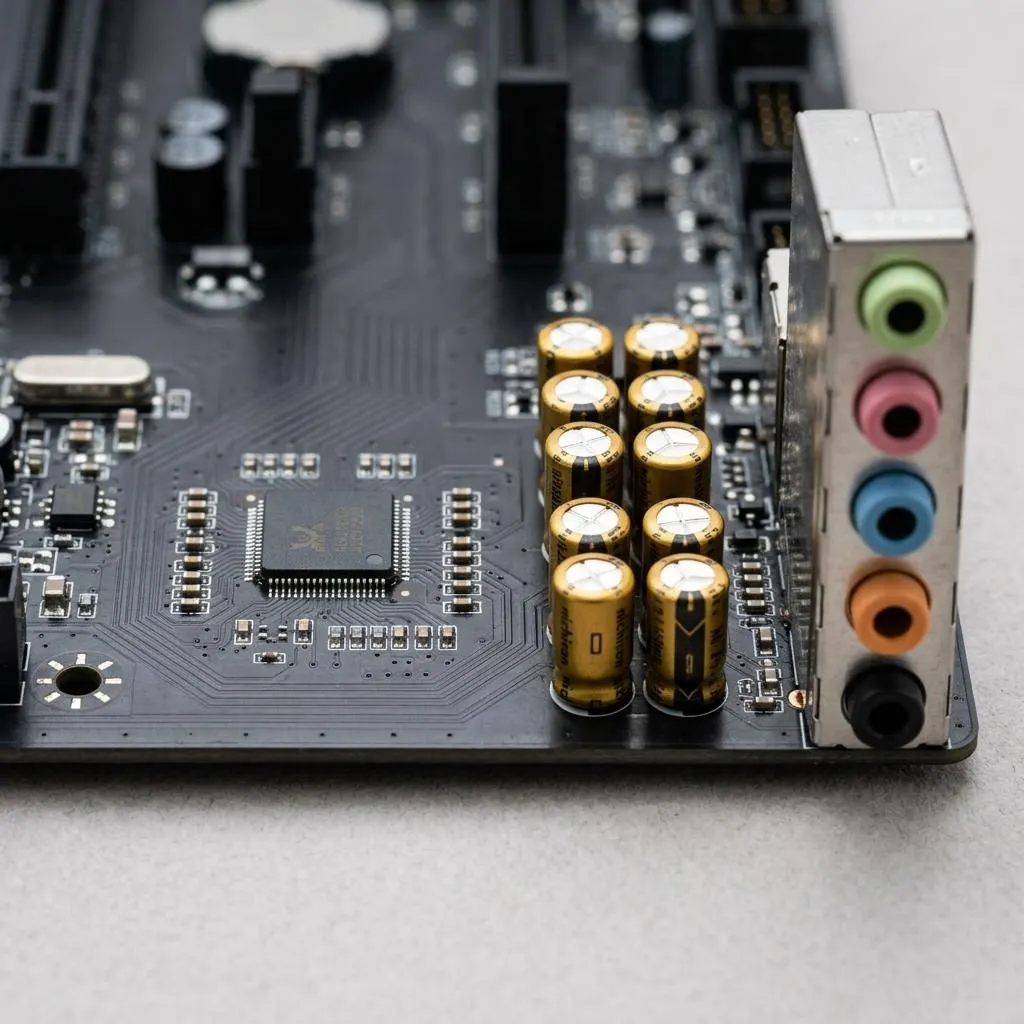
On the motherboard
The codec, the jacks and why front ports differ
Onboard sound on most Windows PCs is a small codec chip on the motherboard, wired to the rear jacks and, through an internal cable, to the front-panel jacks on the case. The driver for it often includes jack detection: it notices when a plug goes in and may switch output automatically, or ask what you connected.
That is why the rear jack can work while the front one stays silent. The front panel depends on an internal header cable that might be loose, and the maker's audio control software may treat front and rear outputs as separate devices or a single combined one. Before reinstalling anything, test the rear jack. If rear works and front does not, the issue is more likely physical or a jack-detection setting in the maker's audio app than the driver itself.
Do not open a laptop for this. On a desktop, reseating the front-panel audio header is a simple job only with the computer shut down and unplugged; if you are unsure, leave it for someone experienced.
FAQ
Questions people actually ask
Is no sound always a driver problem?
No. The most common causes are the wrong output device selected, a muted app, or a loose cable. Check the output device and volume first. A driver is the likely cause when the device shows a warning in Device Manager or vanishes from the output list.
Why did my sound stop after a Windows update?
An update can replace a computer maker's audio driver with a more generic one, or change the default output device. Check the selected output first, then compare the driver provider and date on the Driver tab with what your computer maker offers for your model.
Do USB headsets need their own driver?
Most do not. Windows 11 and macOS include a standard USB audio class driver that works with typical headsets and microphones. Some headsets offer a companion app from their maker for extra controls, but sound should work without it.
Why is HDMI sound separate from my speaker sound?
Audio over HDMI or DisplayPort is provided by the graphics hardware and its driver, not by the onboard sound chip. If only HDMI audio is missing, look at the graphics driver and the selected output, not the onboard audio driver.
Can I install an audio driver on my Mac?
Built-in Mac audio is handled by macOS, and its drivers are updated through Software Update. Some professional audio interfaces need software from their maker; check that maker's site for a version that lists your macOS release.