
Setup
How to roll back a driver after a bad update in Windows 11
When a device broke right after a driver update, use Roll Back Driver in Windows 11, and know the safer routes when the button is greyed out.
What this section covers
A driver update is supposed to fix things, but now and then it breaks them: the sound stops, the screen flickers, the Wi-Fi drops. Windows 11 includes a Roll Back Driver button that returns one device to the driver it used before. This guide explains when rolling back is the right move, how to do it, why the button is sometimes unavailable, and what to do then. Macs do not have this option; there, built-in drivers move with macOS itself.
First, decide whether a roll back fits
Rolling back only makes sense when the problem started right after a driver changed. If the problem was there before, or arrived with no driver change, the cause is probably elsewhere, and rolling back will not help.
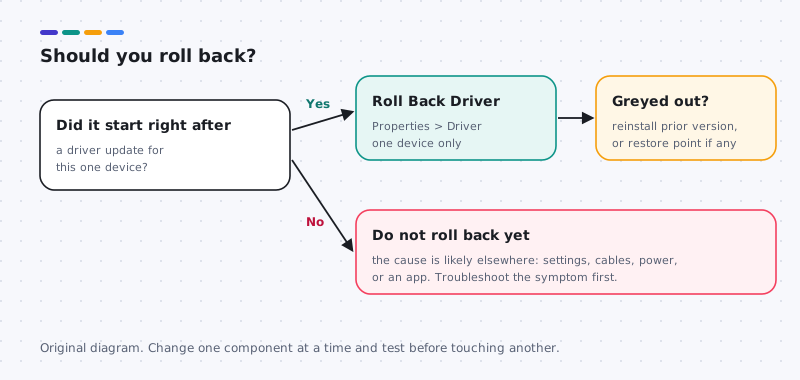
- Note what stopped working and roughly when.
- Check whether a driver changed around then. Open Settings > Windows Update > Update history and expand Driver updates. In Device Manager, the device’s Events tab also shows recent driver installs.
Roll back the driver
You need administrator rights. On a work or school computer, your IT department may need to do this for you.
- Right-click Start and choose Device Manager.
- Expand the category and right-click the affected device, then choose Properties.
- Open the Driver tab and note the current provider, version and date.
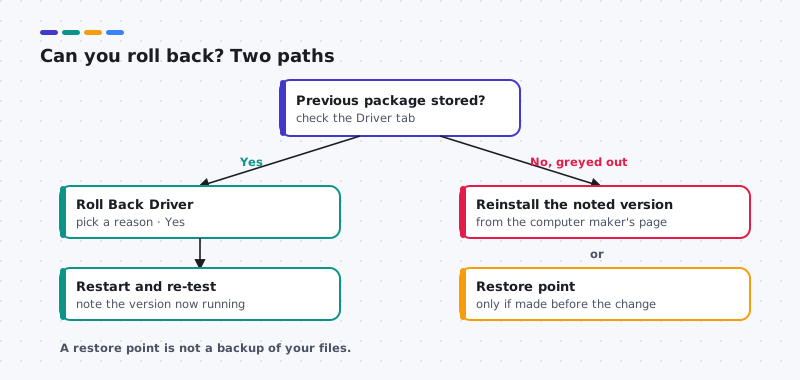
- Select Roll Back Driver. Windows asks why; pick the closest reason and select Yes.
- Restart the computer, even if Windows does not ask.
- Open the Driver tab again and confirm the version changed. Then test the device properly.
When the button is greyed out
Roll Back Driver is unavailable when Windows has no previous driver stored for that device, or when you are not signed in as an administrator. Here are safer routes, in order.
- Reinstall the earlier version from the maker. Go to your computer maker’s page for your exact model, find the previous release you recorded, and install it. For laptops, use the laptop maker before any chip maker.
- Use a restore point, if one exists. Search for “Create a restore point”, open the System Protection tab, and select System Restore. Pick a point from before the update. Do not assume one exists: System Protection can be off, and a point is only there if it was created.
- If Windows will not start normally, the Windows recovery environment offers System Restore and Safe Mode from Troubleshoot > Advanced options. Use System Restore there if a restore point exists. Safe Mode loads a minimal set of drivers, which can let you roll back from Device Manager.
What not to do
- Do not roll back every driver after a big update. Change one component, then test.
- Do not uninstall devices or remove driver packages in bulk hoping to start fresh.
- Do not change storage controller, chipset or firmware settings to work around a single device’s problem.
- Do not use third-party updater tools to find an older driver. Your computer maker’s archive is the safe source.
After the fix
Write down which driver version works for you. Check your computer maker’s page every so often for a corrected release; when one arrives, read its notes, create a restore point, and try it. Until then, a working older driver is a perfectly good driver.
A common case
When gestures change after an update
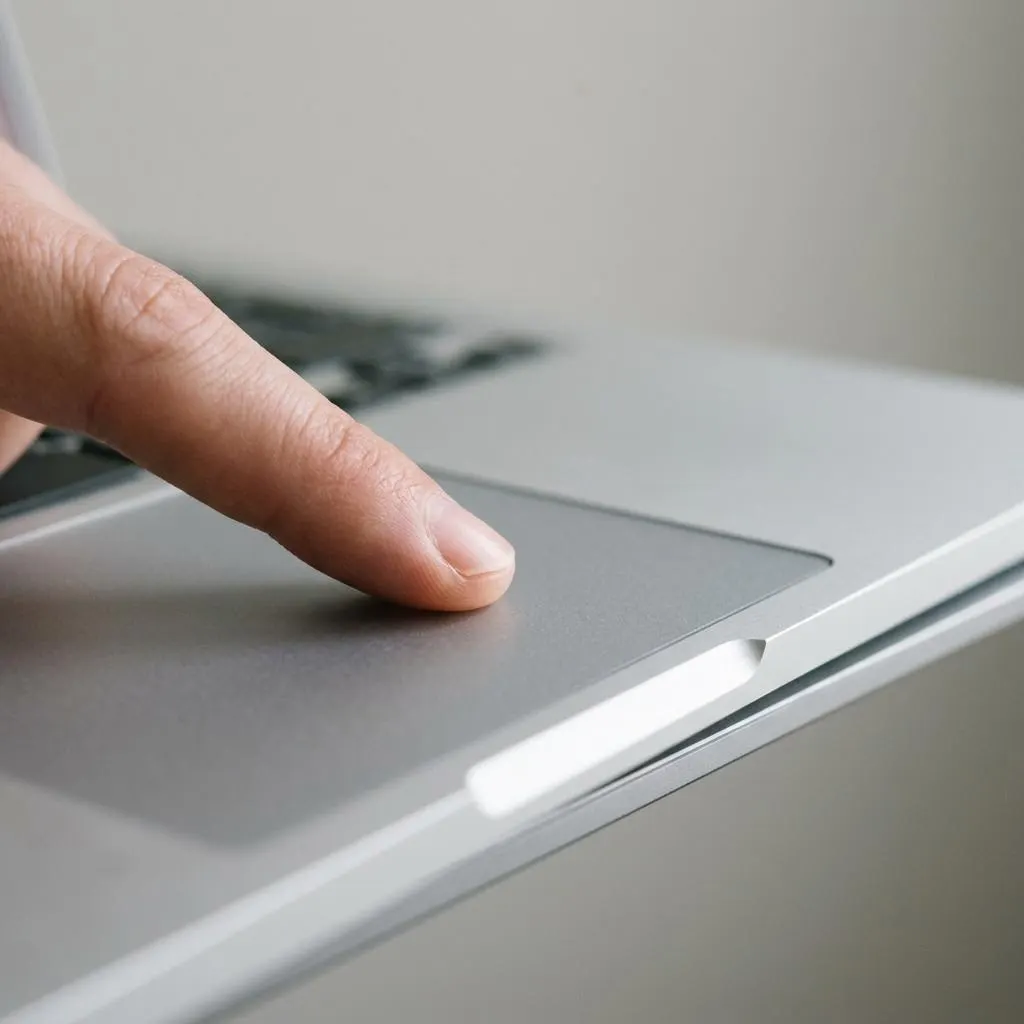
Touchpads are a frequent reason people want to roll back: scrolling direction flips, gestures stop, or the cursor feels different after an update. Before rolling back, check Settings, Bluetooth and devices, Touchpad. Updates sometimes reset gesture settings without changing the driver at all.
If settings are correct, check the driver details. Laptop touchpads may use a precision touchpad driver from Microsoft or a maker driver, and an update can swap one for the other. If Driver Provider or Version changed right when the problem began, Roll Back Driver on that device is a reasonable, reversible step.
- Keep a USB mouse within reach in case the touchpad stops entirely during the change.
- Roll back only the touchpad device, not other input devices listed nearby.
Worked example
Example: rolling back, then stopping it from returning
Scenario: you rolled back a Bluetooth driver and the problem disappeared, but you worry the same update will reinstall.
- Record the working driver version and date from the Driver tab, so you can recognize the problem version if it appears again.
- Check Settings, Windows Update, Update history over the next few days for a reinstall of that driver.
- If it returns, check the device maker's support page for a newer version that fixes the issue, which is a better long-term answer than blocking updates.
- If you must block it temporarily, use Microsoft's documented methods for hiding a specific update, and remember to revisit it later.
On work or school computers, report it to IT instead. They may manage driver updates centrally, and local blocks can be overridden.
Check the other end
Some problems belong to the device, not the driver
A roll back only changes software on the computer. Wireless speakers, headsets, mice and keyboards have their own firmware and pairing records. If a Bluetooth speaker misbehaves with every computer and phone you try, rolling back your computer's driver will not fix it.
Test the accessory with another device first. If it misbehaves everywhere, check the accessory maker's instructions for resetting pairing or updating its firmware, which normally uses the maker's app.
If it works everywhere except this computer, and the trouble started with a computer driver update, the roll back is well targeted. Remove and re-pair the device after the roll back so both sides start from a clean pairing.
FAQ
Questions people actually ask
Why is Roll Back Driver greyed out?
Windows only keeps the previous driver in some cases. If the device has only ever had one driver, or the earlier package is no longer stored, there is nothing to return to. The button also needs administrator rights. Reinstall the earlier version from your computer maker instead.
Will rolling back a driver delete my files?
No. Rolling back changes only the driver for that one device. Your documents, photos and apps are not touched. A System Restore also leaves personal files alone, but it can remove apps and drivers installed after the restore point.
Should I roll back all my drivers after a big Windows update?
No. Roll back only the driver for the device that started misbehaving. Rolling back many drivers at once can create new problems and makes it impossible to tell what fixed what.
Is a restore point the same as a backup?
No. A restore point saves system files, drivers and settings so Windows can return to an earlier state. It does not protect your personal files. Keep a separate backup of documents and photos.