
Setup
How to use Device Manager in Windows 11 without breaking anything
A careful tour of Device Manager in Windows 11: reading warning icons and error codes, checking drivers, and which buttons to leave alone.
What this section covers
Device Manager is the Windows 11 control room for hardware. It lists every device Windows knows about, shows which ones have problems, and gives you the buttons to update, roll back, disable or uninstall a driver. That last part is why people are nervous about it. This guide walks through the window, explains what each icon means, and separates the buttons that only look from the ones that change something.
Device Manager is a Windows tool. Macs have no equivalent; see the guide on checking installed drivers for what macOS shows instead.
Open Device Manager and read the tree
- Right-click the Start button and choose Device Manager. Typing “Device Manager” in the taskbar search box works too.
- Look at the list of categories, such as Audio inputs and outputs, Bluetooth, Display adapters and Network adapters. Select the arrow next to a category to expand it.
- Scan for icons on top of device names. A clean list with no icons means Windows sees no problems.
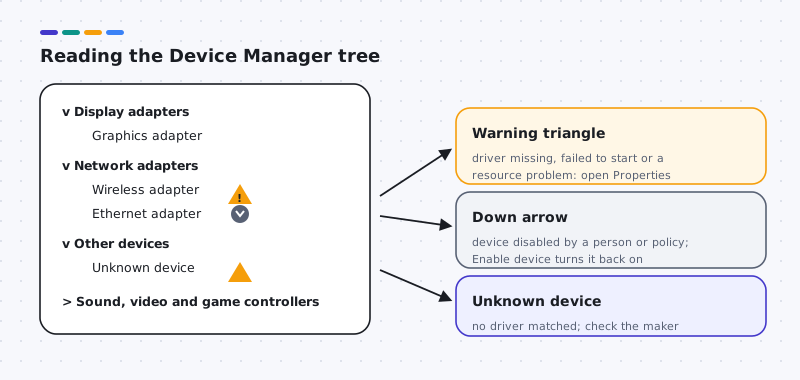
Here is what those icons mean:
- Yellow warning triangle: Windows sees the device, but its driver is missing, failed to start, or has a resource problem.
- Down arrow: the device is disabled. Someone, or a policy on a managed computer, switched it off.
- Unknown device under Other devices: no installed driver matched the hardware.
Read the device status
- Right-click a device with a warning icon and choose Properties.
- On the General tab, read the Device status box. It shows a message and often a code, such as “This device cannot start. (Code 10)”.
- Open the Events tab to see when the driver was installed or changed. That helps you connect a problem to a specific update.
- If a device seems to be missing, choose View > Show hidden devices. Faded entries are devices that were connected before but are not present now. That is normal; leave them alone.
- After plugging in hardware, choose Action > Scan for hardware changes to ask Windows to look again.
The Driver tab, button by button
The Driver tab in Properties holds all the buttons that change things. Each one needs administrator rights, and on work or school computers your IT department may block them entirely. If that happens, ask them; do not try to get around it.
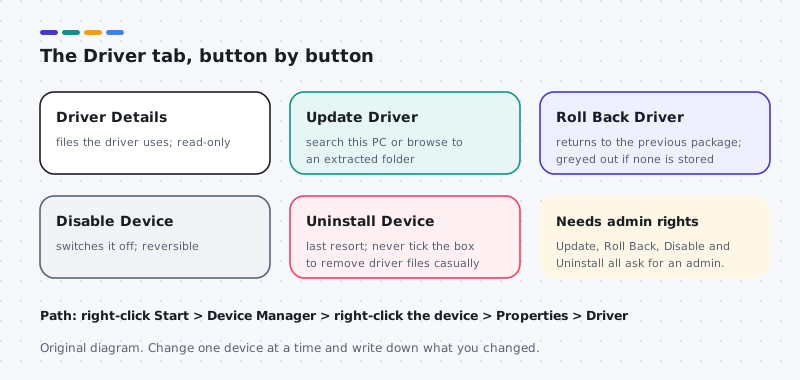
- Driver Details lists the files the driver uses. Safe.
- Update Driver offers two choices. Search automatically for drivers looks in the drivers already stored on your PC, so “the best drivers are already installed” does not mean you have the newest version available anywhere. Browse my computer for drivers lets you point to a folder you extracted from your computer maker’s site.
- Roll Back Driver returns to the previously installed driver. It is greyed out when no previous version is stored.
- Disable Device switches the hardware off without removing anything. Enable Device turns it back on.
- Uninstall Device removes the device entry. The dialog may include an option to delete the driver software. Leave it unticked unless the maker of your device instructs otherwise.
A safe routine for any change
- Record the current driver’s provider, version and date from the Driver tab.
- Back up your personal files. A backup protects documents and photos; a restore point does not.
- Create a restore point. Search for “Create a restore point”, choose your system drive on the System Protection tab, and check that protection is On. It is sometimes off by default. If it is off, select Configure, turn it on, then select Create. Do not assume a restore point already exists.
- Change one device at a time, restart, and test before you move to another.
Where to go next
If a device broke right after a driver update, follow the roll-back guide. If a device has no driver at all, read the guide on installing a driver from your computer maker. Device Manager is a diagnostic window first and a repair tool second; most visits should end with reading, not clicking.
Worked example
Example: reading a Code 10 without panicking
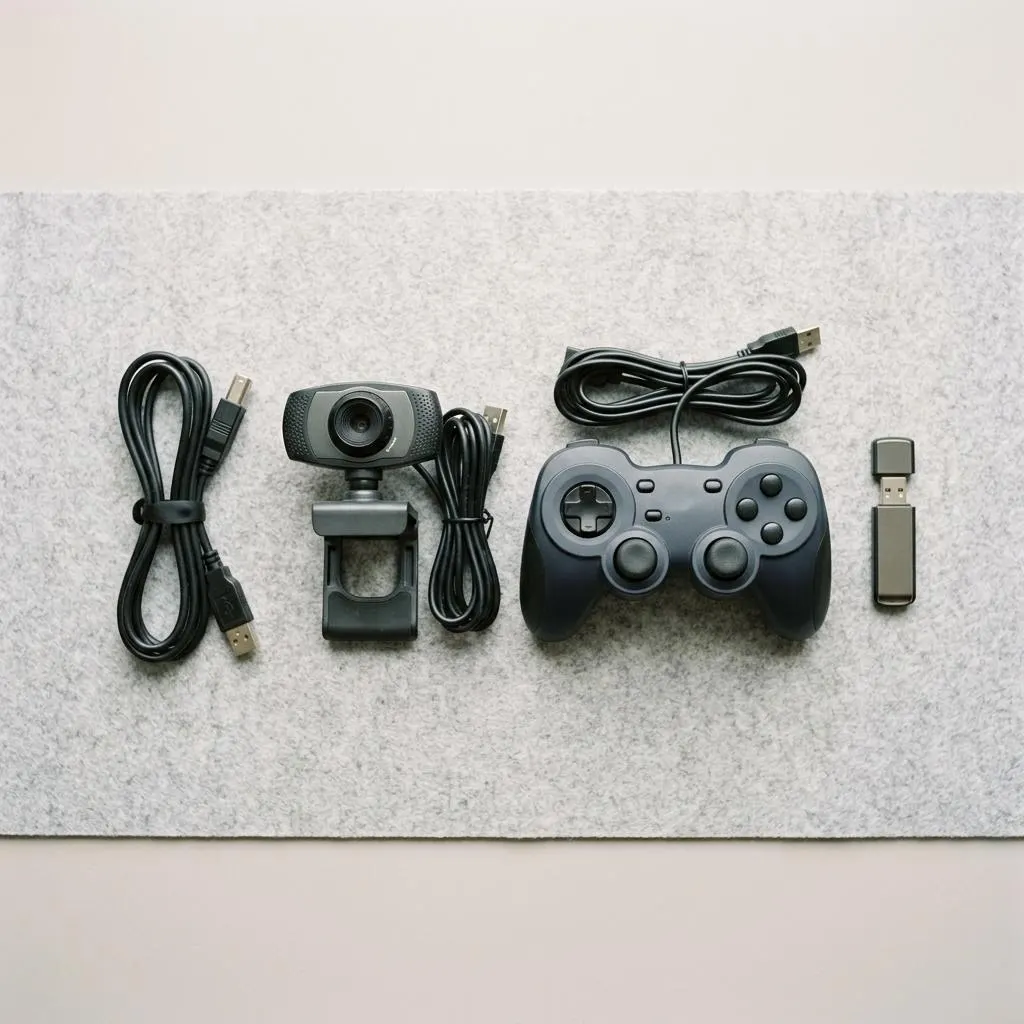
Scenario: a webcam shows a yellow mark, and its Device status reads that the device cannot start (Code 10). Code 10 is a general start failure; Microsoft's list of Device Manager error codes describes it and others. It does not by itself say the driver is wrong.
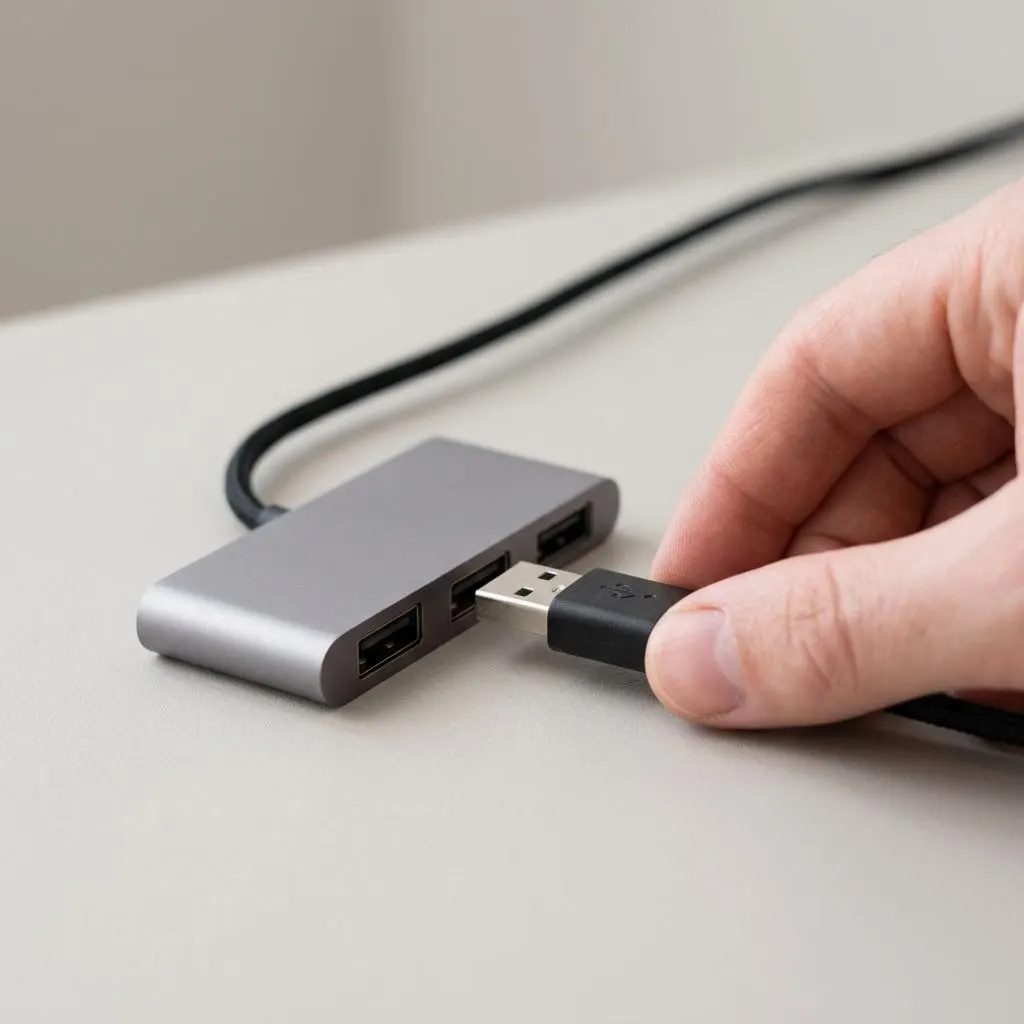
- Unplug the webcam, wait a few seconds, and connect it to a different USB port directly on the computer, not through a hub.
- Restart Windows fully using Restart rather than shutting down, then check the status again.
- Check Update history for a recent driver change to that device. If there is one and the problem began right after, a roll back of that single device is reasonable.
- If not, check the device or computer maker's support page for a driver for your exact model.
If the device fails on another computer too, the hardware is the likelier cause, and no driver change will help.
A safe refresh
Scan for hardware changes instead of uninstalling
When a device seems stuck, the Action menu's Scan for hardware changes asks Windows to re-enumerate connected hardware and load drivers again where needed. It changes nothing permanent and is a good step before anything stronger.
Physical reconnection does something similar for removable devices. Together they solve a meaningful share of devices that went missing after sleep or a hub hiccup.
Uninstall device is a stronger step. For removable devices it is often harmless because Windows reinstalls the driver on reconnection, but for internal devices such as storage controllers, display adapters or the network adapter you are using, it can leave you without a screen, a disk or a connection until a restart. Never tick the option to delete the driver software unless a specific guide for that device tells you to, and never use it on disk or storage controllers.
FAQ
Questions people actually ask
Does Search automatically for drivers find the newest driver online?
Not necessarily. It first looks in the drivers already stored on your PC. If it reports that the best drivers are already installed, that only means nothing better is stored locally or offered for your device. A newer version may still exist on your computer maker's website.
What does the yellow triangle in Device Manager mean?
Windows can see the device but something is wrong: the driver may be missing, may have failed to start, or the device may have a resource problem. Open Properties and read the Device status box on the General tab for the specific error code.
Why are the Update and Roll Back buttons asking for a password?
Changing drivers needs administrator rights. On a work or school computer, your organization may block these changes entirely. In that case, ask your IT department rather than trying to work around the restriction.
Should I uninstall a device to fix it?
Only as a later step, and never with the option to delete the driver software ticked unless a maker's instructions ask for it. Restarting, checking cables, and updating or rolling back the driver are safer first moves.