
Driver types
Graphics and display drivers: how they work and how to keep them healthy
What a graphics driver does, how to check its version on Windows 11 and macOS, safe ways to update it, and fixes for flicker, black screens and crashes.
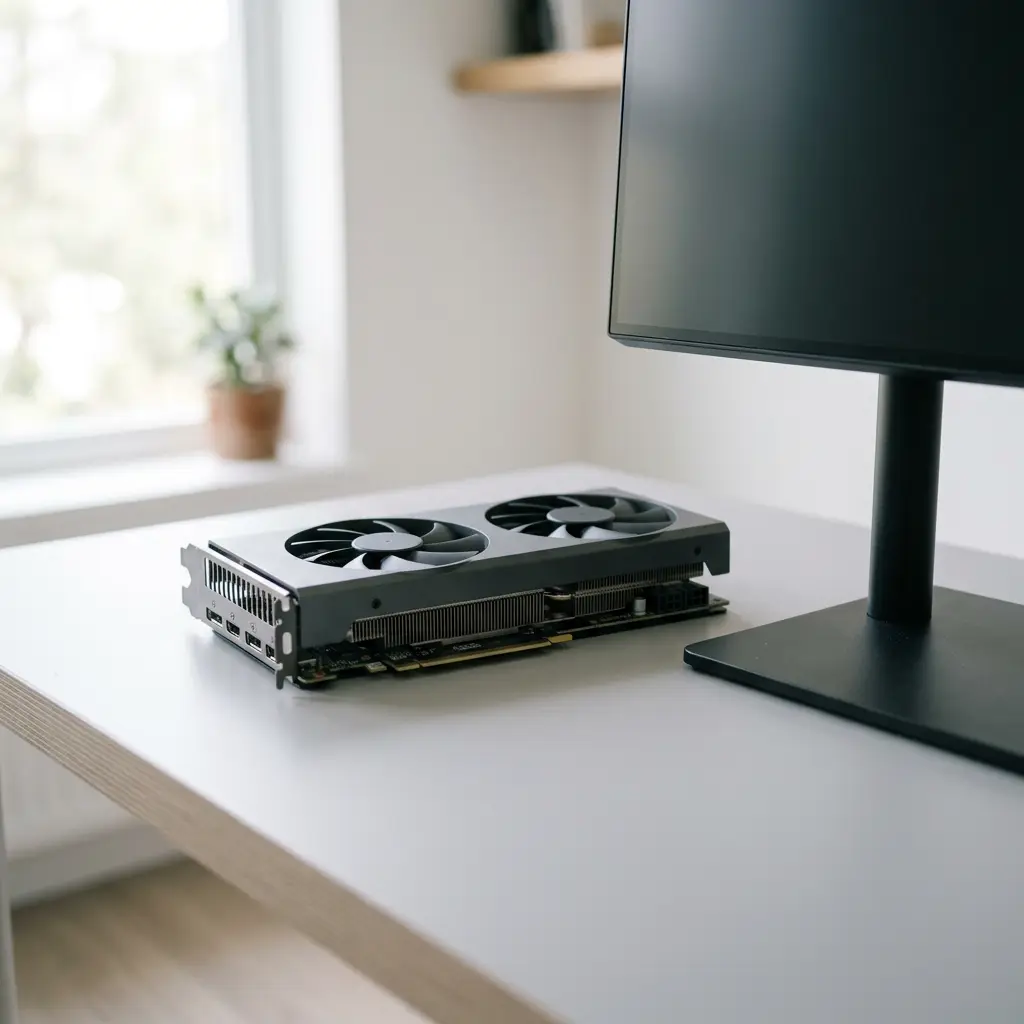
What this section covers
Every image you see on a computer screen passes through one piece of software first: the graphics driver. This guide explains what that driver does, how to find out which version you have on Windows 11 and macOS, how to update it without risky shortcuts, and how to work through the display problems people most often blame on it. Some of those problems really are the driver. Many are a cable, a setting or a refresh rate.
How graphics drivers work
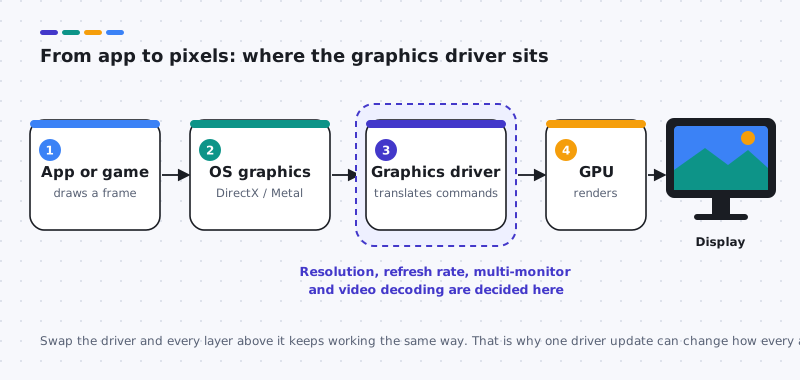
Apps and games never talk to the graphics chip (the GPU) directly. They hand drawing instructions to a graphics layer in the operating system, such as DirectX on Windows or Metal on macOS. The graphics driver sits underneath that layer and translates those general instructions into the specific commands your particular chip understands.
The driver also manages the display itself. It reports which resolutions and refresh rates a monitor supports, arranges multiple screens, handles color settings, and decodes video so playback does not drain the processor. That is why a single driver change can affect every app at once, from a web browser to a game.
Graphics drivers are among the largest and most frequently revised drivers on a PC. Chip makers such as NVIDIA, AMD and Intel publish new versions regularly, often to add compatibility fixes for new games and creative apps. Frequent releases are normal and do not mean your current version is broken.
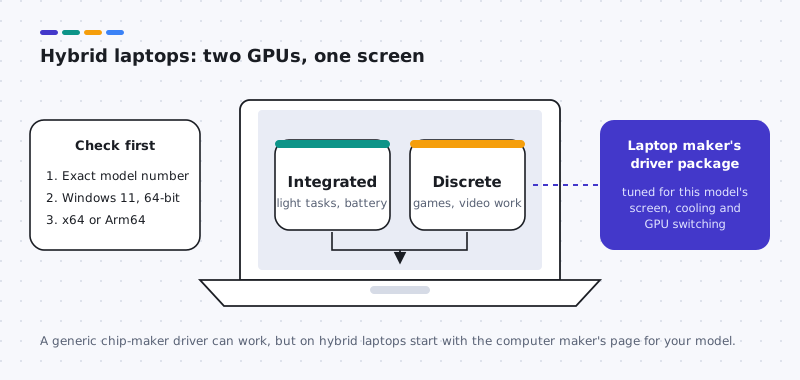
Many laptops have two graphics chips: an integrated one for battery life and a discrete one for heavier work. The computer maker’s driver package coordinates switching between them, which is why laptops are a special case when it comes to updates.
How to check your current graphics driver
Windows 11
- Right-click the Start button and choose Device Manager.
- Expand Display adapters. You will see one entry per graphics chip; hybrid laptops show two.
- Double-click the adapter you want (or right-click it and choose Properties).
- Open the Driver tab. Note the Driver Provider, Driver Date and Driver Version before you change anything.
macOS
- Choose Apple menu > About This Mac, then click More Info, scroll down and click System Report. (Holding the Option key while you open the Apple menu shows System Information directly.)
- Select Graphics/Displays in the sidebar to see the graphics hardware and connected displays.
System Information shows hardware details, but it does not list a separate version number for every built-in Mac driver. On a Mac, the macOS version is the practical answer to “which graphics driver do I have.”
How to update graphics drivers safely
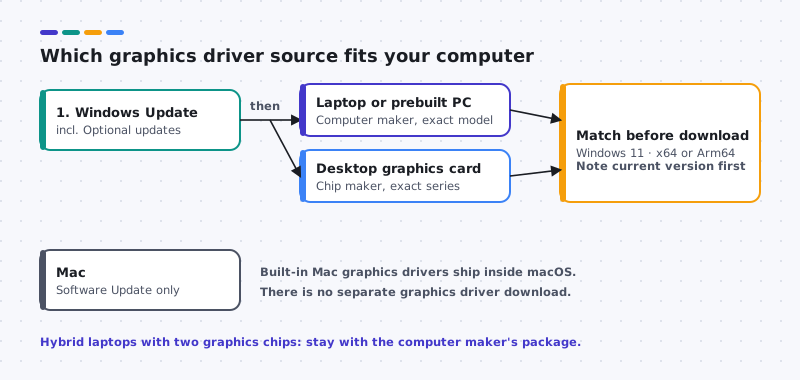
Windows Update first. Open Settings > Windows Update and install what is offered. Then check Advanced options > Optional updates, where Windows sometimes lists driver updates that are not installed automatically. Only install an optional driver if it matches hardware you have and you have a reason to.
Laptops and prebuilt PCs: the computer maker. Go to the maker’s website, enter your exact model or serial number, and pick drivers for Windows 11 and your processor type (most PCs are x64; some newer laptops are Arm64). These packages are matched to your hardware.
Desktop graphics cards: the chip maker. If you installed a separate graphics card, the card’s chip maker publishes drivers for it. Choose your exact product series and operating system.
Device Manager can also search: right-click the adapter, choose Update driver > Search automatically for drivers. It may report nothing newer even when a maker’s site has a newer release. Use Browse my computer for drivers only if you have already downloaded and extracted the correct package for this exact device from the maker, and point it at that folder.
On a Mac, built-in graphics drivers are updated with macOS. Use System Settings > General > Software Update. There is no Device Manager equivalent and no generic graphics driver to download.
Common graphics driver problems and how to fix them
Screen flickers or goes black for a moment
Likely causes: a loose or damaged cable, a refresh rate the monitor handles poorly, or a driver that recently changed.
- Reseat both ends of the display cable, or try another cable or port.
- In Settings > System > Display > Advanced display, choose a standard refresh rate such as 60 Hz and test again.
- If flicker began right after a driver update, open the adapter’s Driver tab and choose Roll Back Driver if it is available.
Wrong or blurry resolution, missing options
Likely causes: Windows is using the Microsoft Basic Display Adapter fallback, or the monitor is not reporting its capabilities.
- In Device Manager, check whether Display adapters lists “Microsoft Basic Display Adapter”. If so, the proper driver is missing.
- Run Windows Update, including Optional updates.
- If nothing is offered, install the driver for your exact model from the computer or card maker.
Black screen after a driver update
Likely causes: the new driver failed to start or doesn’t suit this hardware.
- Wait a few minutes, then restart the computer.
- If the screen stays black, start Windows in safe mode (hold Shift while choosing Restart, then Troubleshoot > Advanced options > Startup Settings).
- In safe mode, open Device Manager and use Roll Back Driver, or restore your restore point.
Games or creative apps crash or stutter after updating
Likely causes: a compatibility issue between this driver version and the app, or overlays and overclocking tools.
- Update the app itself and check its known-issues page.
- Turn off overlays and any overclocking utility, then test.
- If the problem started with the new driver, roll back to the version you noted earlier and wait for the next release.
Second monitor not detected
Likely causes: cable or input selection, a dock that needs its own update, or a display mode setting.
- Confirm the monitor is set to the right input, and try another cable.
- In Settings > System > Display, choose Multiple displays > Detect.
- If you use a dock, check the computer maker’s site for dock firmware and drivers.
Physical check
Which socket is your monitor really using?
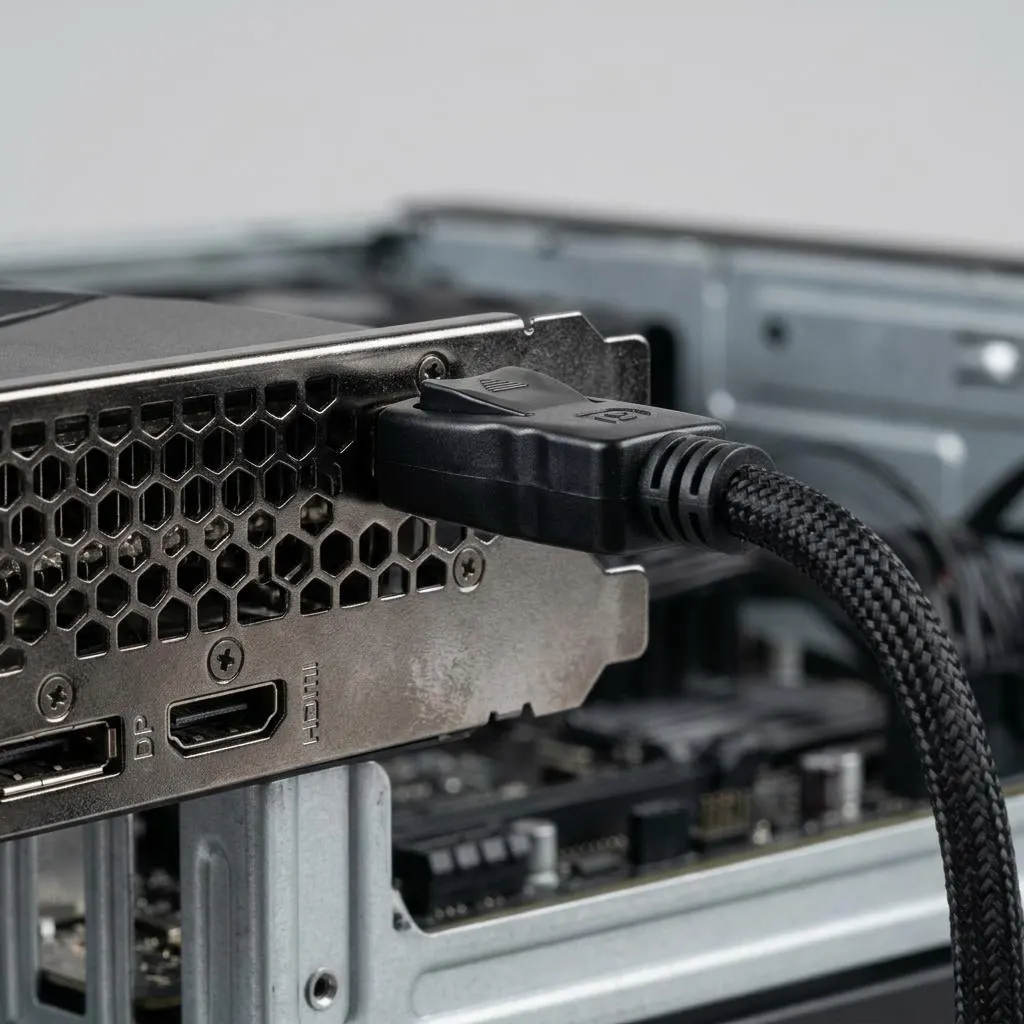
A desktop with a separate graphics card usually has two sets of video sockets: one on the motherboard's rear panel and one on the card's metal bracket further down. If the monitor cable goes into the motherboard socket, the picture comes from the processor's integrated graphics, and the graphics card driver you just updated may not be involved at all.
That single detail explains a lot of confusing reports: a game that ignores the new card, a resolution list that looks too short, or Device Manager showing two display adapters while only one seems to work. Follow the cable before you change any driver.
- Desktop with a card: connect to the card's bracket unless you deliberately want integrated graphics.
- Laptop with two graphics chips: Windows 11 decides per app which chip renders; the built-in screen is often wired through the integrated chip, so both drivers matter.
- Mac: graphics drivers are part of macOS, so there is no separate package to choose; check the cable, adapter and display settings instead.
Worked example
Example: a new monitor stuck at 60 Hz
Scenario: a monitor advertised at 144 Hz only offers 60 Hz in Windows 11. It is tempting to reinstall the graphics driver. A calmer order of checks:
- Open Settings, System, Display, then Advanced display, and look at the refresh rate list for that monitor. If higher rates are missing, the limit is usually upstream of the driver.
- Check the cable type and the port. Older HDMI cables and some adapters cannot carry high refresh rates at high resolutions; the monitor's manual lists which input supports which rate.
- Check the monitor's own on-screen menu. Some models ship with a high-refresh or overclock setting switched off.
- Only then compare the graphics driver version with the one offered by your computer or graphics card maker, and update that single driver if it is clearly older.
If none of this changes the list, the monitor or adapter may simply not support that mode over your connection. Reinstalling the same driver repeatedly will not add a refresh rate the link cannot carry.
Laptops
External screens on laptops: dock, adapter or driver?
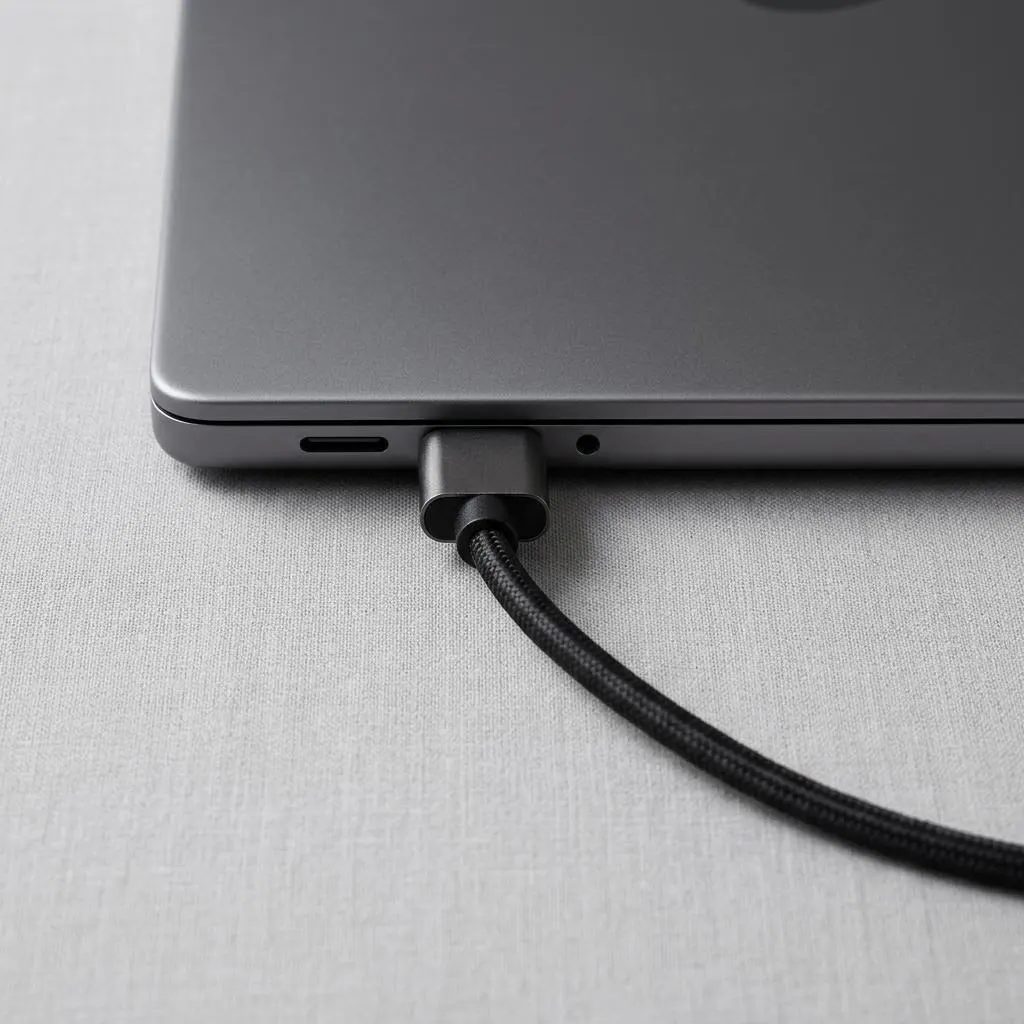
When a laptop's external monitor fails, three different layers can be at fault. The port itself may be a USB-C socket that only carries video on some models, which the maker's specifications state. A dock or adapter may have its own firmware or, for some DisplayLink-style docks, its own separate driver from the dock maker. And finally there is the graphics driver.
Test with the simplest path you have: a direct cable from the laptop's video port to the monitor, no dock. If the direct path works, the graphics driver is very likely fine and attention belongs on the dock, its power supply or its maker's support page.
Keep the laptop maker's graphics package in mind too. Some laptop makers customize graphics drivers for their models, and the generic package from the chip vendor may refuse to install or may change behaviour. When in doubt, start from the laptop maker's support page for your exact model.
FAQ
Questions people actually ask
Do I need the newest graphics driver if nothing is wrong?
Usually not. If your screen, video and apps behave, the driver you have is doing its job. A newer version is worth installing when a game or creative app you use asks for it, when release notes mention a problem you actually have, or when Windows Update offers it.
Should a laptop use the chip maker's driver or the laptop maker's driver?
Start with the laptop maker's page for your exact model. Laptop packages are often tuned for that model's screen, cooling and switching between two graphics chips. A chip maker's generic driver may work, but if it causes trouble, return to the laptop maker's version.
Why does Device Manager say the best driver is already installed?
Device Manager's automatic search only looks at what Windows already has and what Windows Update offers. It does not search every manufacturer website, so that message does not prove a newer version doesn't exist. It only means Windows has nothing newer to give you.
Can I download a graphics driver for my Mac?
For the graphics hardware built into a Mac, no separate download is needed. Apple delivers those drivers inside macOS updates, so keeping macOS current through Software Update is the way to keep graphics current.
Is a black screen during driver installation normal?
A brief flicker or a few seconds of black screen is normal while the display driver restarts. If the screen stays black for several minutes, wait a little longer, then restart. If it is still black, start Windows in safe mode and roll back the driver.
Will a clean reinstall make my graphics faster?
Not by itself. A clean reinstall can fix problems caused by leftover settings from an older version, but it is not a performance tune-up. Try it only after simpler fixes, and only with an installer you downloaded from the device or computer maker.