
Driver types
Storage and disk drivers: SSDs, NVMe and keeping data safe
How storage controller drivers work, how to check hard drives and solid-state drives on Windows 11 and macOS, and cautious fixes that protect your data first.
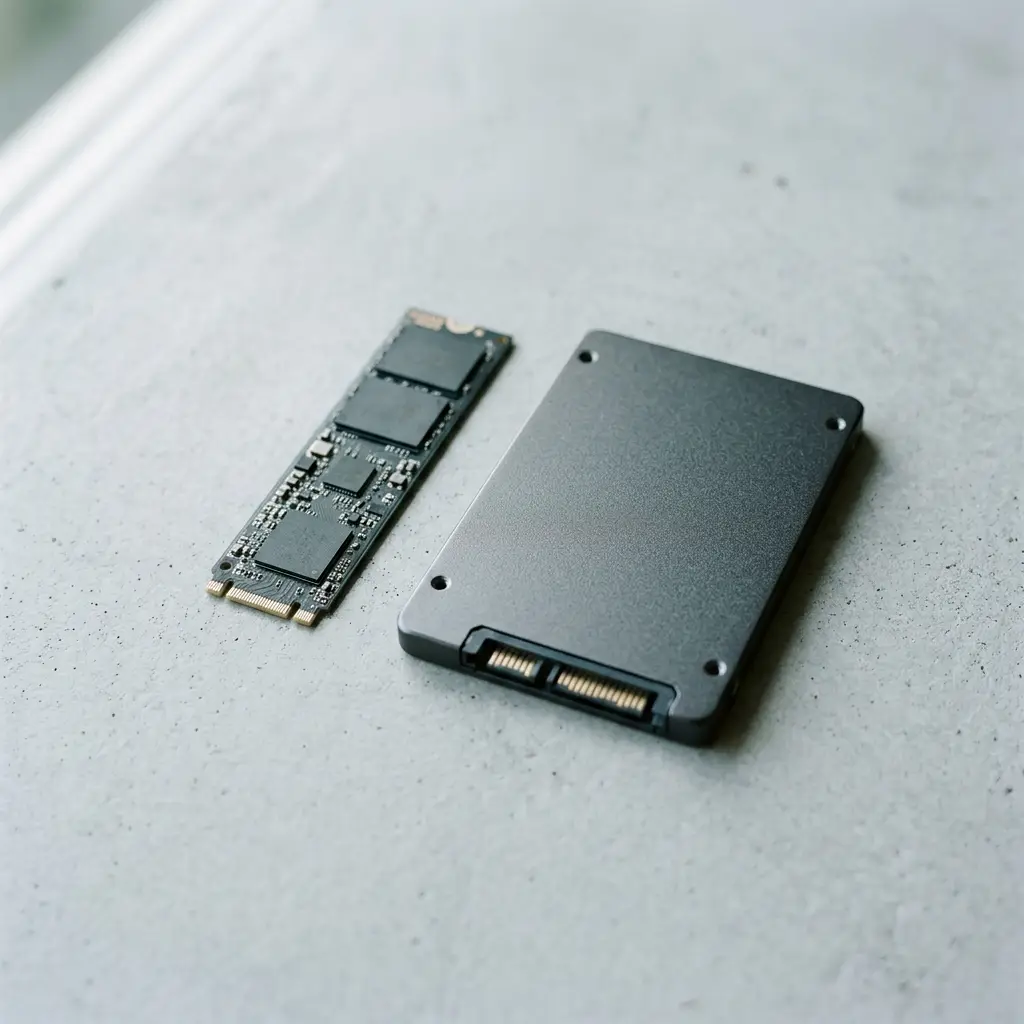
What this section covers
Storage drivers sit beneath every file you save, including the drive your computer starts from. That makes them the one driver category where caution matters more than speed. This guide explains how storage controller drivers work, how to check them on Windows 11 and macOS, when an update makes sense, and how to handle a missing or slow drive without risking your data.
How storage drivers work
A drive does not talk to Windows directly. It connects to a storage controller, and a controller driver passes requests between the system and the drive. For most computers, the drivers are built in: Windows includes a standard AHCI driver for SATA drives and an inbox NVMe driver (StorNVMe) for NVMe SSDs. macOS includes the storage drivers for its own hardware.
The computer’s firmware decides which mode the controller runs in. Some PCs, especially laptops with Intel processors, use a redundant array of independent disks (RAID), Intel Rapid Storage Technology or Volume Management Device mode. In those modes Windows needs the PC maker’s storage driver, sometimes even during Windows setup before the drive becomes visible.
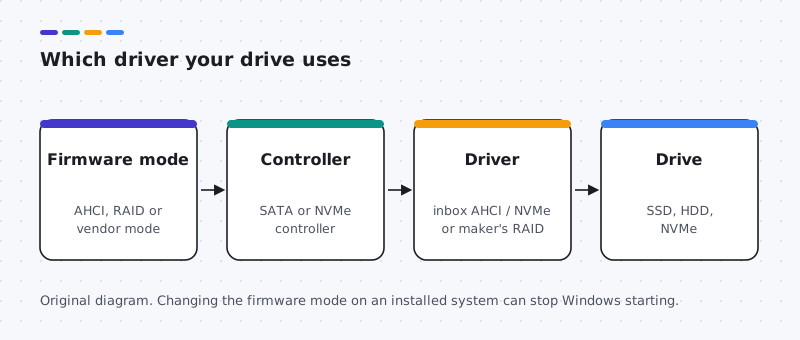
Drive firmware is a third, separate layer. It runs on the drive itself and is updated with the drive or PC maker’s tool.
How to check your current storage driver
Windows 11
- Right-click Start and open Device Manager.
- Expand Storage controllers. “Standard NVM Express Controller” or “Standard SATA AHCI Controller” means a built-in driver. A name such as Intel RST or VMD means a maker driver.
- Expand Disk drives to see each drive’s model.
- Right-click Start and open Disk Management to see drives and partitions. Use it only to look; do not create, delete or format anything here while troubleshooting.
macOS
- Open System Report and select NVMExpress, SATA or Storage to see drives and connection types.
- Disk Utility shows volumes and can run First Aid on a disk, which checks it without erasing.
- Storage drivers are part of macOS and update through System Settings > General > Software Update.
How to update storage drivers safely
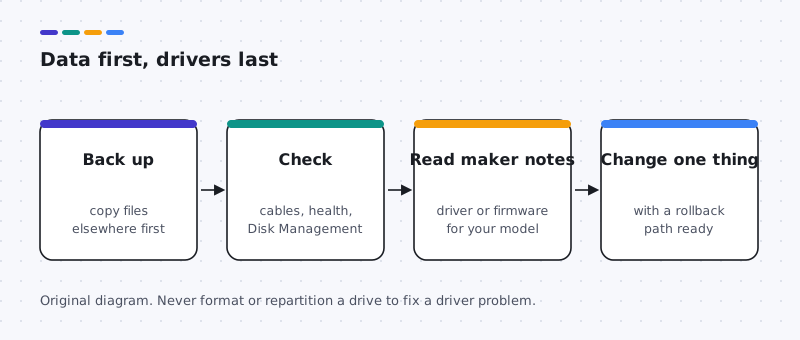
- Back up. Copy important files to an external drive or cloud storage. On a Mac, Time Machine is built in.
- Windows Update. Install offered updates, then look at Advanced options > Optional updates. Install a storage driver only if it is listed for your hardware.
- Your PC maker’s support page. For vendor-managed storage controllers or disk arrays, use the storage driver listed for your exact model and Windows 11.
- Create a restore point before the change, and restart once afterward.
- Leave modes alone. Do not switch storage controller modes in firmware settings on an installed system unless your maker documents the procedure and you have a backup.
Common storage and disk driver problems and how to fix them
Second drive missing from File Explorer
Likely causes: a loose cable, no drive letter, or a drive that is failing.
- Check whether it appears in Disk Management or under Disk drives in Device Manager.
- On a desktop, power off and reseat the data and power cables.
- If Disk Management offers to initialize a drive that holds data, decline and copy data first.
Windows setup cannot find a drive
Likely causes: the controller runs in RST or VMD mode and setup needs the maker’s driver.
- Download the storage driver for your exact model from the PC maker and extract it to a USB stick.
- In setup, choose Load driver and point to that folder.
- Do not change firmware storage modes unless the maker documents it.
Very slow transfers or freezes
Likely causes: a failing drive, a full drive, or a driver mismatch after an update.
- Back up immediately if the drive clicks or disconnects.
- Check free space and run the drive maker’s health tool or Disk Utility First Aid.
- If it started after a driver update, use Roll Back Driver on the controller’s Driver tab.
Computer will not start after a storage change
Likely causes: a changed firmware storage mode or an incompatible controller driver.
- Undo the firmware setting you changed, if any.
- Use Windows recovery to run System Restore to a point before the change.
- Contact your PC maker before trying repairs that erase data.
Mechanical and solid state
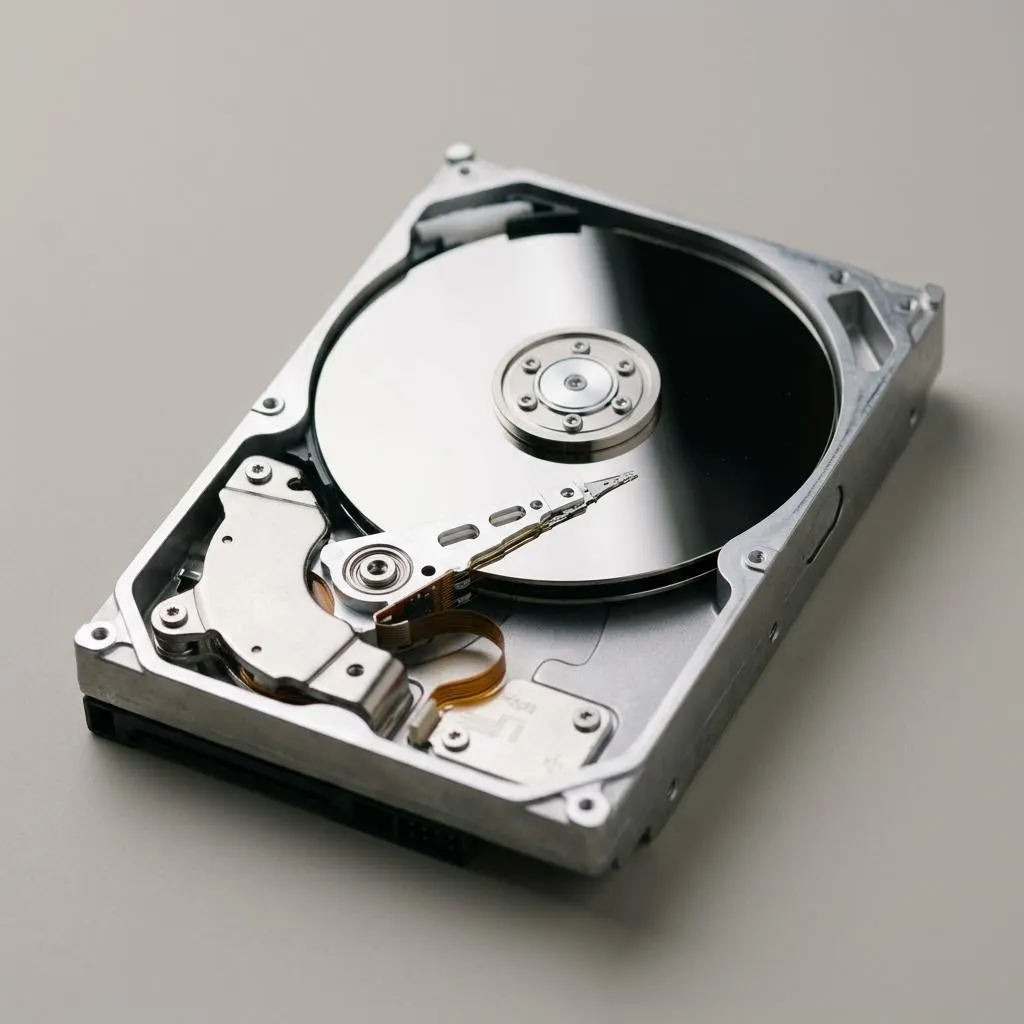
Inside a traditional hard drive
Spinning hard drives and SSDs use the same storage stack in Windows but fail differently. Clicking, repeated disconnects or very slow access on a hard drive point to the hardware, and copying data off comes before any driver step.
SSDs tend to fail more quietly: sudden read-only behaviour, missing from the firmware's drive list, or errors in the drive maker's health tool. In every case, a driver change cannot repair worn or damaged storage.
- Unusual noise or repeated disconnects: back up now, then investigate.
- Healthy drive, slow only after an update: consider rolling back the controller driver.
- Drive missing everywhere, including firmware settings: hardware or connection, not the driver.
Worked example
Example: a new SSD that does not appear
Scenario: you added a second SSD to a desktop. Windows starts normally but the new drive is nowhere in File Explorer. A careful order:
- Open Disk Management. A brand-new, empty drive often appears as Not Initialized. Only for a new empty drive is it appropriate to initialize it and create a volume.
- If it does not appear at all, check Device Manager under Disk drives, then power off and reseat the drive and cables.
- Check the motherboard manual: some M.2 slots share lanes with SATA ports and disable them when used.
- Only after these checks look at the storage driver for your board model.
Never initialize or format a drive that came from another computer or holds data you want. Copy the data first using a computer that can read it.
Before any change
A backup you have actually tested
A backup only counts if you can restore from it. Before a storage driver or firmware change, open your backup and confirm that a few recent files are really there and open correctly.
Keep at least one copy on a separate device that is unplugged after the backup finishes. If BitLocker or FileVault encryption is on, store the recovery key somewhere you can reach from another device, because firmware or storage changes can prompt for it.
FAQ
Questions people actually ask
Should I change the controller mode to install a different driver?
Not on a working system without the PC maker's documented procedure. Changing the storage mode in firmware settings after Windows is installed can stop it starting. Back up first and follow your maker's instructions if a change is truly needed.
Do NVMe drives need a driver from the drive maker?
Usually not. Windows includes an NVMe driver and macOS supports NVMe drives it ships with. Some drive makers offer their own driver or tools; install them only if their page lists a benefit for your model.
Windows setup cannot see my drive. What now?
Many laptops use Intel RST or VMD storage modes that need the PC maker's storage driver during setup. Load the driver from the maker's support page for your model rather than changing firmware settings.
Is SSD firmware the same as a storage driver?
No. Firmware runs on the drive itself. Updates can fix real bugs but an interrupted update can make a drive unusable. Back up first and use only the drive or PC maker's tool for your exact model.
Disk Management says my drive needs to be initialized. Should I?
Not if the drive holds data. Initializing prepares a blank disk and can make existing data hard to recover. Stop, check cables and power, and get the data copied before anything else.