
Start with your hardware
Know your driver types
Graphics, audio, network, chipset and more. Each driver does a different job, fails in different ways and updates through different channels. Here is the map.
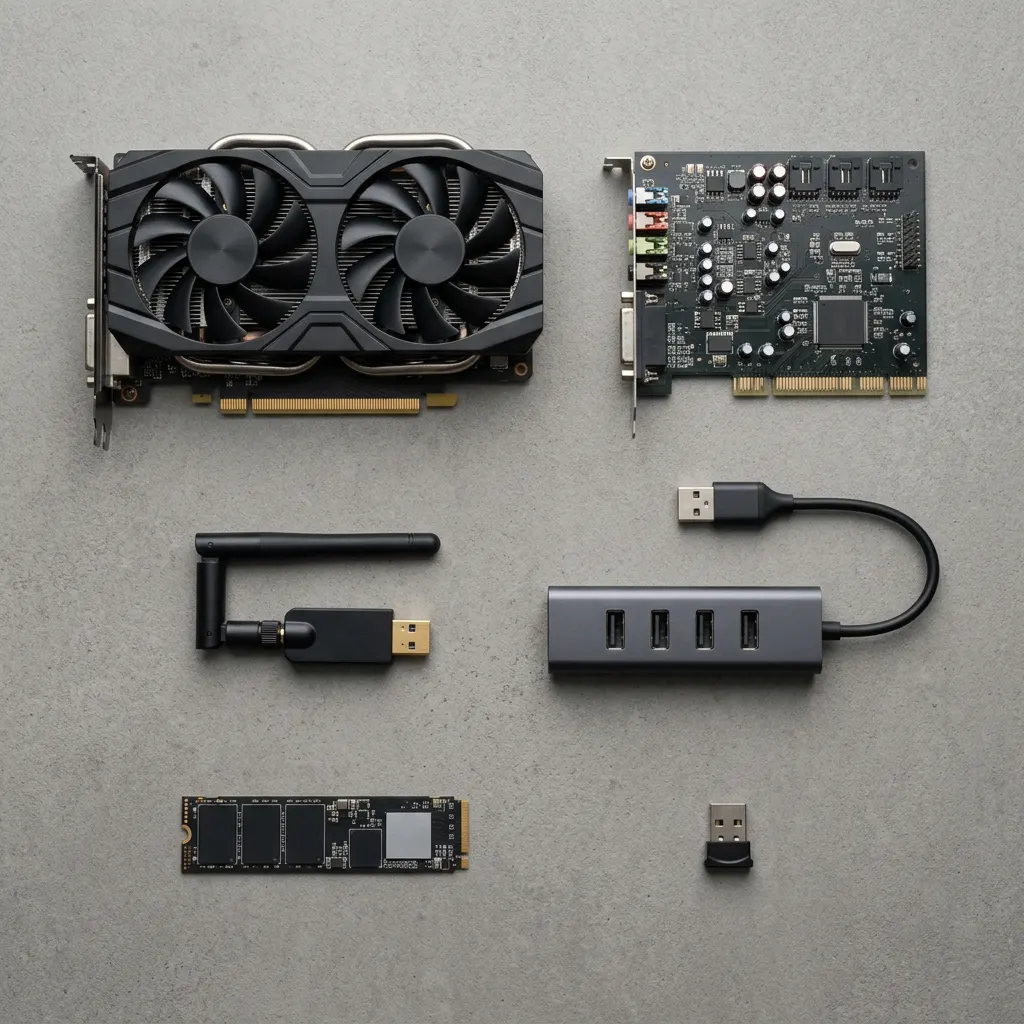
Eight categories
Pick your driver type
8 full guides. Every card opens a complete guide: graphics, audio, network, printer, chipset, USB, Bluetooth and storage.
Graphics & Display
Turns what your apps draw into pixels on the screen. Handles resolution, refresh rate, multiple monitors, video playback and games, and is one of the most frequently updated drivers on any PC.Full guideAudio & Sound
Connects the operating system to speakers, headphones, microphones and audio jacks. It decides which outputs appear, and is often the culprit when sound vanishes after an update.Full guideNetwork & Wi-Fi
Lets Wi-Fi and Ethernet adapters move data. Power-saving settings and outdated versions here explain many dropped connections and missing networks.Full guideChipset & Motherboard
The plumbing between the processor, memory, storage and ports. Rarely noticed, but it shapes stability, power management and whether other devices are detected at all.Full guideUSB & Peripherals
Covers ports, hubs and the keyboards, mice and controllers plugged into them. Most of it ships with the operating system; extras come from the device maker.Full guideBluetooth
Handles wireless pairing for headphones, keyboards, mice and controllers. Pairing failures and audio dropouts often trace back to this driver or its power settings.Full guideStorage & Disk
Manages how SSDs, hard drives, NVMe drives and RAID controllers talk to the system. Affects speed, reliability and whether a drive shows up at all.Full guidePrinter & Scanner
Translates documents into something your printer understands and brings scans back. Many printers now work with the system's built-in driver; others need the maker's package.Full guide
Side by side
Compare all driver types
What each type controls, where updates normally come from, and the problem people notice first. Every row links to its full guide.
| Driver type | What it controls | Where updates come from | Common problems |
|---|---|---|---|
| Graphics & DisplayFull guideRead the full guide → | Drawing the screen, resolution, refresh rate, games and video | Graphics chip maker or PC maker website, Windows Update | Flicker, black screen, wrong resolution |
| Audio & SoundFull guideRead the full guide → | Speakers, headphones, microphones, audio jacks | PC or motherboard maker website, Windows Update | No sound, missing output device |
| Network & Wi-FiFull guideRead the full guide → | Wi-Fi and Ethernet adapters | PC or adapter maker website, Windows Update | Drops, no networks found |
| Chipset & MotherboardFull guideRead the full guide → | How the processor talks to everything else | PC or motherboard maker website | Instability, devices missing |
| USB & PeripheralsFull guideRead the full guide → | Ports, hubs, keyboards, mice, controllers | Mostly built into the OS; device maker for extras | Device not recognized |
| BluetoothFull guideRead the full guide → | Wireless pairing for audio and input | PC or adapter maker website, Windows Update | Won't pair, keeps dropping |
| Storage & DiskFull guideRead the full guide → | SSDs, hard drives, NVMe and RAID controllers | PC, motherboard or drive maker website | Slow disk, drive missing |
| Printer & ScannerFull guideRead the full guide → | Sending pages to print and receiving scans | Printer maker website, OS built-in printing | Printer offline, driver unavailable |
Find your hardware
Which driver type is involved?
Most problems belong to one driver type. These two views help you pick the right guide before you change anything.
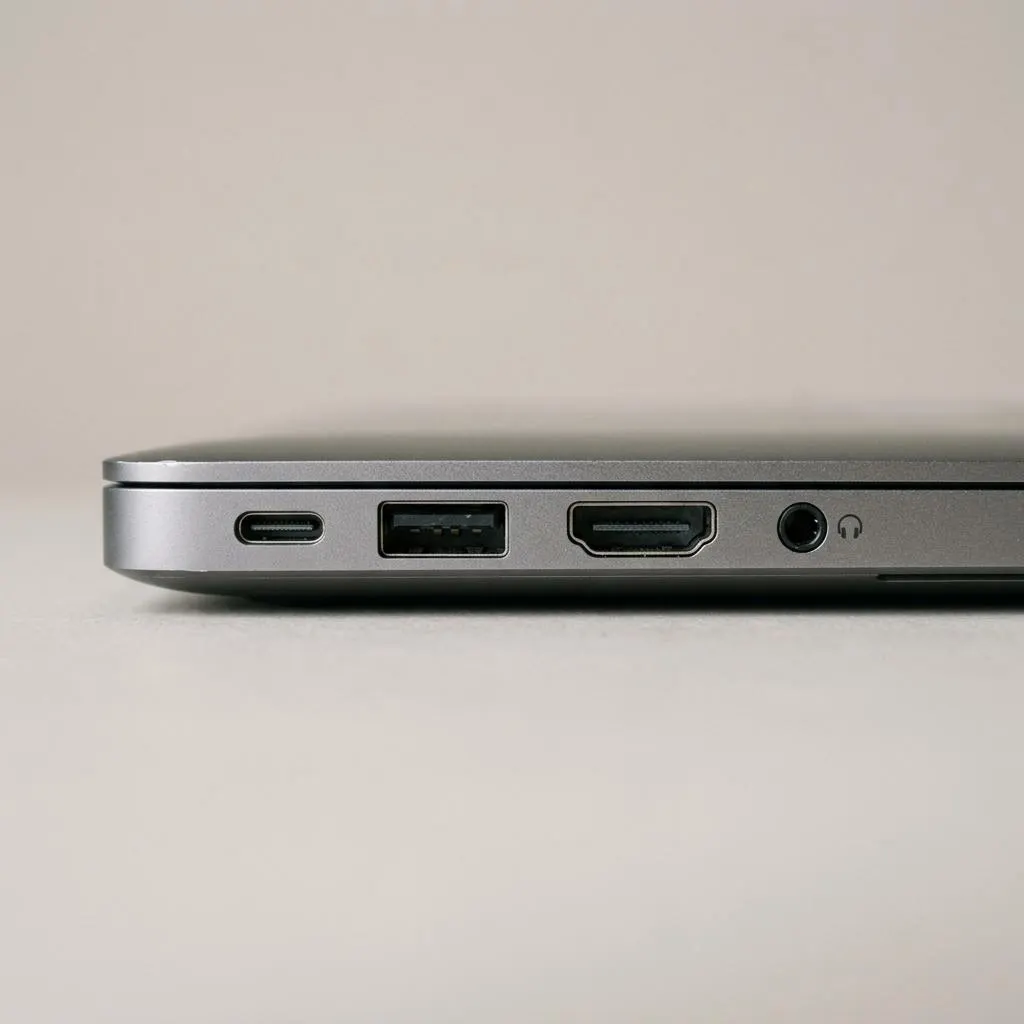
Start from the port
Every port leads to a different driver
The socket you plug into tells you which driver family is in play. A video port leads to the graphics driver, the headphone jack to the audio driver, USB ports to USB controller drivers plus whatever the device itself needs, and the network port to the network adapter driver.
- Picture problems: start with graphics and display.
- No sound or a silent microphone: start with audio and sound.
- Connection drops: start with network and Wi-Fi.
- Pages will not print or scan: start with printer and scanner.
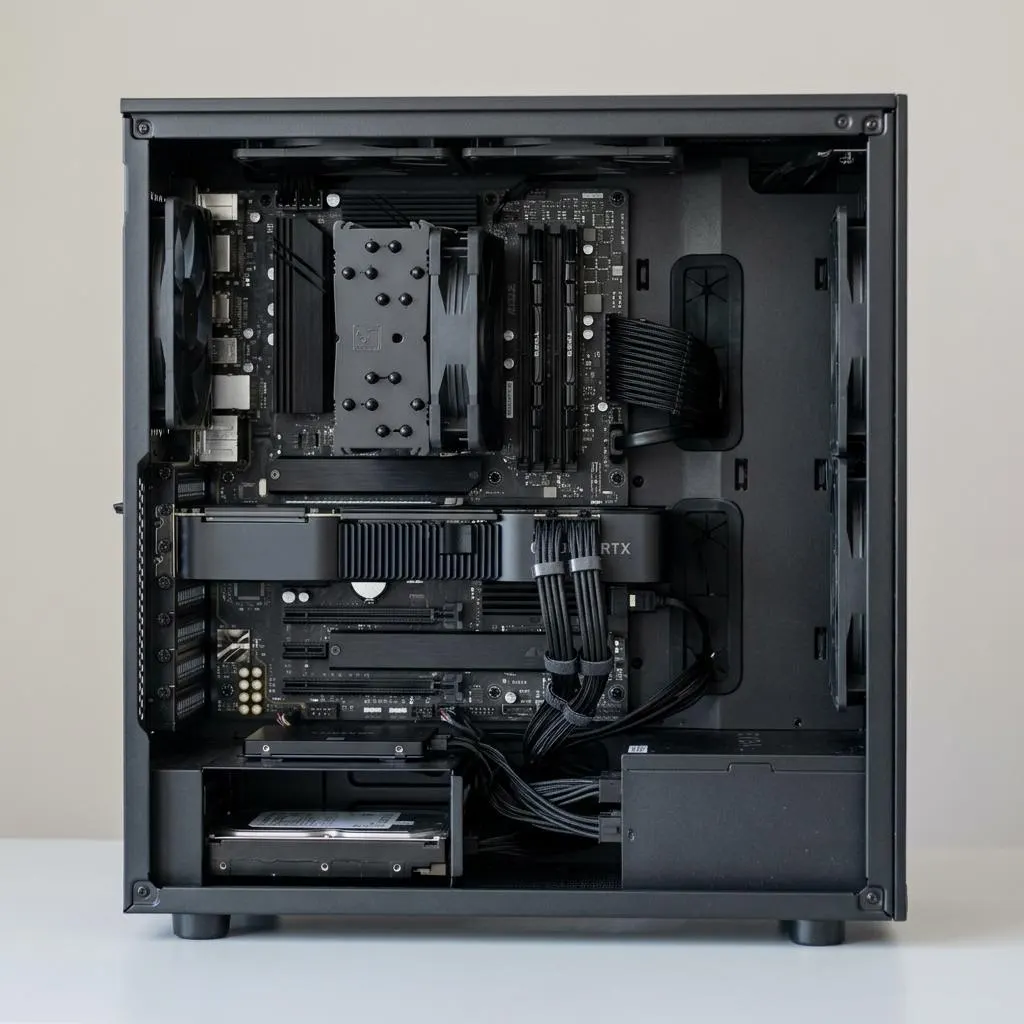
Inside the case
Built-in parts versus add-in cards
Parts built into the motherboard or laptop, such as onboard sound, Wi-Fi and USB controllers, usually get drivers from the computer or motherboard maker. Add-in parts, such as a separate graphics card or a PCIe network card, get drivers from the card maker.
Knowing which is which saves time: it tells you which support page to open. All eight types, including chipset, USB, Bluetooth and storage, now have full guides here.
Keep exploring