
Setup
How to check which drivers are installed on Windows 11 and macOS
Find the provider, version and date of an installed driver on Windows 11, and learn what a Mac can and cannot show you about its built-in drivers.
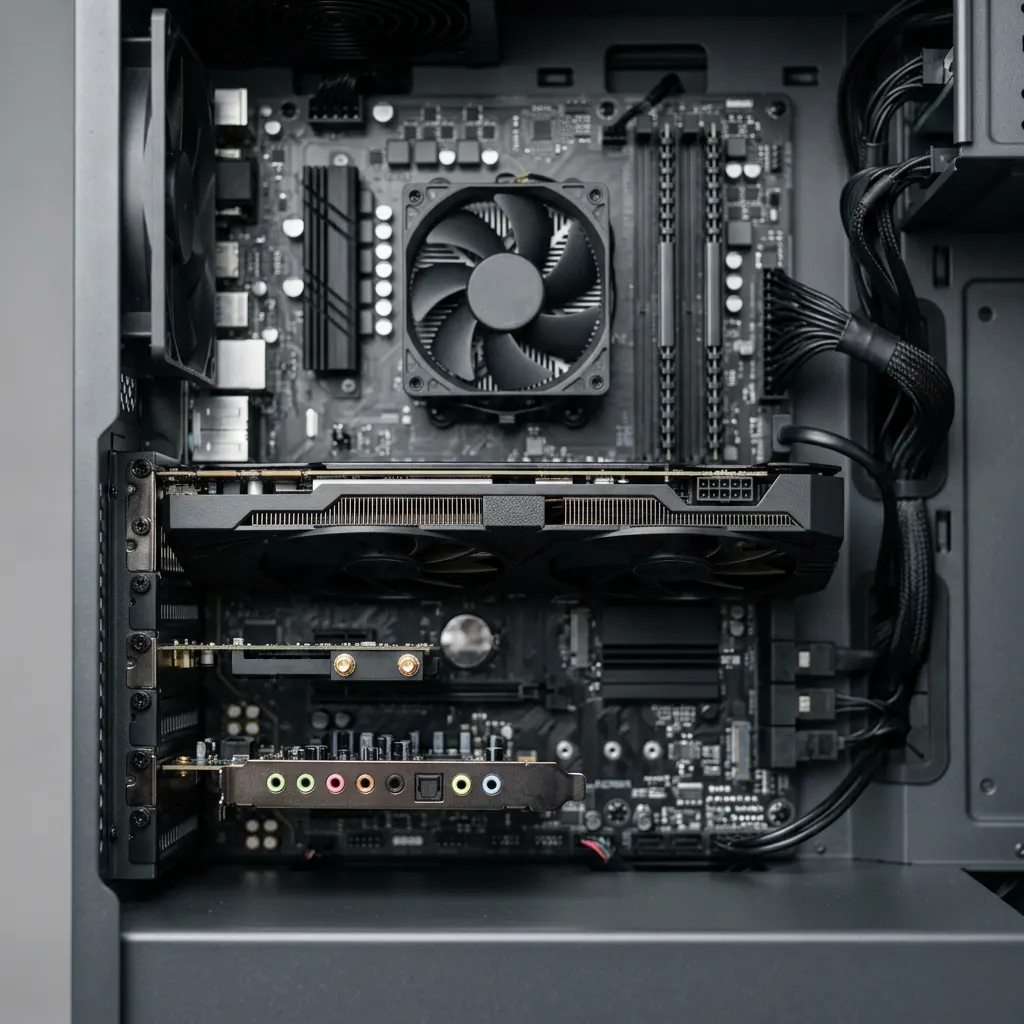
What this section covers
Before you update, reinstall or roll back anything, you need to know what is installed right now. This guide shows where Windows 11 records each driver’s provider, version and date, how to see which drivers Windows Update has delivered, and what a Mac can show you instead. Nothing here changes your system. It is a look-only tour, and it is the first step of every other guide in this section.
The two systems handle drivers very differently. Windows keeps a separate driver for almost every piece of hardware, each with its own version. macOS ships the drivers for built-in hardware as part of the operating system, so on a Mac the macOS version usually tells you more than any single driver could.
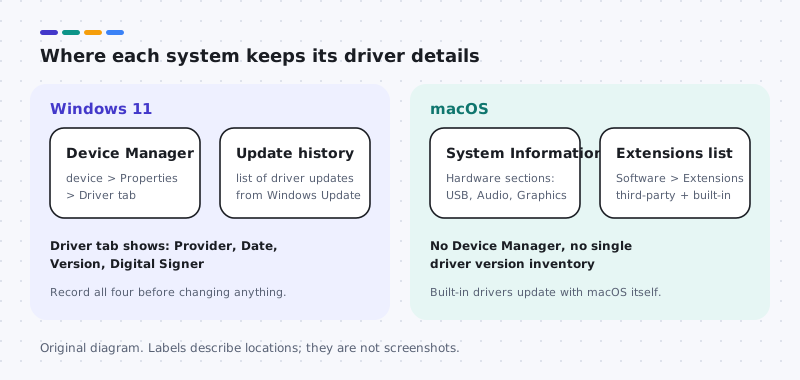
Windows 11: check one device’s driver
Device Manager is the most reliable place to read a driver’s details. You do not need administrator rights just to look.
- Right-click the Start button and choose Device Manager. You can also type “Device Manager” into the search box on the taskbar.
- Expand the category that holds your device, for example Display adapters, Network adapters or Sound, video and game controllers.
- Right-click the device and choose Properties, then open the Driver tab.
The Driver tab shows four lines worth recording: Driver Provider, Driver Date, Driver Version and Digital Signer. The provider tells you who packaged the driver. That may be your computer maker, the chip maker, or Microsoft for drivers built into Windows.
- Select Driver Details to see the files the driver uses. This is read-only and safe to browse.
- Open the General tab. The Device status box should say “This device is working properly.” Anything else, such as an error code, is worth noting too.
Windows 11: see which drivers Windows Update installed
Windows Update keeps its own record, which helps when you suspect a recent change.
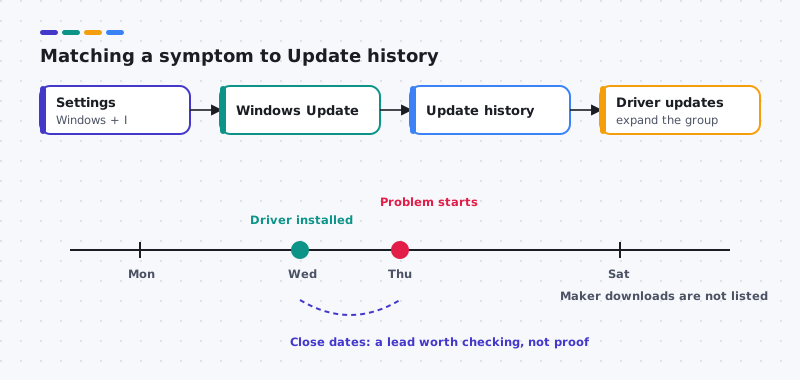
- Open Settings with Windows + I and select Windows Update.
- Select Update history.
- Expand Driver updates to see each driver Windows Update installed and the date it arrived.
If a problem started on a particular day, this list tells you whether a driver arrived around the same time. It only covers drivers delivered through Windows Update, not ones you installed from a maker’s website.
Windows 11: a full list for reference
For a longer list, Windows includes two built-in commands. Open Terminal from the Start menu and type one of these:
driverquerylists loaded drivers with their module names and link dates.pnputil /enum-driverslists the third-party driver packages stored in the driver store, with provider, version and date.
Both commands only read information. Do not add delete options to pnputil. Removing packages by hand can leave hardware without any driver at all, and that is a repair job, not a check.
macOS: what you can see
There is no Device Manager on a Mac, and System Information is not a universal driver version inventory. It does show what hardware macOS sees and which extensions are loaded.
- Choose the Apple menu and then About This Mac. Select More Info, scroll down and select System Report. On some releases, holding the Option key while you open the Apple menu shows System Information directly.
- Under Hardware, select a category such as USB, Bluetooth, Audio or Graphics/Displays. If a device appears here, macOS has detected it.
- Under Software, select Extensions to see kernel extensions with their version, where they were obtained from, and whether they are loaded.
- Check the macOS version in Apple menu > About This Mac. For built-in hardware, that number is the meaningful one.
Third-party hardware such as a printer, audio interface or docking station may add its own software. On recent versions of macOS you can review it in System Settings under General, in the login items and extensions area, or under Privacy & Security if macOS asked you to allow it. Leave macOS security settings at their defaults; a device that needs them lowered should be replaced or updated by its maker.
What to do with this information
You now have a record of what is installed. If everything works, you are done; a working driver rarely needs replacing. If something is wrong, move on to the Device Manager guide to read error states, or the Windows Update guide to see what Microsoft offers for your hardware. Keep your notes. Every other setup guide here assumes you have them.
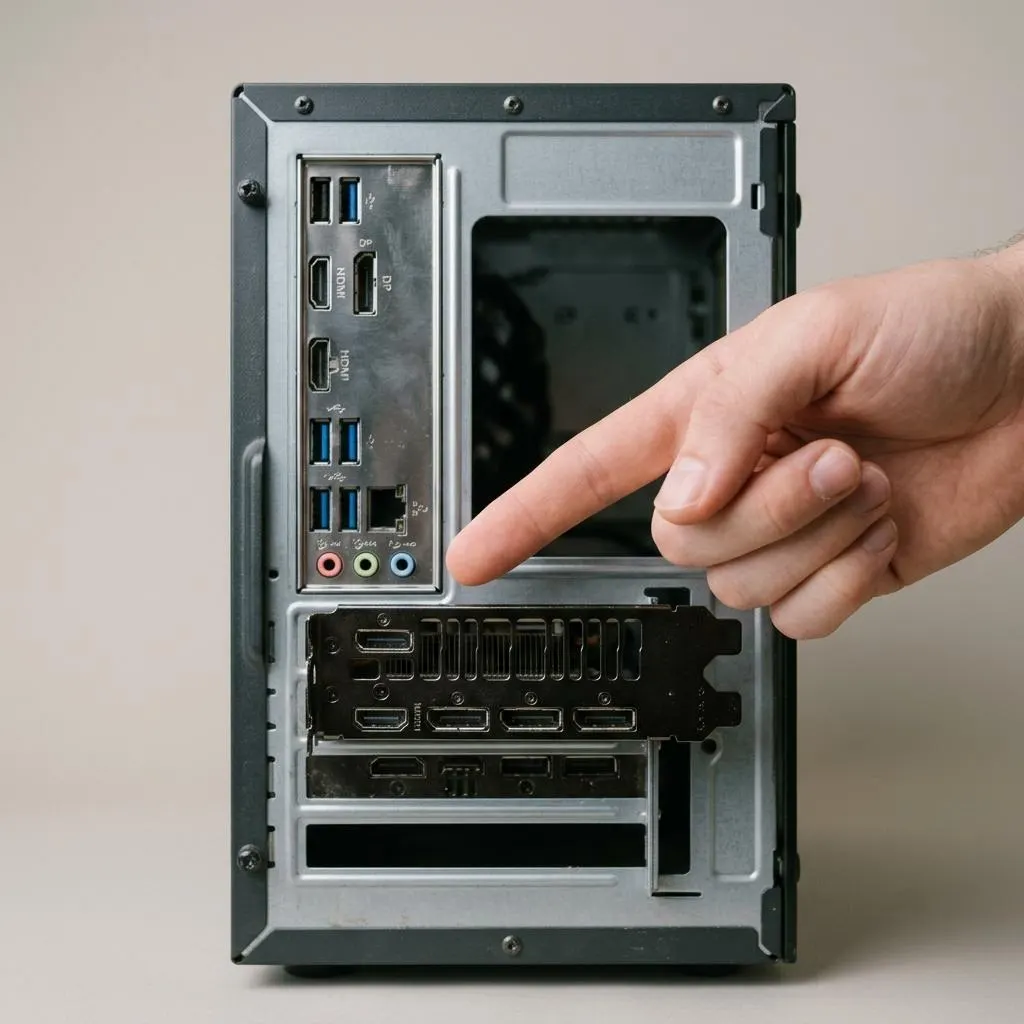
Read the hardware first
Two display adapters is often correct
When you check installed drivers, duplicates can look like a problem. Many computers legitimately show two display adapters in Device Manager: integrated graphics inside the processor and a separate graphics chip or card. Laptops often use both, switching per app. Two entries mean two pieces of hardware, each with its own driver, not a conflict.
The same applies elsewhere. You may see several audio entries (onboard sound, the monitor's HDMI audio, a USB headset) or several network adapters (Wi-Fi, Ethernet, Bluetooth networking, VPN virtual adapters). Virtual adapters belong to software such as VPN clients and are not physical hardware.
- Write down each entry's Driver Provider, Driver Date and Driver Version before deciding anything.
- Check warning marks and Device status for clues. They indicate a device problem, but do not prove that its driver is the cause.
Worked example
Example: building a one-page driver record
A small written record turns later troubleshooting from guesswork into comparison. Here is one way to make it in about ten minutes on Windows 11, without installing anything:
- In Device Manager, open Display adapters, Sound, video and game controllers, Network adapters and Bluetooth in turn. For each device you care about, note provider, date and version from the Driver tab.
- In Settings, Windows Update, Update history, expand Driver updates and note the most recent entries with their dates.
- Record the computer's exact model from its label or System Information (search for it from Start and check System Model). Settings, System, About also lists useful specifications.
- Save the note somewhere off the computer, for example on your phone or on paper.
When something breaks after an update, compare the new driver details against this record. A changed version on the affected device is a lead, not proof. An unchanged version does not rule out driver interactions with a Windows or application update.
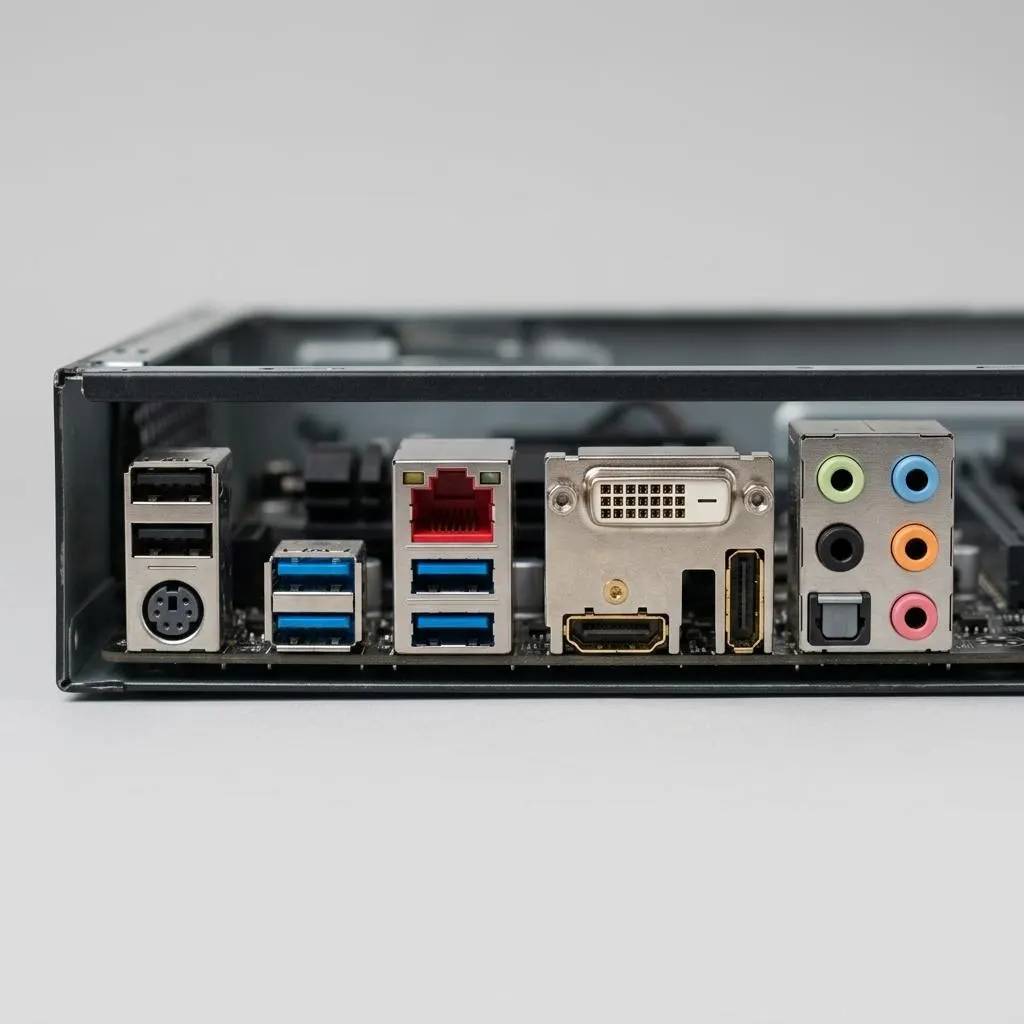
Match entries to ports
Connecting the list to what you can see
Device names in Windows can be vague. A practical way to map them is to plug something in and watch. With Device Manager open, connect a USB device to a specific port: the list refreshes, and the device appears under its category. Disconnect it and it disappears.
To investigate the connection further, choose View, Devices by connection and locate the device in the tree. Front and rear USB ports, or USB-C and USB-A ports, can belong to different controllers. If one group of ports misbehaves while others work, investigate that group's controller, hub, power supply or physical connections rather than replacing every USB driver.
On a Mac, System Information shows a similar picture under the USB and Thunderbolt sections: connect a device, then choose File, Refresh Information. You will see the device and the bus it is on, but not separate driver packages to update.
FAQ
Questions people actually ask
Does a newer driver date always mean a better driver?
No. Some drivers keep an old date even when the package is newer, and Windows Update can deliver a driver whose date looks older than the one your computer maker offers. Compare the version number and the provider together, and check what your computer maker lists for your exact model.
Why can't I find a driver version for my Mac's trackpad or camera?
Built-in Mac hardware is driven by components that are part of macOS itself. They do not have separate version numbers you can look up and update one by one. The macOS version is the number that matters, and Software Update keeps those components current.
Is it safe to run driverquery or pnputil just to look?
Yes, when used with listing options such as driverquery on its own or pnputil /enum-drivers. They only read information. Do not add delete or remove options; removing driver packages by hand can leave hardware without a working driver.
What should I write down before changing a driver?
The device name, the driver provider, the version, the date and the digital signer from the Driver tab, plus the date you made the change. That record makes it much easier to roll back or reinstall the version that worked.