
Setup guides
Look first, change carefully, know the way back
Five guides in the order you need them, from reading what is installed to undoing an update that went wrong. Every step uses tools already built into Windows 11 and macOS.
The learning path
Five guides, in order
5 guides live. Read them top to bottom the first time. After that, jump straight to the one you need.
- Step 1 · LookHow to check which drivers are installed on Windows 11 and macOSFind the provider, version and date of an installed driver on Windows 11, and learn what a Mac can and cannot show you about its built-in drivers.Read guide →
- Step 2 · LookHow to use Device Manager in Windows 11 without breaking anythingA careful tour of Device Manager in Windows 11: reading warning icons and error codes, checking drivers, and which buttons to leave alone.Read guide →
- Step 3 · ChangeHow to update drivers through Windows Update, and when to skip optional onesHow Windows Update installs recommended drivers automatically, where optional driver updates live in Windows 11, and how to choose them carefully.Read guide →
- Step 4 · ChangeHow to get and install a driver from your device maker's websiteMatch the maker, model, Windows version and processor type, then install a driver package by installer or INF folder, with notes for Mac owners.Read guide →
- Step 5 · UndoHow to roll back a driver after a bad update in Windows 11When a device broke right after a driver update, use Roll Back Driver in Windows 11, and know the safer routes when the button is greyed out.Read guide →
House rules
Before you change any driver
Every guide in this section repeats these, because they are what make a change reversible.
- Back up your files. A backup protects documents and photos. A restore point does not.
- Create a restore point. Windows System Protection can be off. Check it, turn it on if needed, and create one; never assume one exists.
- Change one device at a time. Restart and test before touching the next.
- Expect an admin prompt. On work or school computers, IT may block changes by design. Ask them.
Before you begin
Setting up with a way back
Two moments where setup guides help most: a newly connected computer, and a hardware change.
New or reinstalled computer
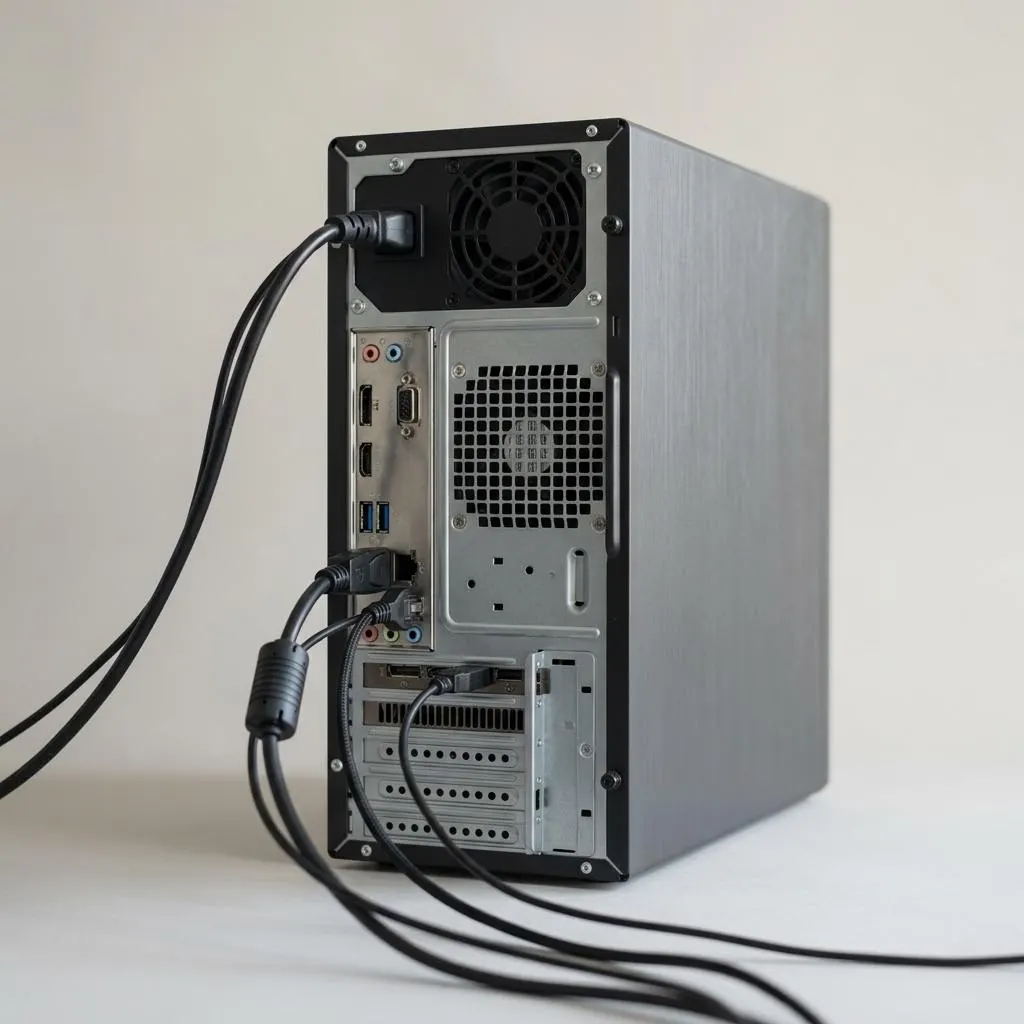
The first hour with a new computer
On a new Windows 11 computer, let Windows Update run first while connected by cable if possible. It installs most drivers automatically. Then check which drivers are installed and look for warning marks in Device Manager.
Only after that, visit the computer maker's support page for anything still missing. This order avoids installing generic packages Windows would have matched more precisely.
After a hardware change
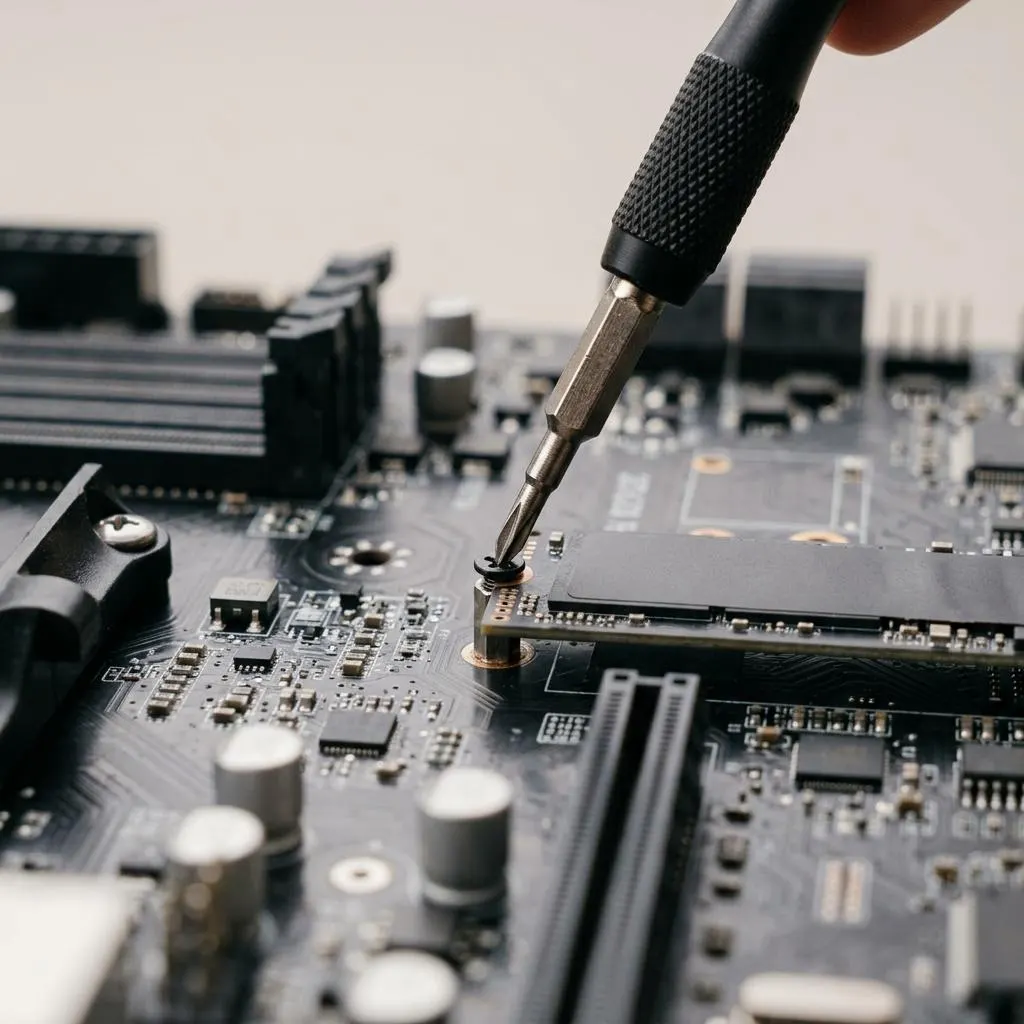
After adding a drive or card
New hardware often works with drivers already in Windows. Check Device Manager after the first restart. If the device has a warning mark or is missing, install the maker's driver for that exact model, and keep the roll back guide in mind.
- New drive not visible: it may need initializing in Disk Management, which erases nothing on other drives but is a separate task from drivers.
- New card not detected at all: power down and check that it is fully seated before trying any driver.
Keep exploring