
Driver types
Printer and scanner drivers: how they work and how to get pages moving
How printer and scanner drivers work, driverless printing, checking drivers on Windows 11 and macOS, safe update routes, and fixes for offline printers.
What this section covers
Printers have a reputation for being the most stubborn hardware in the house, and drivers often get the blame. This guide explains how printer and scanner drivers turn a document into marks on paper, why many printers now work with no extra driver at all, how to check which driver is in use on Windows 11 and macOS, and how to fix the problems people meet most: offline printers, stuck queues and missing scanners.
How printer and scanner drivers work
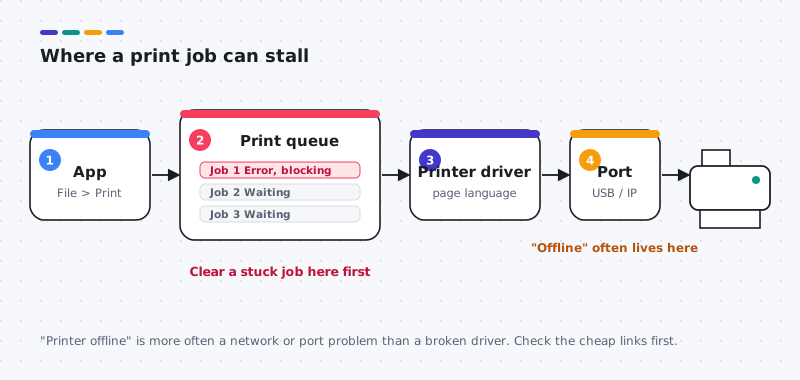
When you choose Print, the app describes the page to the operating system. A printer driver translates that description into a language the printer understands, such as PCL, PostScript or a maker’s own format, and adds settings like paper size, color and duplex. The job waits in a print queue, managed by the print spooler, until the printer can accept it.
Many printers no longer need a driver from their maker for everyday printing. Macs print to AirPrint printers with no extra driver, and Windows 11 includes a built-in class driver that works with many network printers. These “driverless” routes cover common settings. The maker’s package adds extras: special trays, finishing, ink details and often scanning.
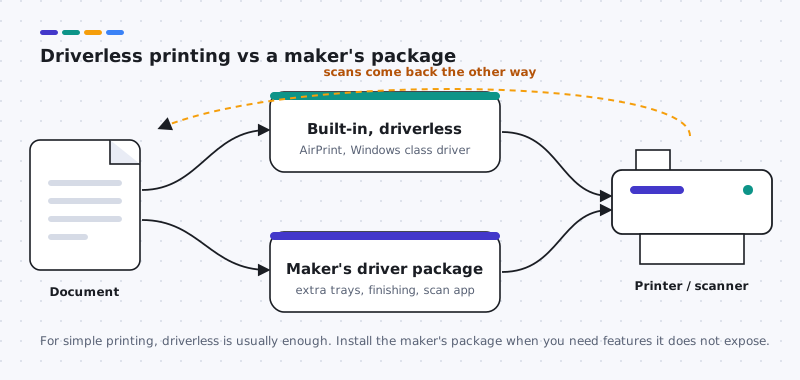
Scanning travels the other way. A scanner driver or app on the computer asks the device to scan and receives the image. On combination printers, printing and scanning can use separate drivers, so one can work while the other does not. Printer makers such as HP, Canon, Epson and Brother publish drivers and scanning software on their websites.
How to check your current printer driver
Windows 11
- Open Settings > Bluetooth & devices > Printers & scanners and select your printer.
- Choose Printer properties and open the Advanced tab. The Driver field shows which driver the printer uses.
- To see every installed printer driver, go back to Printers & scanners and choose Print server properties, then the Drivers tab.
macOS
- Open System Settings > Printers & Scanners and select your printer.
- Click Options & Supplies. The General tab shows details such as the driver version, and the printer’s kind shows whether it uses AirPrint.
How to update printer drivers safely
- Windows Update. In Settings > Windows Update, install what is offered and check Advanced options > Optional updates for printer drivers.
- The printer maker’s website. Search for your exact printer model and choose the driver for Windows 11 or your macOS version. Match the processor type on Windows (x64 or Arm64).
- Remove and re-add. In Printers & scanners, removing the printer and choosing Add device lets Windows pick a fresh driver. This is reversible.
- Device Manager. Printers appear under Print queues, but the printer properties above are the clearer place to manage printer drivers. If you use Browse my computer for drivers, point it only at a correct, extracted package from the printer maker for this model.
On a Mac, keep macOS current with System Settings > General > Software Update. For printers that are not AirPrint-compatible, check the printer maker’s site for software that lists your macOS version.
Common printer and scanner driver problems and how to fix them
Printer shows offline
Likely causes: the printer changed networks or went to sleep, or the computer is on a different network.
- Wake the printer and confirm it is on the same network as your computer, using its own control panel or network report page.
- Restart the printer, the router and the computer.
- If it is still offline, remove the printer and add it again so the computer finds its current address.
Jobs stuck in the queue
Likely causes: one failed job is blocking the rest.
- Open the queue (select the printer, then Open print queue on Windows, or the printer’s icon in the Dock on a Mac).
- Cancel the stuck job, then try printing again.
- If jobs still will not clear, restart the computer.
“Driver is unavailable” on Windows
Likely causes: the driver is missing, damaged or does not match this version of Windows.
- Run Windows Update, including Optional updates.
- Remove the printer, restart, then add it again with Add device.
- If needed, install the driver for your exact model from the printer maker.
Printer not found when adding it
Likely causes: the printer is on a different network or the guest network.
- Confirm both devices share the same network, not a guest network.
- Connect with USB temporarily to confirm the printer itself works.
- On Windows, choose Add manually and enter the printer’s IP address from its network report.
Prints work but scanning does not
Likely causes: the scanning driver or app is missing.
- On a Mac, check that Scan appears in Printers & Scanners for the device.
- On Windows, check Printers & scanners for the scanner, and try the Windows Scan app.
- Install the printer maker’s scanning software for your model if needed.
Two devices in one box
Printing and scanning are separate paths
An all-in-one printer is two devices sharing a case. Printing and scanning use different drivers and different software paths, so it is normal for one to work while the other fails. Windows 11 can print to many printers with a built-in class driver, but scanning may need the maker's full package or a scanning app.
When only scanning fails, avoid uninstalling the printer. Check instead whether the scanner appears under Settings, Bluetooth and devices, Printers and scanners, and whether the maker publishes a separate scan utility for your model. On a Mac, many scanners work through the built-in scanning support in Image Capture or Preview, while some models still need a maker package.
- Prints but cannot scan: install or repair the maker's full package for your exact model, not a different series.
- Scans but cannot print: check the print queue and default printer first.
Worked example
Example: printer shows Offline after a router change
Scenario: you replaced your router and the network printer now shows Offline. The driver did not change; the printer's network address probably did.
- Use the printer's own control panel to reconnect it to the new Wi-Fi network. Many printers can print a network configuration page that shows the current address.
- On the computer, open Settings, Bluetooth and devices, Printers and scanners, and check whether the printer appears twice. A second copy is often the one with the old address.
- Add the printer again from that page so Windows detects it on the new network, then print a test page.
- Remove the stale offline copy only after the new one prints.
No driver download is involved here. If the printer still is not found, the router may isolate wireless devices from each other; the router's documentation describes that setting.
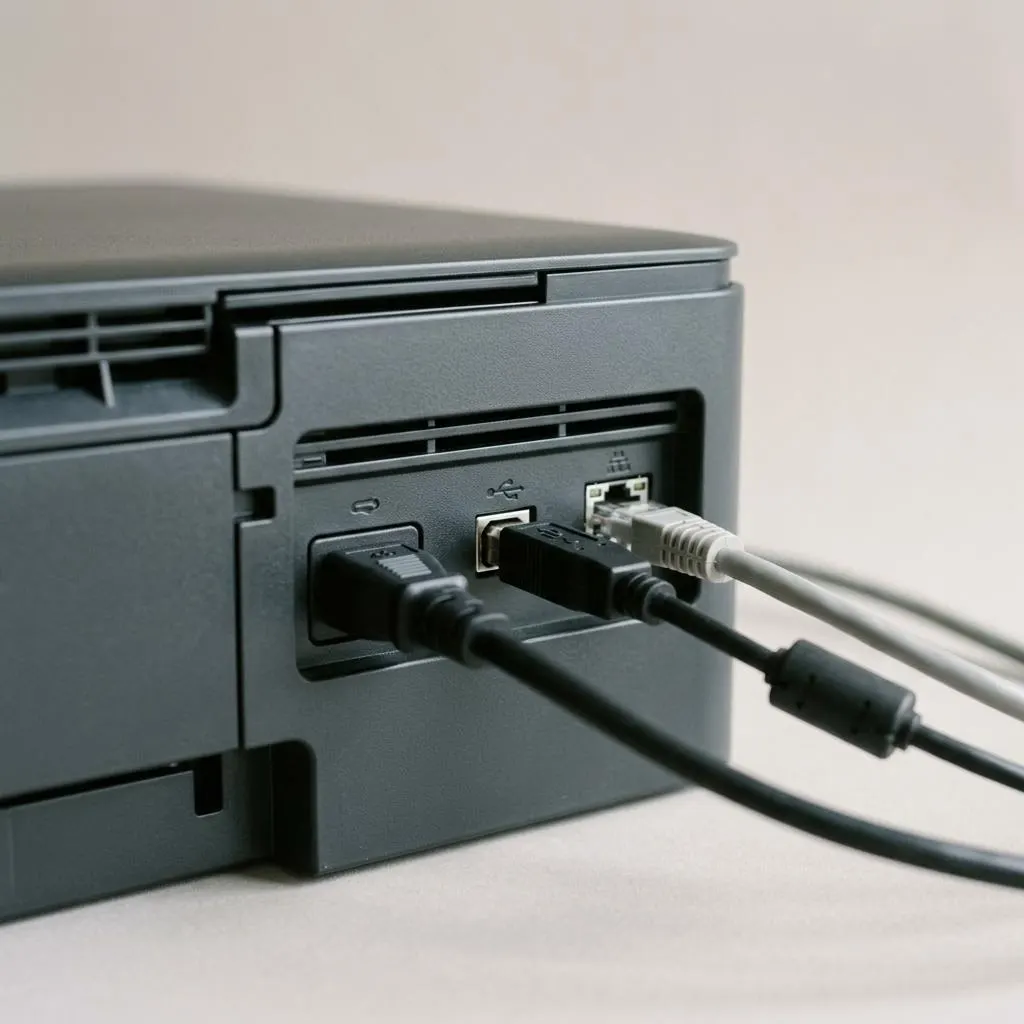
Connections
USB, Wi-Fi or Ethernet: why the connection changes the fix
A USB printer is found when you plug it in, and Windows matches a driver by its hardware ID. A network printer is found by discovery over the network, which depends on the computer and printer being on the same network and the router allowing devices to see each other.
That makes a good diagnostic: if a network printer fails, a temporary USB cable test separates network problems from driver problems. If it prints over USB, the driver is fine and attention belongs on Wi-Fi settings or addresses.
Some makers also offer a printer app or companion software for ink levels, scanning and maintenance. That app is separate from the driver. Install it only from the maker's site or the Microsoft Store listing the maker links to, and you can usually skip optional extras offered during setup.
FAQ
Questions people actually ask
Does an AirPrint printer need a driver on a Mac?
No extra driver is needed for basic printing. macOS includes everything required to print to AirPrint printers. The Mac and printer need to be on the same network, or connected by USB, and the printer must support AirPrint.
Why does my printer say offline when it is turned on?
Usually because the computer cannot reach it: the printer joined a different network, changed its network address, or went to sleep. Check the printer's network connection first. A driver is a less common cause of an offline status.
Do I need the printer maker's full software package?
Not always. Many printers print fine with the built-in drivers in Windows 11 or macOS. Install the maker's package when you need features it adds, such as scanning to a folder, extra paper trays, finishing options or ink level details.
Why can I print but not scan?
Printing and scanning can use separate drivers or apps. Check that scanning appears for your device in Settings on Windows or in Printers & Scanners on a Mac. If it does not, the printer maker's scanning software or driver may be required.
Is it safe to delete a printer and add it again?
Yes, removing and re-adding a printer is reversible: you can add it back at any time. Try it after checking the network and clearing the queue, not as a first step. Removing driver packages entirely is rarely needed.