
Troubleshooting
Wi-Fi keeps dropping or no networks found in Windows 11
Compare with other devices first, then work through rejoin, power and adapter checks. Prepare a driver offline before changing the adapter. Network reset comes last.
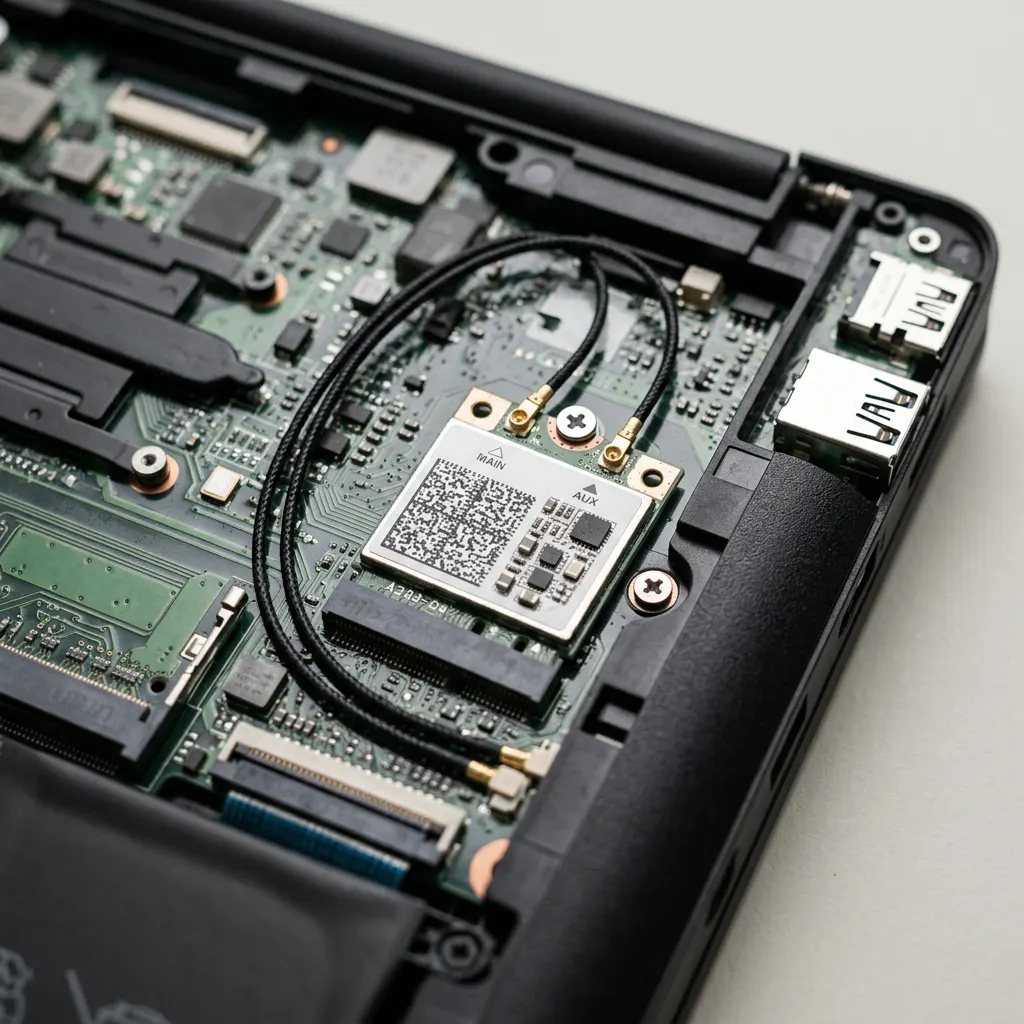
What this section covers
Wi-Fi problems come in two flavours: the connection drops every so often, or Windows cannot see any networks at all. This Windows 11 guide helps you work out whether the cause is the network or the PC, then moves from easy, reversible checks to driver changes, with network reset as a deliberate last resort. A separate macOS note follows at the end. For how network drivers work, see our network and Wi-Fi guide.
Step zero: compare with another device
Before touching the PC, find out whether it is alone in having trouble. This one comparison saves the most wasted effort.
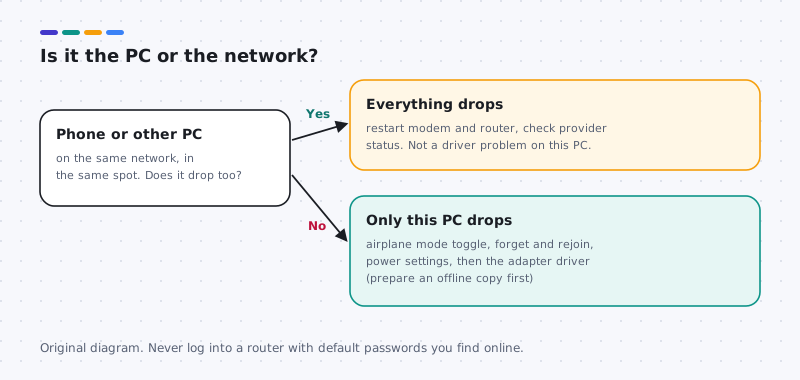
- Check a phone or another computer on the same Wi-Fi network, near the PC. Stream something for a few minutes. Outcome: if it drops too, the problem is probably the router, modem or provider.
- If everything drops, restart the network equipment. Unplug the modem and router, wait about 30 seconds, plug the modem back in, wait for its lights to settle, then the router. Check your provider’s status page from mobile data if the internet is still down.
- If only this PC drops, move on to the checks below. Note whether it happens everywhere or only far from the router, after sleep, or on battery.
Reversible checks on the PC
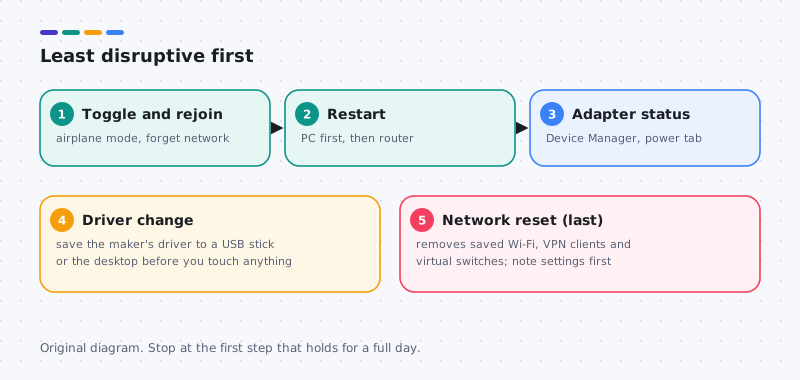
- Toggle Wi-Fi and airplane mode. Open Quick Settings from the network icon on the taskbar, turn Airplane mode on, wait a few seconds, and turn it off. Make sure Wi-Fi is on and that no physical wireless switch or function key has turned it off.
- Forget and rejoin the network. Open Settings > Network & internet > Wi-Fi > Manage known networks, select the network, choose Forget, then connect again with the password.
- Restart the PC (not just sleep). A full restart reloads the adapter and its driver. Stop point: if Wi-Fi holds for a full day, you are done.
- Check the adapter’s status. Right-click Start, open Device Manager, expand Network adapters, and double-click the wireless adapter. Read Device status; a warning icon or error code points to the driver. Our Device Manager guide explains each code.
- Check power management for drops after sleep. On the adapter’s Power Management tab, if present, clear Allow the computer to turn off this device to save power as a test. Note the original setting so you can restore it.
- Run Get Help. Search for Get Help and type “Wi-Fi not working”. Its guided network checks can fix common settings.
Prepare before any driver change
- Roll back if an update came first. Check Settings > Windows Update > Update history > Driver updates for a network entry just before the drops started. If there is one, use Roll Back Driver on that adapter’s Driver tab. See the roll back guide.
- Install the computer maker’s network driver that you saved, following our manual install guide. Restart and test for a day.
- Reinstall the one adapter if needed. In Device Manager, right-click the wireless adapter, choose Uninstall device, and restart; Windows usually reinstalls it. Use your offline copy if it does not.
Last resort: network reset
- Network reset is in Settings > Network & internet > Advanced network settings > Network reset. It reinstalls all network adapters and returns settings to defaults, then restarts the PC. Before using it, write down Wi-Fi passwords, and note any VPN client, proxy or virtual network settings: they may be removed and need reinstalling. On a managed PC, ask IT instead.
What not to do
- Do not uninstall every network adapter at once or use third-party updater tools.
- Do not disable your firewall or security software to test the connection.
- Do not reset the router to factory settings unless you know how to set it up again.
macOS note
This note is separate from the Windows steps. On a Mac, turn Wi-Fi off and on from Control Center, forget and rejoin the network in System Settings > Wi-Fi, and compare with another device just as above. Mac Wi-Fi drivers come with macOS, so there is no separate driver to install.
The other half
Router signals that rule the driver out
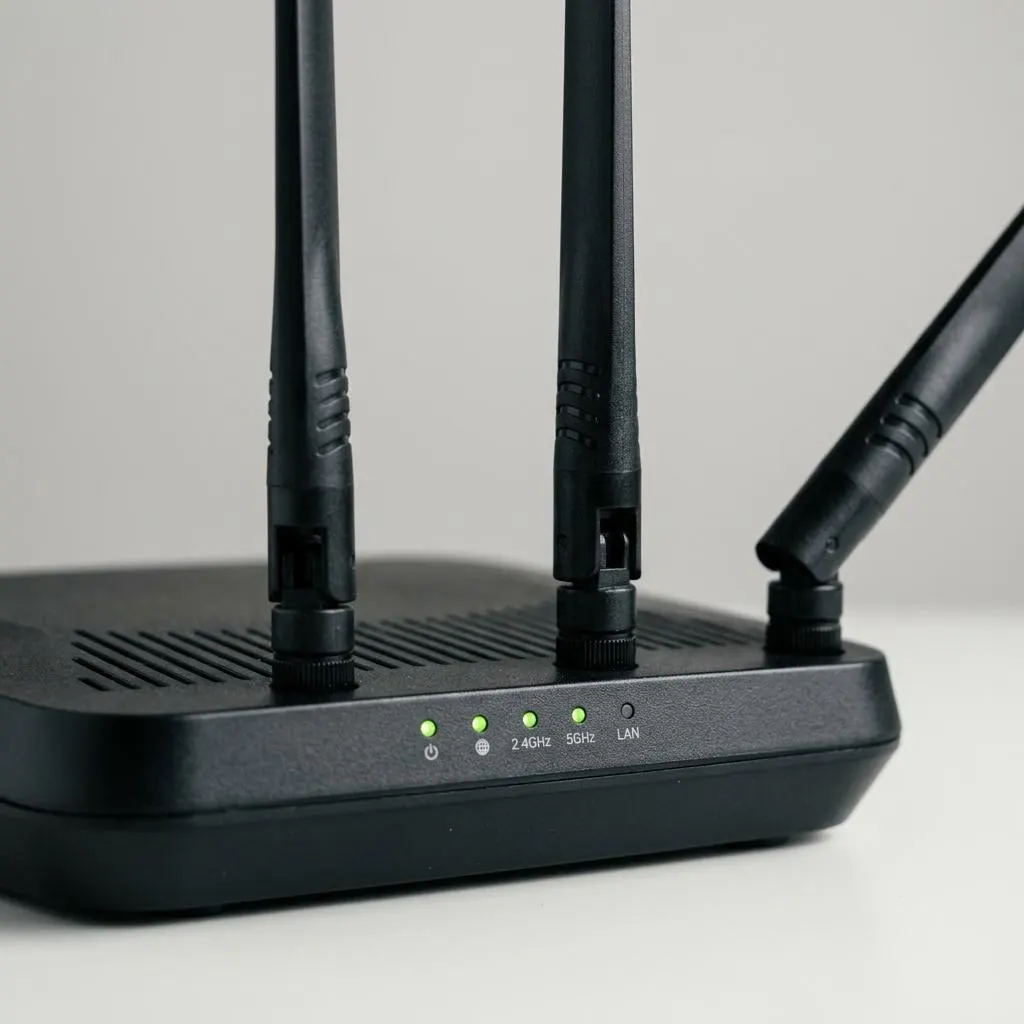
Before suspecting your computer's driver, check whether the router is the common factor. If phones and other computers drop at the same moment, the router, its internet connection, or interference is far more likely than your Wi-Fi driver.
Router status lights help. The internet light, typically, shows whether the router itself is online. Its manual explains each light. Restarting the router is low risk and often fixes drops that affect everyone. Avoid factory resets unless you have the settings and passwords to restore.
- Only your computer drops: driver, power settings or the computer's antenna are good suspects.
- Only one band fails: some older adapters cannot see 5 GHz or 6 GHz networks at all, which is a hardware limit, not a driver fault.
Worked example
Example: one network missing from the list
Scenario: your computer sees neighbours' networks but not your own, while your phone sees it fine.
- Check whether your router broadcasts on a band or Wi-Fi standard your adapter supports. Your computer maker's specifications list the adapter's supported bands.
- Check whether the router uses a channel number outside the range your region setting allows, which some adapters do not scan.
- Move closer to the router temporarily to rule out range.
- If the adapter should support the band and still sees nothing, compare its driver version with the computer maker's support page and update that one driver.
If the network is hidden, it will not appear in the list; it must be added manually with its exact name and password.
A temporary bypass
Testing with a USB Wi-Fi adapter
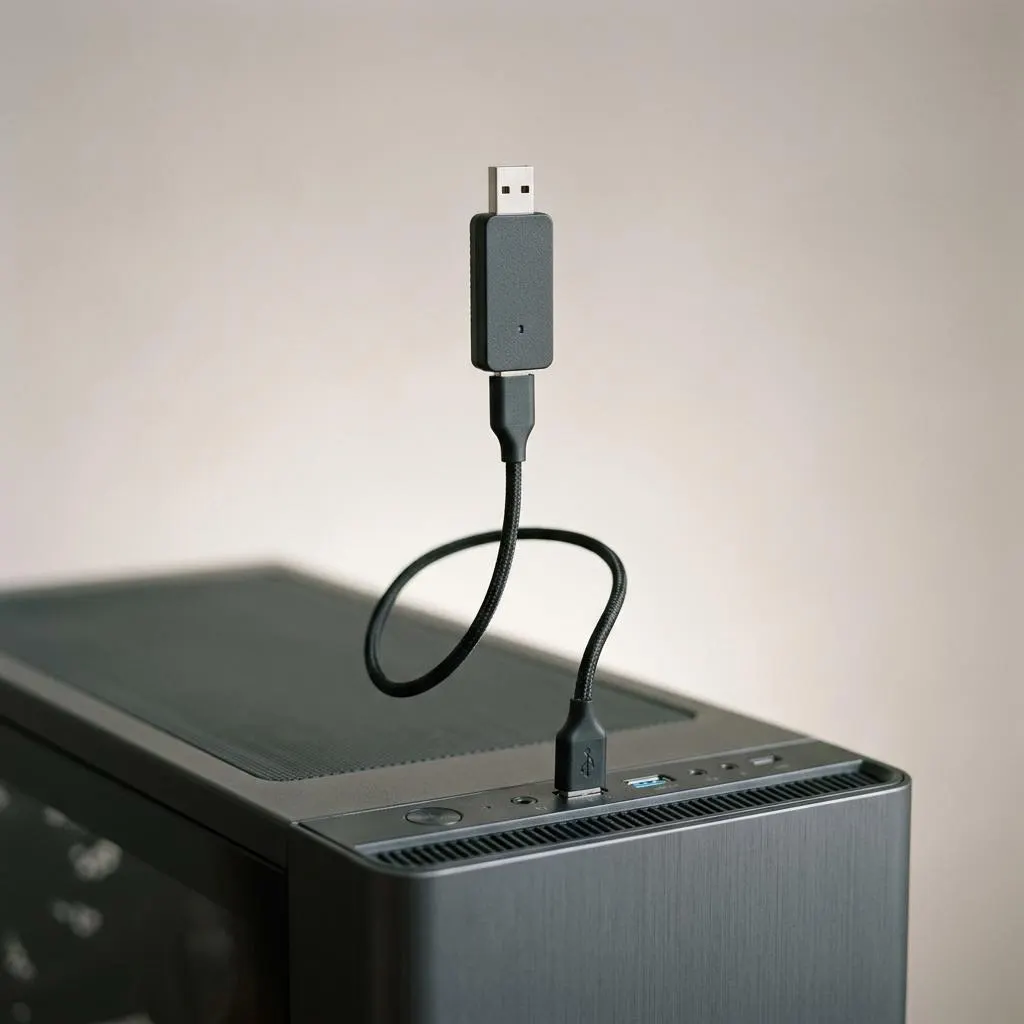
A USB Wi-Fi adapter, if you have one, gives a useful comparison. It has its own radio, antenna and driver. If it holds a stable connection where the built-in adapter drops, the issue sits with the built-in adapter, its driver, antennas or placement.
Desktop users can place the adapter on a short USB extension cable away from the case, which often improves reception compared with a rear port behind a metal case. Many such adapters work with drivers included in Windows, while others need the adapter maker's package; check its documentation.
Do not leave two adapters connected to the same network indefinitely unless you understand which one Windows prefers. Disable or unplug the one you are not testing.
FAQ
Questions people actually ask
How do I know if the problem is my PC or my router?
Test another phone or computer on the same network, in the same spot, at the same time. If every device drops, the router, modem or provider is the likelier cause. If only one PC drops, focus on that PC's settings and adapter.
What does network reset remove?
Network reset removes and reinstalls network adapters and returns networking settings to defaults. Saved Wi-Fi networks and passwords are forgotten, and VPN clients or virtual switches may need to be reinstalled or set up again. That is why it is the last step here.
Why prepare a driver before changing the Wi-Fi adapter?
If the Wi-Fi driver is removed or broken, the PC may have no internet to fetch a replacement. Saving the computer maker's network driver to the desktop or a USB stick first, or having an Ethernet cable ready, means you can always get back online.
Should I log into my router to change settings?
Only if it is your router and you know its admin password, or the instructions printed on it or provided by your provider. Do not try default credentials found online on a network you do not own. On shared or managed networks, ask the owner.