
Driver types
Bluetooth drivers: pairing, profiles and fixing dropouts
How Bluetooth radio drivers, the operating system stack and profiles work, how to check them on Windows 11 and macOS, and safe fixes for pairing and audio dropouts.
What this section covers
Bluetooth problems feel personal: headphones that will not pair, a mouse that stutters, a controller that disconnects mid-game. This guide explains the three layers involved, how to check them on Windows 11 and macOS, how to update safely, and why many Bluetooth problems sit on the accessory side rather than in the computer’s driver.
How Bluetooth drivers work
A Bluetooth connection has three layers. The radio is a chip inside the computer or a small USB adapter, and a radio driver runs it. Above that, the operating system’s Bluetooth stack handles discovery, pairing and reconnecting to devices you have used before. On top are profiles: standard descriptions of what a device can do.
Microsoft’s documentation describes how, when you pair a device, Windows reads the services it offers and installs a driver for each supported profile. That is why one pair of headphones can appear as two audio devices: one for high-quality stereo playback and one hands-free device for calls. Keyboards and mice use an input profile instead. The profiles mostly ship with Windows and macOS; the radio driver is the part that comes from Windows Update or your PC maker.
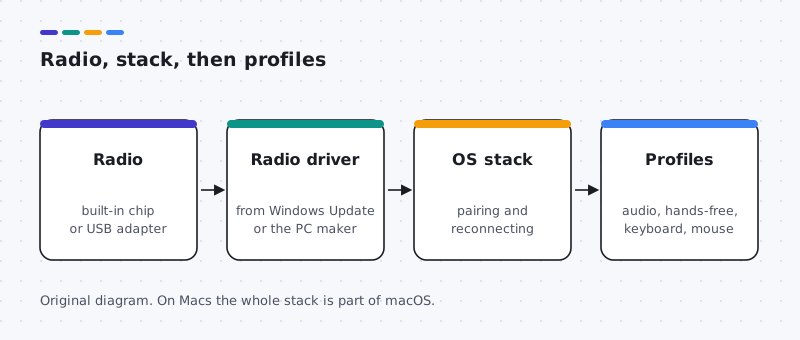
On many laptops Bluetooth shares a chip with Wi-Fi, so the two drivers often arrive together from the PC maker.
How to check your current Bluetooth driver
Windows 11
- Open Settings > Bluetooth & devices and confirm Bluetooth is on and your device is listed.
- Right-click Start, open Device Manager and expand Bluetooth. The radio usually has a chip maker’s name, such as Intel, Realtek, MediaTek or Qualcomm.
- Double-click the radio and open the Driver tab for the provider, date and version. A warning mark or a missing Bluetooth category points to a driver or disabled radio.
macOS
- Open System Settings > Bluetooth to see paired devices and their status.
- For technical details, open System Report and select Bluetooth.
- Bluetooth is part of macOS; keep it current with System Settings > General > Software Update.
How to update Bluetooth drivers safely
- Windows Update. Install offered updates and check Advanced options > Optional updates for Bluetooth drivers.
- Your PC maker’s support page. For laptops, use the Bluetooth or wireless package for your exact model. Update Wi-Fi from the same page if both share a chip.
- The adapter or chip maker. For a separate USB adapter or a self-built desktop, the adapter or chip maker’s page is an alternative.
- Roll back if worse. In Device Manager, the radio’s Driver tab has Roll Back Driver when a previous version is available.
Common Bluetooth driver problems and how to fix them
Device will not pair
Likely causes: the accessory is not in pairing mode, is still paired elsewhere, or the battery is low.
- Charge the accessory and put it in pairing mode as its manual describes.
- Remove it from the list in Bluetooth settings, turn Bluetooth off and on, and pair fresh.
- Disconnect it from your phone or other computer, which may be holding the connection.
Audio stutters or drops
Likely causes: distance, walls, 2.4 GHz interference, or the hands-free profile.
- Move closer and away from USB 3 hubs and routers, which can interfere.
- In sound settings, choose the stereo output, not the hands-free entry.
- Update the radio driver from your PC maker if dropouts continue across several accessories.
Bluetooth option missing in Settings
Likely causes: the radio is off, disabled, or its driver failed to load.
- Check for a keyboard wireless key or airplane mode.
- In Device Manager, look for the radio under Bluetooth or Other devices and enable it if disabled.
- Restart fully, then install the Bluetooth package for your model.
Devices disconnect after sleep
Likely causes: power saving switches the radio off.
- In Device Manager, open the radio’s Power Management tab if present and clear the option that lets the computer turn it off.
- Re-pair the accessory and test again.
Two sides to every link
Adapter on one end, accessory on the other
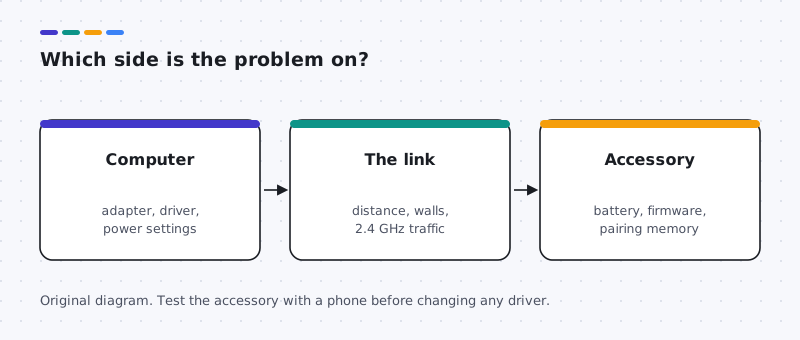
A Bluetooth connection needs both sides working: the computer's adapter and driver, and the accessory's own firmware, battery and pairing memory. Testing the accessory with a phone shows which side to look at.
If the accessory misbehaves with every device, the computer's driver is not the cause. Check its battery, reset it as its manual describes, and look for a firmware update in the accessory maker's app.
- Fails everywhere: look at the accessory.
- Fails only on this computer: look at the computer's radio driver and power settings.
- Fails only in one app: look at that app's device choice.
Worked example
Example: headphones sound tinny on video calls
Scenario: music sounds fine, but as soon as a call starts the audio turns thin. This is Bluetooth profiles at work rather than a broken driver:
- During a call, the headphones switch to the hands-free profile so the microphone can work. That profile carries lower-quality audio.
- If you want stereo quality, use the computer's own microphone or a USB headset for calls, and set the headphones' stereo entry as the output.
- In the call app's audio settings, pick the input and output devices by name instead of relying on defaults.
Updating the Bluetooth driver will not remove this trade-off. It is part of how classic Bluetooth audio profiles are designed.
Adapters
Adding or replacing a Bluetooth adapter
A USB adapter is a practical fix for a desktop without Bluetooth or a laptop whose radio has failed. Choose one whose maker lists Windows 11 support, and expect Windows Update to install its driver automatically in many cases.
If the computer also has a built-in radio, Windows may use either one. Disable the unused radio in Device Manager so accessories do not split between them, and re-pair your devices with the new adapter.
Bluetooth versions are backward compatible, so a newer adapter works with older accessories, but features such as lower-latency audio need support on both ends. If an older accessory behaves the same on a new adapter, the limit is likely on the accessory side.
FAQ
Questions people actually ask
Why do my headphones sound worse during calls?
During a call, headphones switch from a stereo audio profile to a hands-free profile that carries the microphone too, at lower quality. This is how Bluetooth profiles work, not a driver fault.
Is my Bluetooth driver part of my Wi-Fi driver?
On many laptops, Wi-Fi and Bluetooth share one chip, and the maker ships separate but related drivers for each. Updating one can affect the other, so update them from the same PC maker page.
Do Macs need Bluetooth drivers?
No separate download. Bluetooth is part of macOS and is updated through Software Update.
Should I buy a USB Bluetooth adapter?
It can help desktops with no built-in radio or a failed one. Choose one that lists Windows 11 support. If a built-in radio exists, you may need to disable it in Device Manager so the two do not compete.
Why does a device pair but not reconnect after sleep?
Power saving can switch the radio off during sleep, and some accessories forget the pairing after a firmware update or low battery. Re-pairing and checking power settings usually fixes it.