
Driver types
Network and Wi-Fi drivers: how they work and how to steady a connection
How network adapter drivers keep Wi-Fi and Ethernet working, how to check them on Windows 11 and macOS, safe update routes, and fixes for dropouts.
What this section covers
A dropped connection is one of the most frustrating computer problems because it cuts you off from the very pages that explain the fix. This guide explains what a network driver does, how to check it on Windows 11 and macOS, how to update it safely (including when the network itself is down), and how to work through drops and missing networks in an order that starts with the easiest changes to undo.
How network drivers work
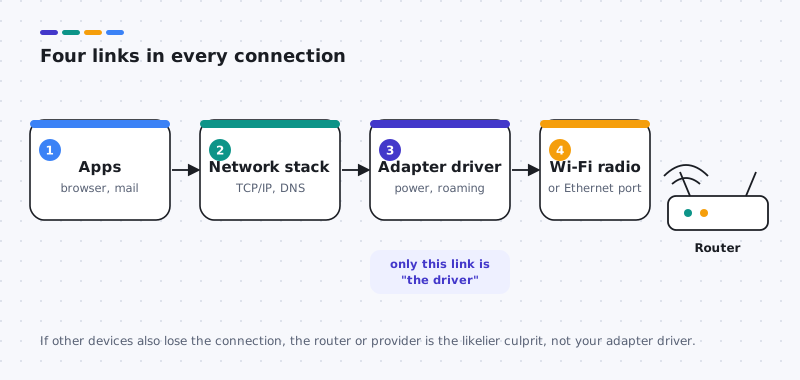
Your computer’s network adapter, whether a Wi-Fi card or an Ethernet port, is controlled by a network driver. Apps never touch it directly: they use the operating system’s network stack, which handles addressing, encryption and name lookups, and the stack hands data to the driver to send and receive.
For Wi-Fi, the driver does much more than move data. It scans for networks, negotiates security, decides when to roam to a stronger access point, and manages power. Many dropouts are really power decisions: the driver or the system turns the radio down to save battery and the connection does not recover cleanly.
Wi-Fi chips in many PCs come from companies such as Intel, Realtek, MediaTek or Qualcomm, but laptops often use a version packaged by the computer maker. Ethernet adapters follow the same pattern. The adapter’s firmware, a small program inside the hardware, sometimes ships alongside the driver.
How to check your current network driver
Windows 11
- Right-click Start and choose Device Manager.
- Expand Network adapters. Wi-Fi adapters usually include “Wireless” or “Wi-Fi” in the name.
- Double-click the adapter and open the Driver tab.
- Note the Driver Provider, Driver Date and Driver Version.
macOS
- Hold Option and click the Wi-Fi icon in the menu bar to see details about the current connection.
- For hardware details, hold Option, open the Apple menu, choose System Information, then select Network > Wi-Fi. It lists the card type and firmware version.
How to update network drivers safely
- Windows Update. In Settings > Windows Update, install what is offered, then open Advanced options > Optional updates and look for network adapter drivers that match your hardware.
- Your computer maker. For laptops and prebuilt PCs, enter your exact model on the maker’s site and choose the network driver for Windows 11 and your processor type (x64 or Arm64).
- The adapter maker. For an add-in card or a USB adapter, use that adapter maker’s page.
- Device Manager. Update driver > Search automatically for drivers checks only what Windows can offer, so “best driver already installed” does not prove there is nothing newer. Choose Browse my computer for drivers only for a correct, extracted package for this exact adapter.
On a Mac, network drivers are updated with macOS through System Settings > General > Software Update.
Common network driver problems and how to fix them
Wi-Fi keeps disconnecting
Likely causes: adapter power saving, a weak signal, or a router problem.
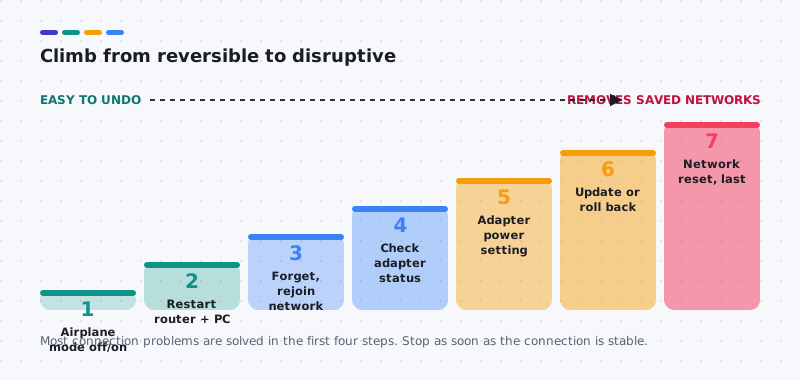
- Turn airplane mode on and off, then restart the router and the computer.
- In Device Manager, open the adapter’s properties. On the Power Management tab (if shown), clear “Allow the computer to turn off this device to save power.”
- If drops began after a driver update, use Roll Back Driver on the Driver tab, or install your computer maker’s driver.
No networks found
Likely causes: airplane mode, a hardware Wi-Fi switch, or a disabled adapter.
- Check airplane mode and any Wi-Fi key or switch on the laptop.
- In Device Manager, right-click the adapter. If you see Enable device, choose it.
- If the adapter is missing entirely, restart, then run Windows Update over Ethernet or install the maker’s driver from a USB drive.
Connected, but no internet
Likely causes: the router or provider, a saved network profile, or a VPN.
- Check whether other devices have internet. If not, restart the router or contact your provider.
- Forget the network and rejoin it with the password.
- Pause any VPN or security software that filters traffic, then test.
Yellow warning icon on the network adapter
Likely causes: the driver failed to start or is incompatible.
- Double-click the adapter and read the Device status box on the General tab.
- Restart, then try Update driver > Search automatically for drivers.
- Install the driver for your exact model from the computer maker.
Slow speeds on one computer only
Likely causes: distance from the router, the band in use, or an outdated driver.
- Move closer to the router and test again.
- If your router offers separate bands, try the other one.
- Check the computer maker’s site for a newer network driver for your model.
The hardware
The Wi-Fi card and its antennas
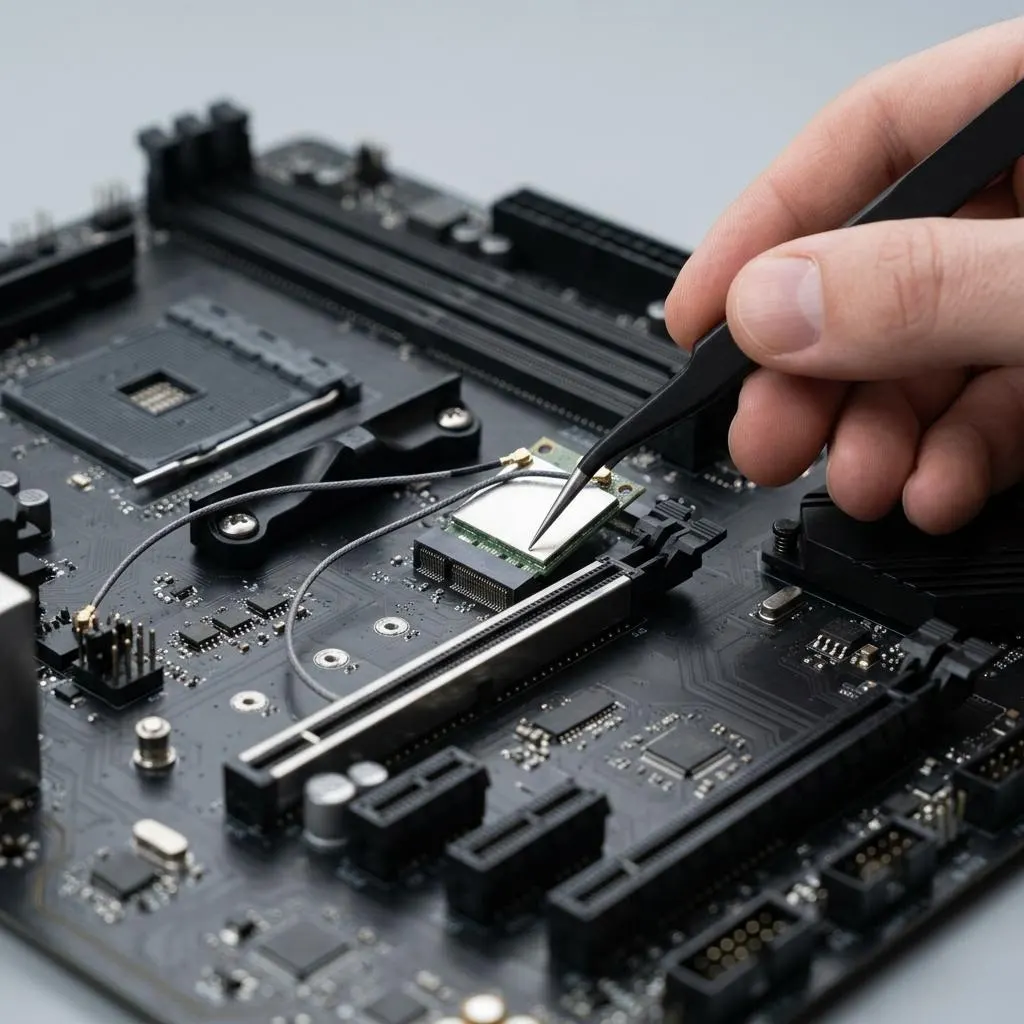
In most laptops and many desktops, Wi-Fi comes from a small M.2 card with two thin antenna leads clipped onto it. The driver controls the radio, but it cannot compensate for weak antennas. A loose lead, a desktop whose antennas were never attached, or a metal case blocking signal can all look like a driver fault.
Signal behaviour helps tell them apart. A driver problem usually affects every network the same way: the adapter disappears, refuses to connect, or drops right after sleep. An antenna or placement problem gets worse with distance and walls and improves when you move closer to the router.
- Desktop: check that the external antennas are screwed onto the card's bracket on the back.
- Laptop: if signal is weak only after a repair or upgrade, mention the antenna leads to whoever did the work.
- Both: compare with another device in the same spot before changing any driver.
Worked example
Example: Wi-Fi drops every time the laptop wakes
Scenario: Wi-Fi works all day but is missing or very slow for a minute after the lid opens. This pattern points at power management and the driver's resume behaviour, not the router.
- Write down the current network adapter driver version from Device Manager, Network adapters, Properties, Driver tab.
- In the same Properties window, open the Power Management tab if it is present, and note whether the computer is allowed to turn the device off to save power. Clearing that box is a reversible test; some adapters do not show the tab at all.
- Check your laptop maker's support page for your model. A newer wireless or chipset package that mentions sleep or resume fixes is a strong candidate.
- Change one thing, then test several sleep and wake cycles before judging.
If an update made it worse, roll back that one adapter. Network reset in Settings is a later step because it removes saved Wi-Fi networks and VPN adapters.
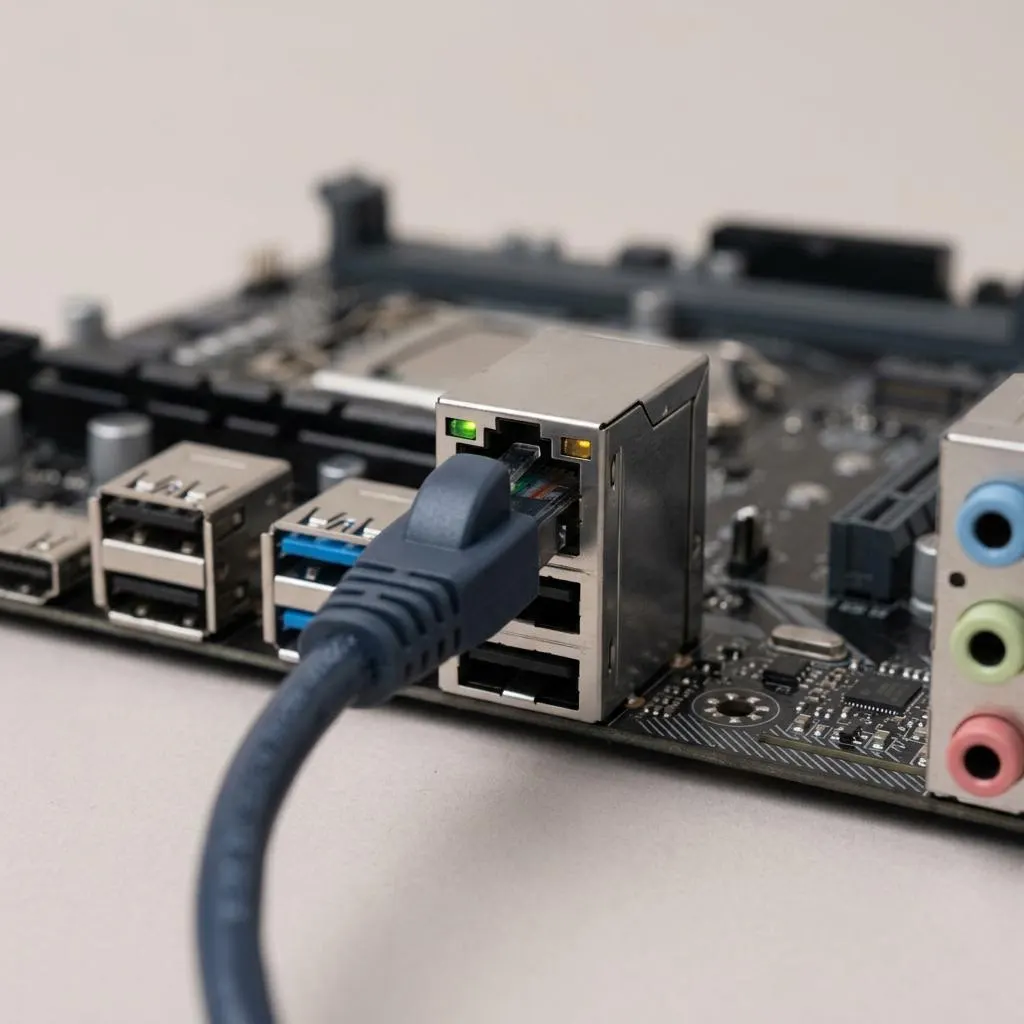
Keep a lifeline
Wired Ethernet as your fallback connection
Before you change a Wi-Fi driver, make sure you have another way online. A wired Ethernet connection, a USB Ethernet adapter, or downloading the driver package in advance from the maker means a failed update cannot leave you without the internet needed to repair it.
Ethernet and Wi-Fi use separate adapters with separate drivers, so a broken Wi-Fi driver normally leaves Ethernet working. The link lights next to the port tell you a cable connection exists; if they are dark with a known-good cable, check the router end before suspecting software.
On a Mac, both are handled by macOS. If Wi-Fi fails there, check System Settings, Network, then try a wired connection or another network; Apple delivers fixes through macOS updates rather than separate driver downloads.
FAQ
Questions people actually ask
How do I update a Wi-Fi driver if the Wi-Fi does not work?
Use another computer, or a phone, to download the driver for your exact model from the computer maker's website, copy it over on a USB drive, and install it. A wired Ethernet connection, if your computer has a port, also lets Windows Update run.
Should I use Network reset in Windows 11?
Only as a late step. Network reset removes and reinstalls every network adapter and returns networking settings to defaults, so you lose saved Wi-Fi networks and VPN settings. Try the reversible fixes in this guide first.
Why does my Wi-Fi drop only on battery?
Power-saving settings can let Windows turn off the adapter to save energy. Check the Power Management tab on the adapter's properties in Device Manager, and look at the power mode in Settings. A newer driver from your computer maker can also change this behavior.
Is the problem my driver or my router?
If other phones and computers also lose the connection at the same time, the router or provider is the more likely cause. If only one computer has trouble while others stay connected, look at that computer's adapter and driver.
Can I update the Wi-Fi driver on a Mac?
Built-in Mac Wi-Fi is handled by macOS, and its drivers and firmware are updated through Software Update. System Information lists details such as the card type and firmware version, but there is no separate Wi-Fi driver to download.
Do USB Wi-Fi adapters need their own driver?
Some work with drivers already in Windows; others need a driver from the adapter's maker. Check the maker's page for a version that lists Windows 11 and your processor type, and avoid drivers from unrelated download sites.