
Troubleshooting
USB device not recognized in Windows 11: a careful walkthrough
Shorten the path from device to port, check power and cables, then tell a driver problem from a storage problem. Never format or initialize a disk you need.
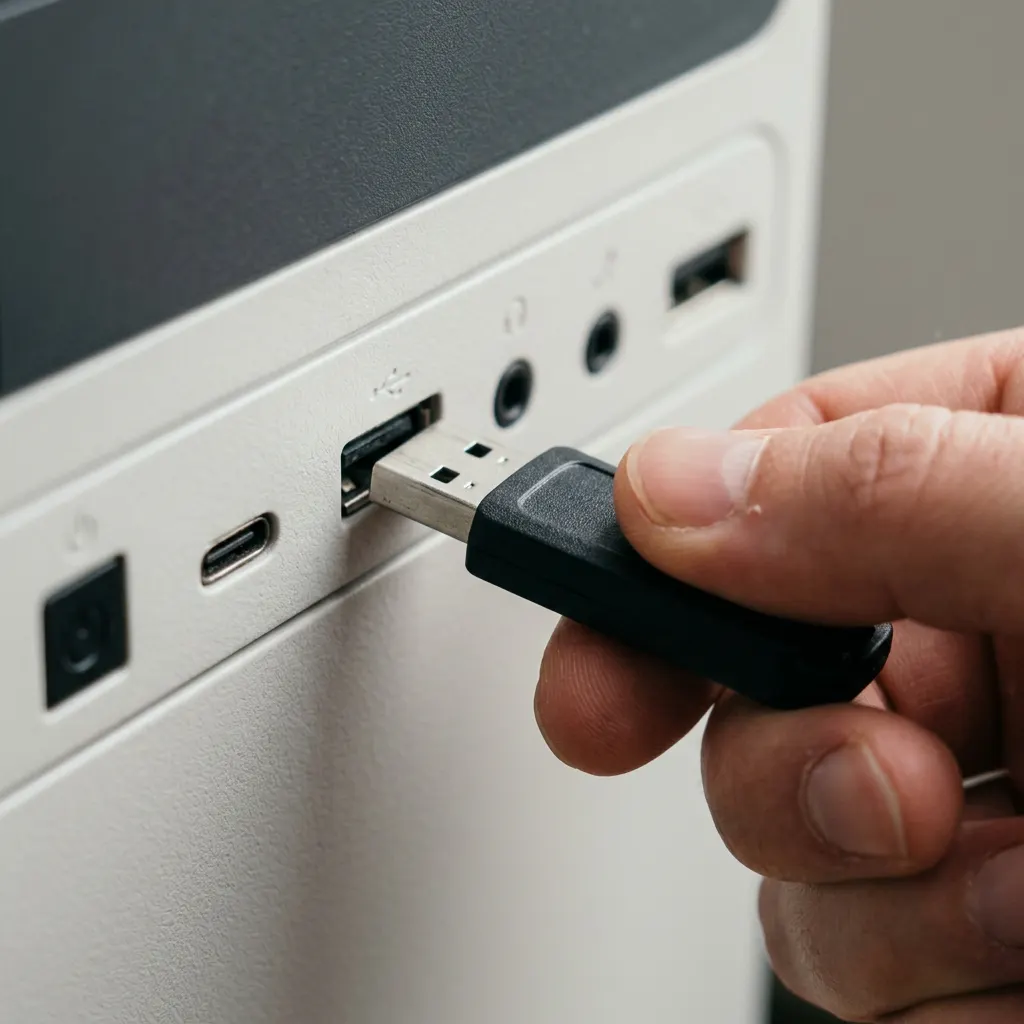
What this section covers
You plug something in and Windows says USB device not recognized, makes the connect sound with nothing appearing, or stays completely silent. This Windows 11 guide starts with the physical path, because that is where most of these problems live, then separates two different issues people often mix up: Windows not talking to the device (a driver layer problem) and a storage device whose files cannot be read (a storage layer problem). A separate macOS note is at the end.
Shorten the path first
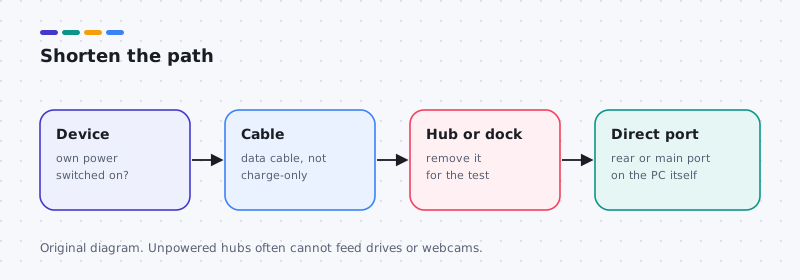
- Plug straight into the computer. Remove hubs, docks, extension cables and keyboard pass-through ports. On a desktop, use a rear port on the motherboard rather than the front panel.
- Try another cable. Many USB cables, especially USB-C ones bundled with chargers, carry power only, not data. Use the cable that came with the device or one you know transfers data.
- Check power. If the device has its own power adapter or switch, make sure it is on. Large drives, printers and some webcams need more power than an unpowered hub can supply. Outcome: if it works now, the path was the problem; no driver change needed.
- Restart the PC with the device unplugged, then plug it in after you sign in. A restart clears a stuck USB connection more often than you would expect.
- Check Windows Update. Open Settings > Windows Update and install what is offered, then restart. Device-specific drivers sometimes arrive through Optional updates.
Look at the driver layer
- Open Device Manager. Right-click Start and choose Device Manager. Plug the device in and watch the list refresh. Look under Universal Serial Bus controllers, Other devices and the category for your device. Our Device Manager guide explains each icon.
- Read the device status. Double-click any entry with a warning mark, or an Unknown USB Device entry, and read Device status. Note any error code, such as Code 43, and compare with Microsoft’s error-code list.
- Reinstall only that one device. Right-click the problem entry, choose Uninstall device, unplug the device, restart, and plug it back in. If its driver changed recently, try Roll Back Driver first; see the roll back guide.
Driver problem or files problem?
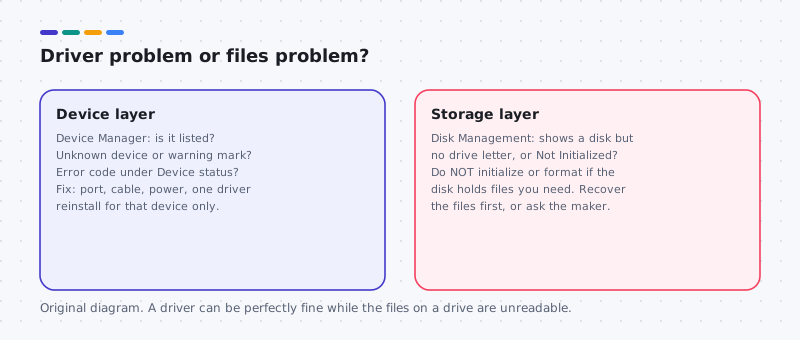
- For drives, open Disk Management. Right-click Start and choose Disk Management. If the drive is listed with a healthy volume but no letter in File Explorer, you can assign a letter by right-clicking the volume and choosing Change Drive Letter and Paths. This does not touch the files.
- Stop if the disk shows “Not Initialized” or “RAW”. Windows may offer to initialize or format it. Both can make your files much harder to recover. If the data matters, stop and get the files recovered first, or contact the drive’s maker.
- Eject safely from now on. Use the Safely Remove Hardware icon on the taskbar, or Eject in File Explorer, before unplugging storage. Recovery: if a drive became unreadable after being pulled mid-copy, try it on another computer before anything else.
What not to do
- Do not format, initialize, or partition an unknown disk that might hold files you need.
- Do not uninstall every USB controller at once or use third-party driver updaters.
- Do not change chipset or firmware settings to fix a single device.
macOS note
This note is separate from the Windows steps. On a Mac, the same path checks apply: plug in directly, try another cable, and check power. Open Disk Utility to see whether a drive appears, but do not choose Erase on a drive with files you need. USB drivers on a Mac come with macOS.
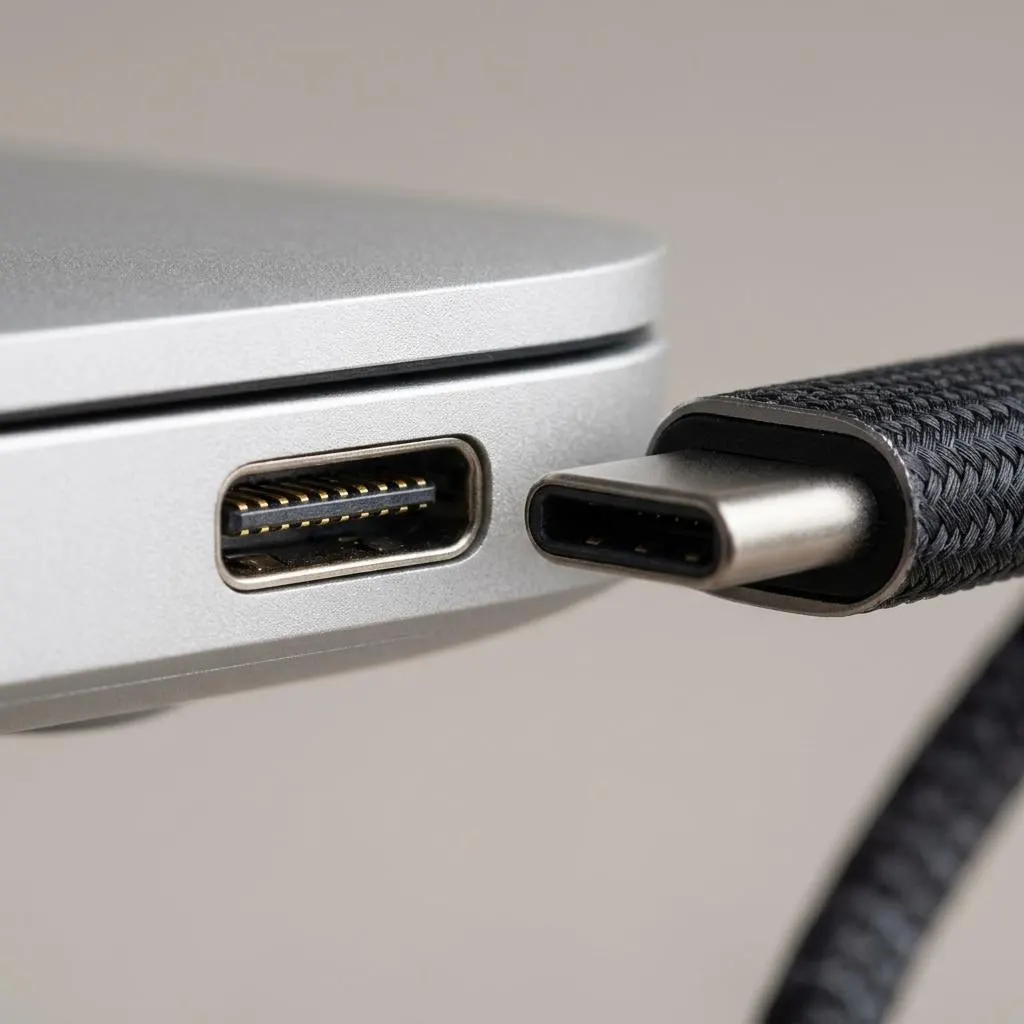
Look closely
Inspect the port and plug
USB-C ports in particular collect pocket lint and debris that stop a plug from seating fully. The plug may feel like it is in, yet make only partial contact, causing a device that connects and disconnects or charges but does not transfer data.
Shut the computer down, then look into the port with a light. Avoid metal tools and liquids. If you see debris, a gentle puff of air is the safest first approach. For anything stuck, a repair service is safer than probing the port yourself.
- Try the cable with another device. Some USB-C cables charge only and do not carry data.
- Watch for the plug wobbling. A loose port can need repair, not a driver.
Worked example
Example: an external drive that clicks and disconnects
Scenario: a portable hard drive connects, then disappears with the disconnect sound, repeatedly. It is tempting to blame the USB driver, but power is a common cause with spinning drives.
- Connect the drive directly to a port on the computer, not through a hub or a front panel port.
- Use the cable that came with the drive or a short known-good cable.
- If the drive has a separate power input, use it.
- Only if it fails on several ports and computers suspect the drive itself, and make backing up its data the priority.
Do not run disk repair tools or format the drive to make it appear. If the data matters and the drive is failing, stop and seek data recovery advice first.
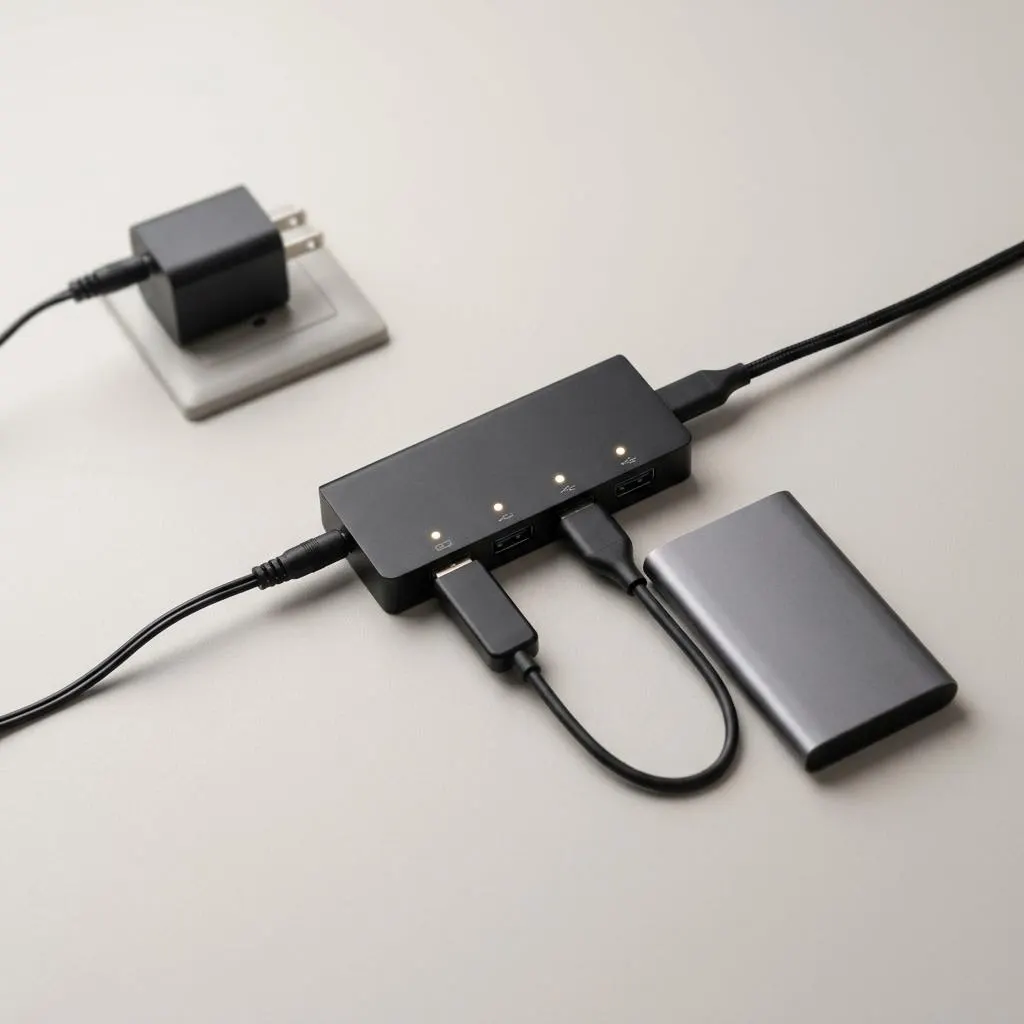
Power budget
Hubs, power and why a powered hub helps
Every USB port provides a limited amount of power. A hub without its own power supply splits the power from one port among all its devices. Drives, webcams and audio interfaces can exceed it, which looks like a device that disconnects or is not recognized.
A hub with its own power adapter supplies devices independently, which often fixes these symptoms. If a device works plugged directly into the computer but not through an unpowered hub, power is the probable cause, not the driver.
On Windows 11, a notification that a USB device is drawing too much power, or a Device status mentioning power, points the same way. The fix is physical: a direct port, a powered hub, or the device's own power supply.
FAQ
Questions people actually ask
Windows asks me to format the drive. Should I?
Not if it holds files you need. Formatting erases the drive's contents. Close the prompt, try the drive on another computer, and if the files matter, recover or copy them first. Format only a drive you know is empty or whose contents you have backed up.
Why does my device work in one port but not another?
Ports differ. Front-panel ports and unpowered hubs may supply less power, some ports are slower, and USB-C ports do not all carry video or fast charging. If a device works directly in a rear or main port, the problem is the path, not the driver.
Should I uninstall all USB controllers in Device Manager?
No. Uninstalling every USB controller can leave you without a working keyboard or mouse until Windows reloads them. If a driver step is needed, uninstall only the one device showing a problem, then restart.
Is safely removing a drive really necessary?
For storage devices, yes. Safely removing makes sure Windows has finished writing data before you unplug. Pulling a drive mid-write can corrupt files and is a common reason a drive later shows up as unreadable.