
Troubleshooting
No sound after an update in Windows 11: a symptom-first fix
Sound vanished after an update? Check volume, the output device, app routing and enhancements before any driver change, then roll back one audio driver if needed.
What this section covers
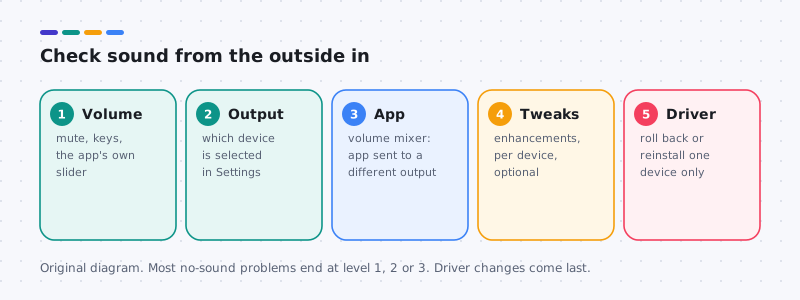
You installed an update, restarted, and now nothing plays: no video sound, no notification chimes, maybe no microphone either. This guide works through the problem from the outside in on Windows 11, starting with checks that take seconds and change nothing permanent. Driver changes come last, for one device only. A short, separate macOS note sits at the end. For background on how audio drivers work, see our audio and sound guide.
Reversible checks first
- Check volume and mute everywhere. Select the speaker icon on the taskbar and raise the slider. Check the keyboard mute key, the speaker’s own volume knob and power switch, and the player inside the app or website. Outcome: if sound returns, you are done.
- Check the selected output. In the same taskbar panel, select the arrow next to the volume slider (Select a sound output) and pick the device you actually want: speakers, headphones or a monitor. Updates sometimes switch this to an HDMI display or a disconnected headset.
- Reconnect the device. Unplug wired headphones and plug them back in firmly. For USB headsets, try another port. For Bluetooth, open Settings > Bluetooth & devices and check the headset shows Connected for audio, not just for calls.
Check per-app routing and device settings
Windows 11 can send each app to a different output. If one app is silent while others work, routing is the likely cause.
- Open the volume mixer. Go to Settings > System > Sound > Volume mixer. Make sure the silent app is not muted and its Output device is set to Default or to the device you want.
- Open the device’s properties. In Settings > System > Sound, select your output under Output. Confirm Allow is set for apps and Windows to use the device, and test the volume there.
- Try turning off enhancements for that device only. On the same properties page, set Audio enhancements to Off, then test. This is optional processing that varies per device, and turning it off is easy to undo. Stop point: if sound returns, leave it off for now.
Did an update change the audio driver?
Only now does it make sense to look at drivers, and only if the timeline supports it.
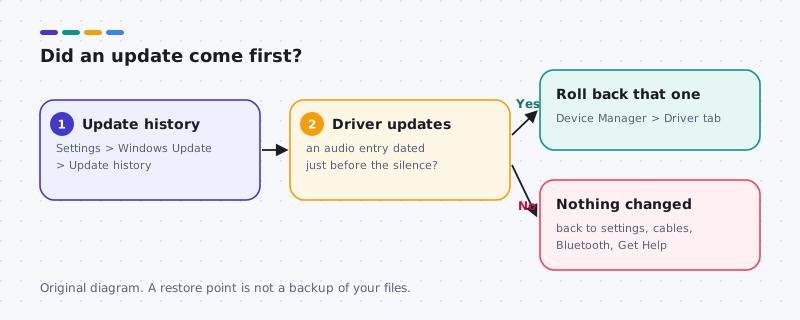
- Check Update history. Open Settings > Windows Update > Update history and expand Driver updates. Look for an audio, sound or “media” entry dated just before the silence began.
- Look in Device Manager. Right-click Start, choose Device Manager, and expand Sound, video and game controllers. A warning icon or a device that is missing entirely is worth noting. Double-click it and read Device status. Our Device Manager guide explains the icons.
- Roll back that one driver if it changed recently: on the Driver tab, select Roll Back Driver, choose a reason, and restart. The roll back guide covers what to do if the button is greyed out.
- Reinstall the audio package from your computer maker if rolling back is not possible. On laptops and pre-built desktops, use the computer maker’s page for your exact model first, because their audio package often includes tuning the generic version lacks. Follow our manual install guide.
- Recovery if things get worse. If a new package makes sound worse, roll back again or use a restore point created before the change. Stop point: if no audio device appears at all after these steps, the hardware or its connection may be at fault; contact the computer maker.
What not to do
- Do not uninstall every device under Sound, video and game controllers. Change one device, restart and test.
- Do not install “audio booster” or driver updater tools. They cannot fix a wrong output setting and may add unwanted software.
- Do not disable security software to test audio.
macOS note
This note is separate from the Windows steps above. On a Mac, open System Settings > Sound > Output and choose the right device, check the output volume and mute, and reconnect Bluetooth headphones from System Settings > Bluetooth. Built-in audio drivers on a Mac update with macOS itself, so there is no separate driver to roll back.
Outside the computer
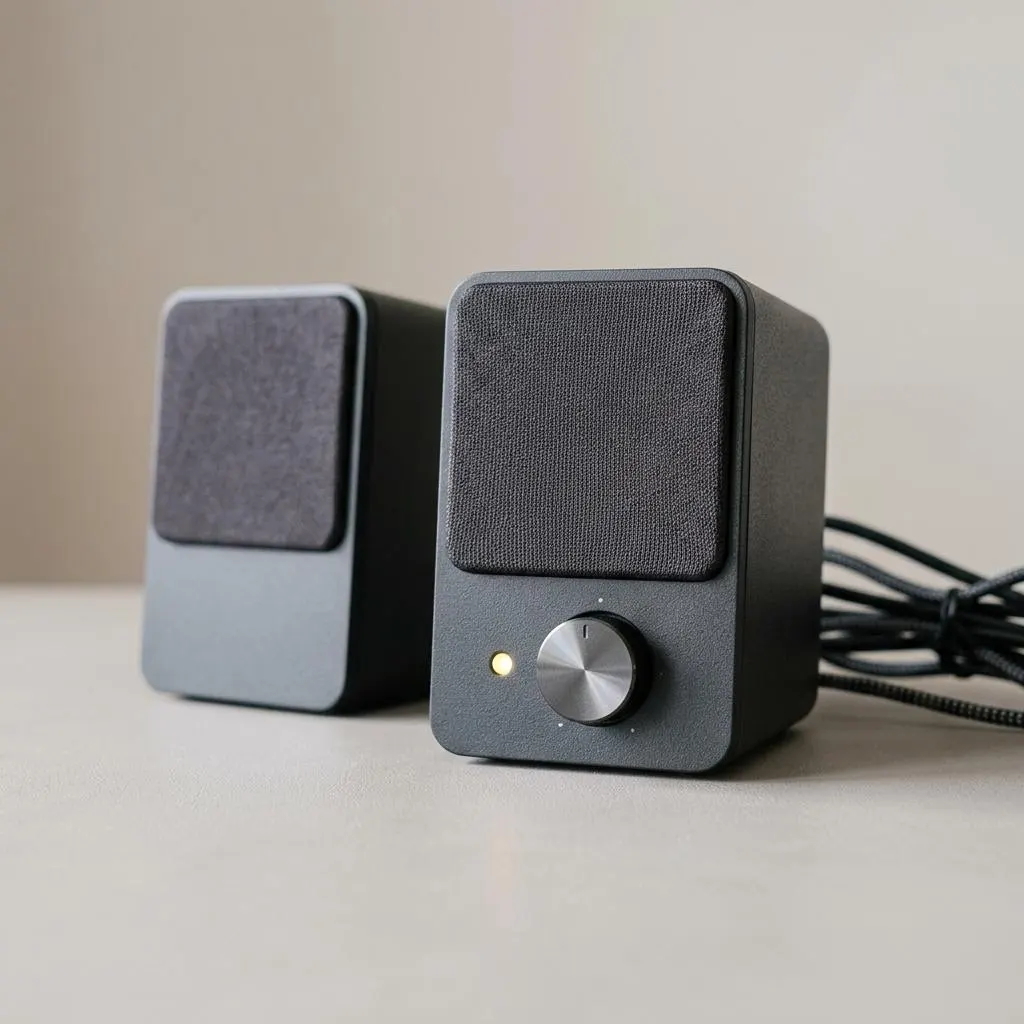
Speakers have power and volume of their own
Powered desktop speakers need mains or USB power, a power switch on, and their own volume knob raised. Updates can coincide with other changes: a speaker unplugged during cleaning, a power strip switched off, or a knob nudged. These checks take seconds.
If the speakers have a power light, confirm it is on. If they have a headphone socket, plug headphones into the speakers to see whether sound arrives there. If you have a phone and a suitable cable, connecting it to the speakers tests them independently of the computer.
- Speakers silent with the phone too: the speakers or their power are the problem.
- Speakers fine with the phone: return to output device selection and the steps in the main guide.
Worked example
Example: sound goes to the monitor instead of the speakers
Scenario: after an update, there is no sound from the speakers, but Windows says audio is playing. The volume meter moves, but nothing is heard.
- Open Settings, System, Sound, and look at the Output list. A monitor connected by HDMI or DisplayPort often appears as an audio device with the monitor's name.
- Select the speakers or headphone output instead, and test.
- If the speaker output is missing from the list, check whether it appears under All sound devices as disabled or not connected.
- If it does not appear at all, then Device Manager and a possible single-device roll back, as described above, are justified.
A moving volume meter is a useful clue: it means Windows is sending sound to the selected device. If you hear nothing, the selected device is the wrong one or is physically silent.
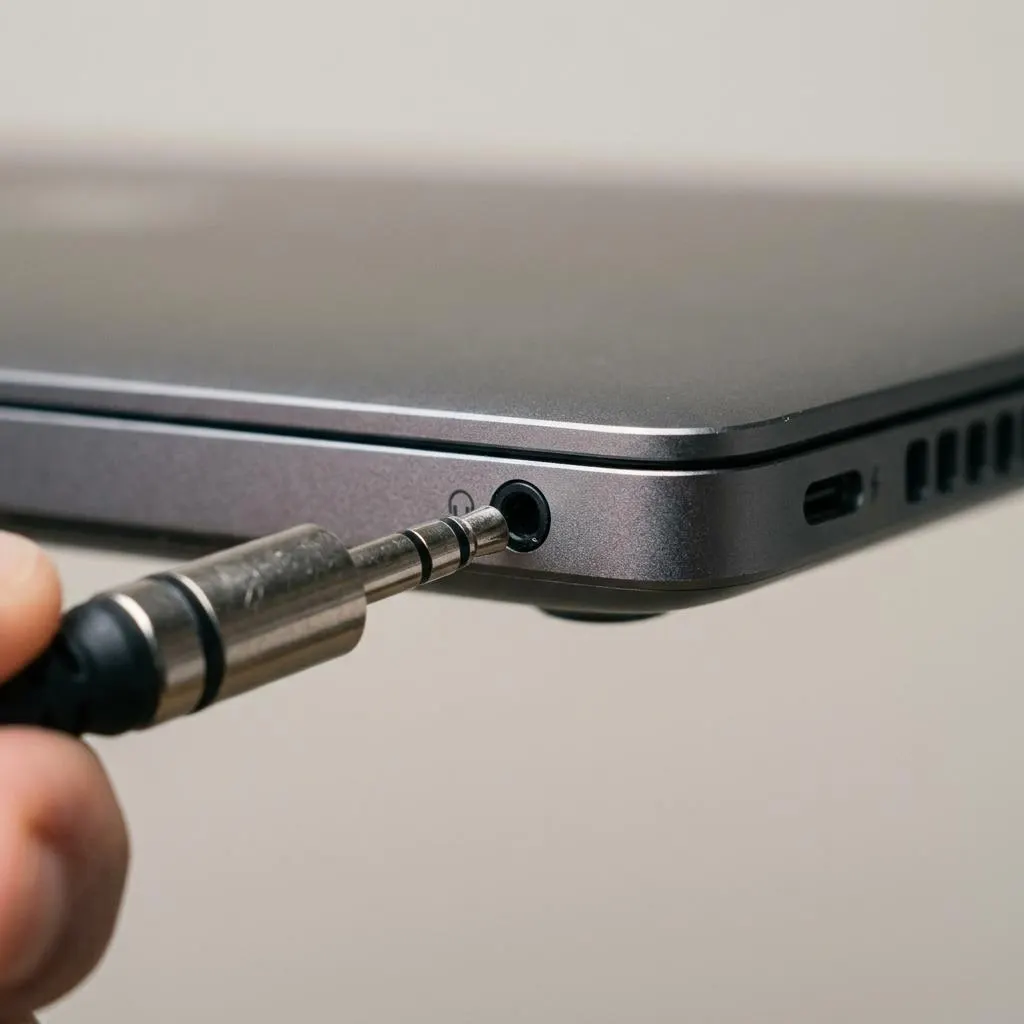
Jack detection
Headphones that are ignored when plugged in
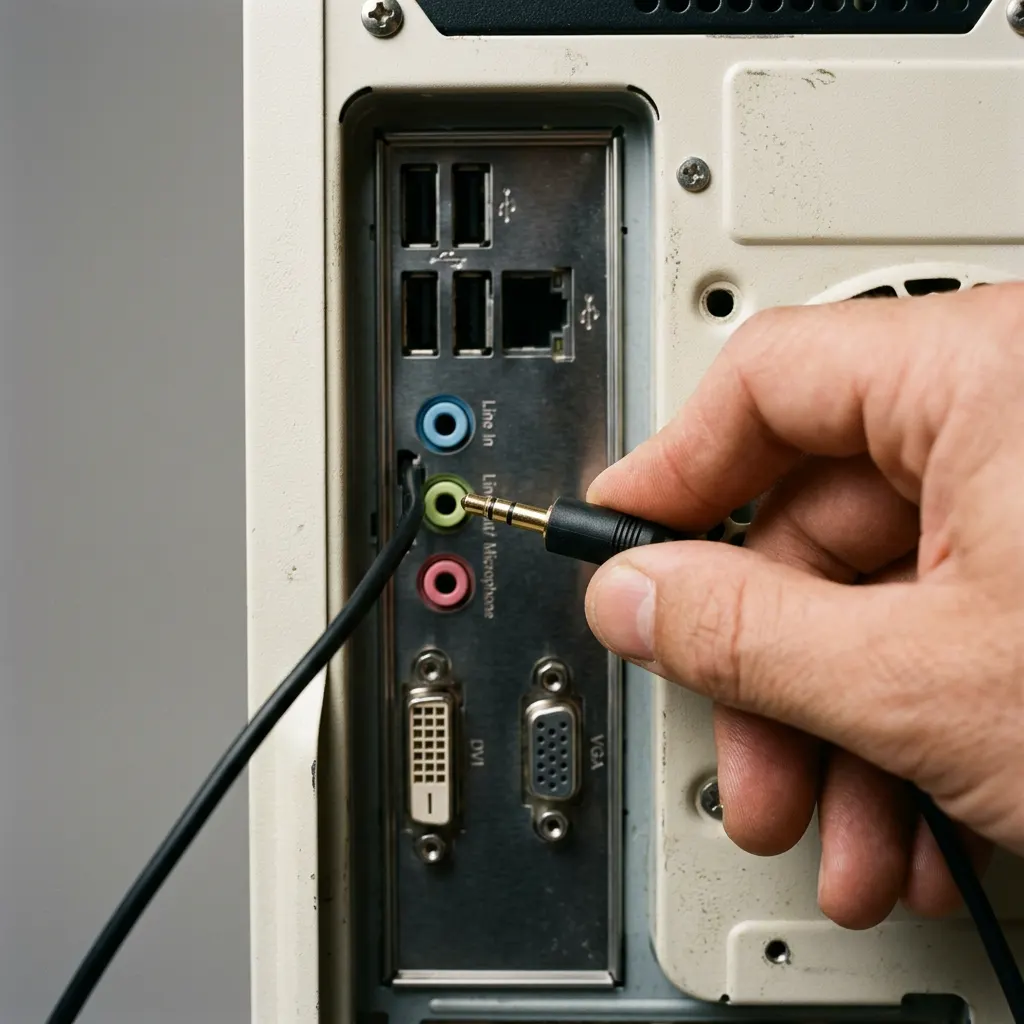
Many laptops switch from speakers to headphones automatically when a plug is inserted. That switch relies on jack detection in the audio driver or the maker's audio app. After an update, it may stop working, leaving sound on the speakers while headphones stay silent.
First push the plug fully in; some cases prevent full insertion. Then check Settings, System, Sound for a headphones entry and select it manually. If the laptop maker provides an audio control app, check its jack settings.
If headphones work on another device but are never detected here, compare the audio driver version with the laptop maker's support page. Maker packages often include jack detection behaviour that a generic driver lacks. Change only the audio driver, and keep a record of the previous version.
FAQ
Questions people actually ask
Why did my sound stop right after a Windows update?
Often the update changed which output is selected, for example switching to a monitor's speakers or a headset that is no longer connected. Less often, a new audio driver arrived with the update and does not suit your hardware. Check the output device first, then Update history for an audio driver entry.
Should I turn off audio enhancements?
Only as a test, and only for the device that is silent or distorted. Enhancements are optional per-device processing. If turning them off brings sound back, leave them off or check the computer maker's site for a newer audio package later.
Where is the old audio troubleshooter in Windows 11?
Windows 11 runs audio troubleshooting through the Get Help app. Search for Get Help, then describe the problem, for example no sound. The older troubleshooter pages in Settings are being retired, so use Get Help instead.
Do I need to reinstall the audio driver?
Usually not. Most no-sound problems are settings or connections. Reinstall or roll back only the one audio device, and only after the settings checks fail and Device Manager shows a problem or a recent driver change.