
Driver types
USB and peripheral drivers: how they work and what to check first
How USB controller, hub and class drivers work, why most keyboards, mice and drives need no download, and safe checks when a USB device is not recognized.
What this section covers
USB is the most forgiving part of a computer. Most devices work the moment you plug them in, which makes it confusing when one does not. This guide explains the layers of USB drivers, why so few peripherals need a download, how to check USB drivers on Windows 11 and macOS, and a calm order of checks for devices that are not recognized or keep disconnecting.
How USB drivers work
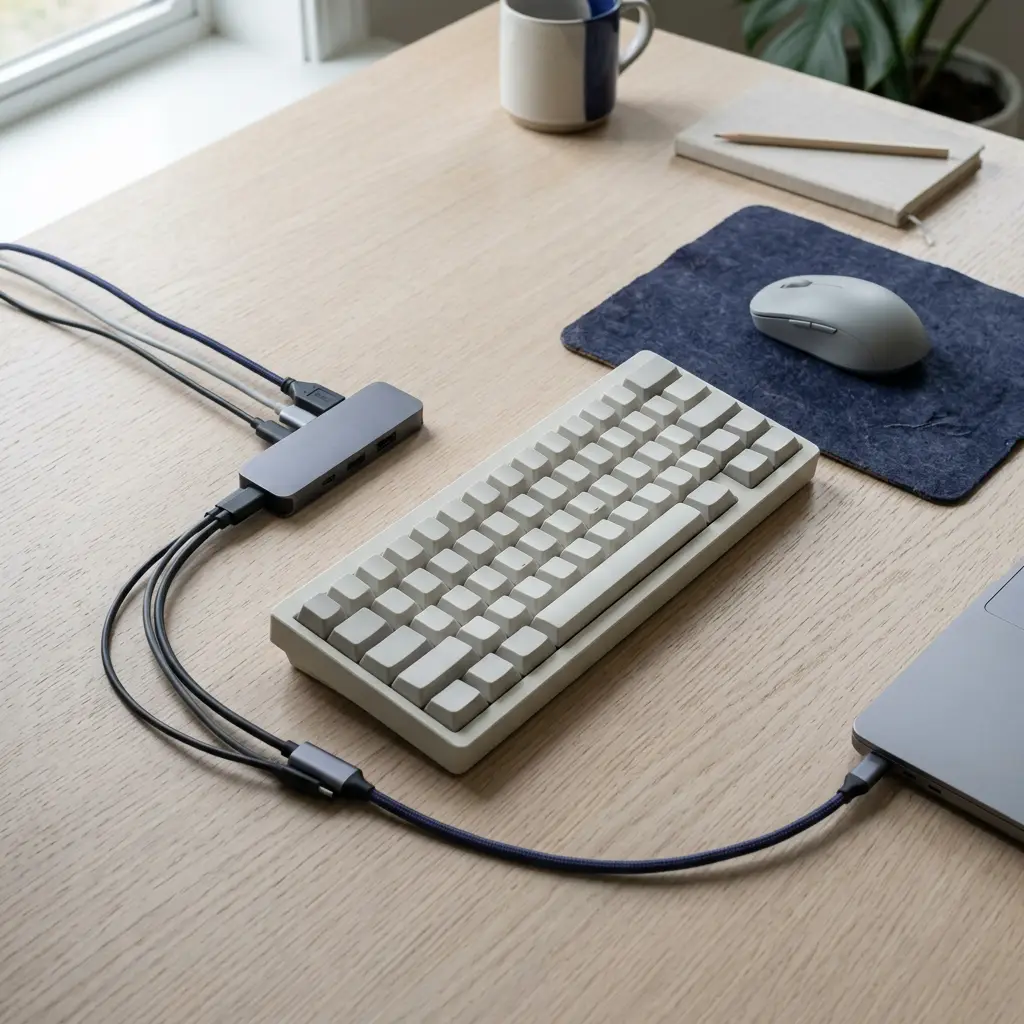
USB drivers come in layers. A host controller driver runs the ports themselves. A hub driver tracks what is plugged into each port, including the computer’s internal root hub and any external hub. On top sit class drivers, which handle whole families of devices that follow a shared standard.
Microsoft publishes the list of USB device classes Windows supplies drivers for. It includes human interface devices (keyboards, mice, many game controllers), mass storage (flash drives and external disks), audio, video (webcams), printers and more. macOS includes equivalent class drivers. That is why a new mouse or flash drive works without any download.
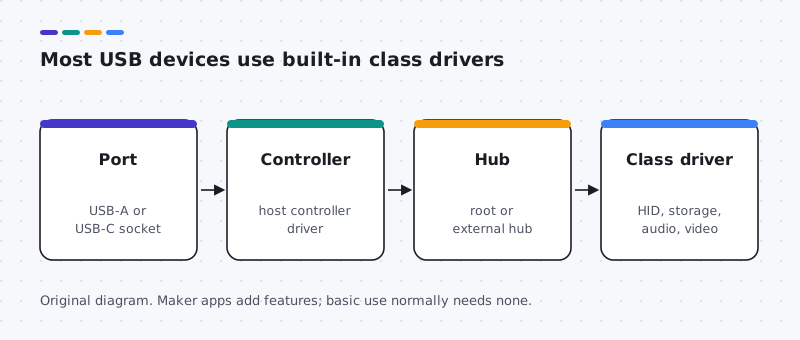
Device makers still offer software, but it usually adds features: button mapping, lighting, firmware updates for the accessory, or special modes. Some devices, such as certain audio interfaces or older serial adapters, do need a maker driver for full function.
How to check your current USB driver
Windows 11
- Right-click Start and open Device Manager.
- Expand Universal Serial Bus controllers to see host controllers and hubs. Your device appears under its own category, such as Keyboards, Mice and other pointing devices or Disk drives.
- A yellow warning mark or an “Unknown USB Device” entry points to a driver or connection problem. Double-click it and read the Device status box.
- Settings > Bluetooth & devices > USB has the option to notify you about USB issues.
macOS
- Open Apple menu > About This Mac > More Info > System Report.
- Select USB in the sidebar. If the device appears there, macOS can see it at the hardware level.
- Keep class drivers current through System Settings > General > Software Update.
How to update USB drivers safely
- Windows Update. USB controller and hub drivers come with Windows and its updates. Check Advanced options > Optional updates for anything listed for your hardware.
- Your PC maker’s support page. Some PCs, especially with older or third-party USB controllers, list a USB or chipset package for your model.
- The device maker. For an accessory that needs extra software, use the maker’s page for your exact model and Windows or macOS version.
- Reinstall one device. For a single misbehaving device, unplug it, choose Uninstall device in Device Manager, then plug it back in.
Common USB and peripheral driver problems and how to fix them
“USB device not recognized”
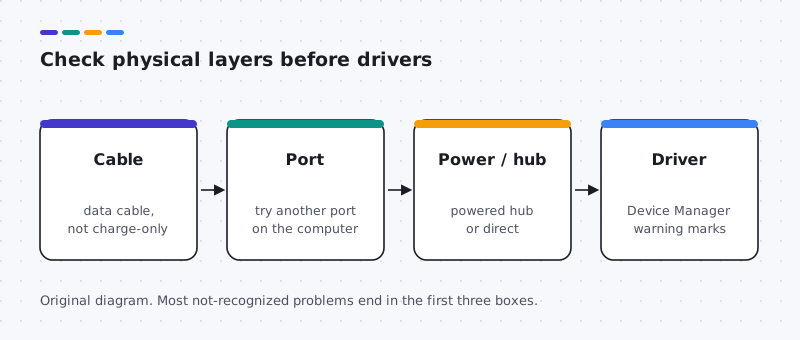
Likely causes: a charge-only or faulty cable, a worn port, or an unpowered hub.
- Plug the device directly into the computer, not a hub, and try another port.
- Try a different cable that you know carries data.
- If Device Manager shows “Unknown USB Device”, uninstall that entry and plug the device in again.
Device disconnects when idle
Likely causes: USB selective suspend or device power saving.
- In Device Manager, open the device or the USB Root Hub, then the Power Management tab if present, and clear the option that lets the computer turn it off.
- Under Control Panel > Power Options > Change plan settings > Advanced, review USB selective suspend.
- Use a powered hub for drives and high-power devices.
Extra buttons or lighting do not work
Likely causes: the maker’s companion app is not installed.
- Confirm basic typing or pointing works, which shows the class driver is fine.
- Install the maker’s app from its own website for your model.
External drive not showing in File Explorer or Finder
Likely causes: not enough power, no drive letter, or a format the computer cannot read.
- Check that it appears under Disk drives in Device Manager, or in Disk Utility on a Mac.
- Try another port or a powered connection.
- Do not initialize or format the drive when prompted if it holds data. Copy what you can first, and see the storage guide.
Know your connectors
Different plugs, different capabilities
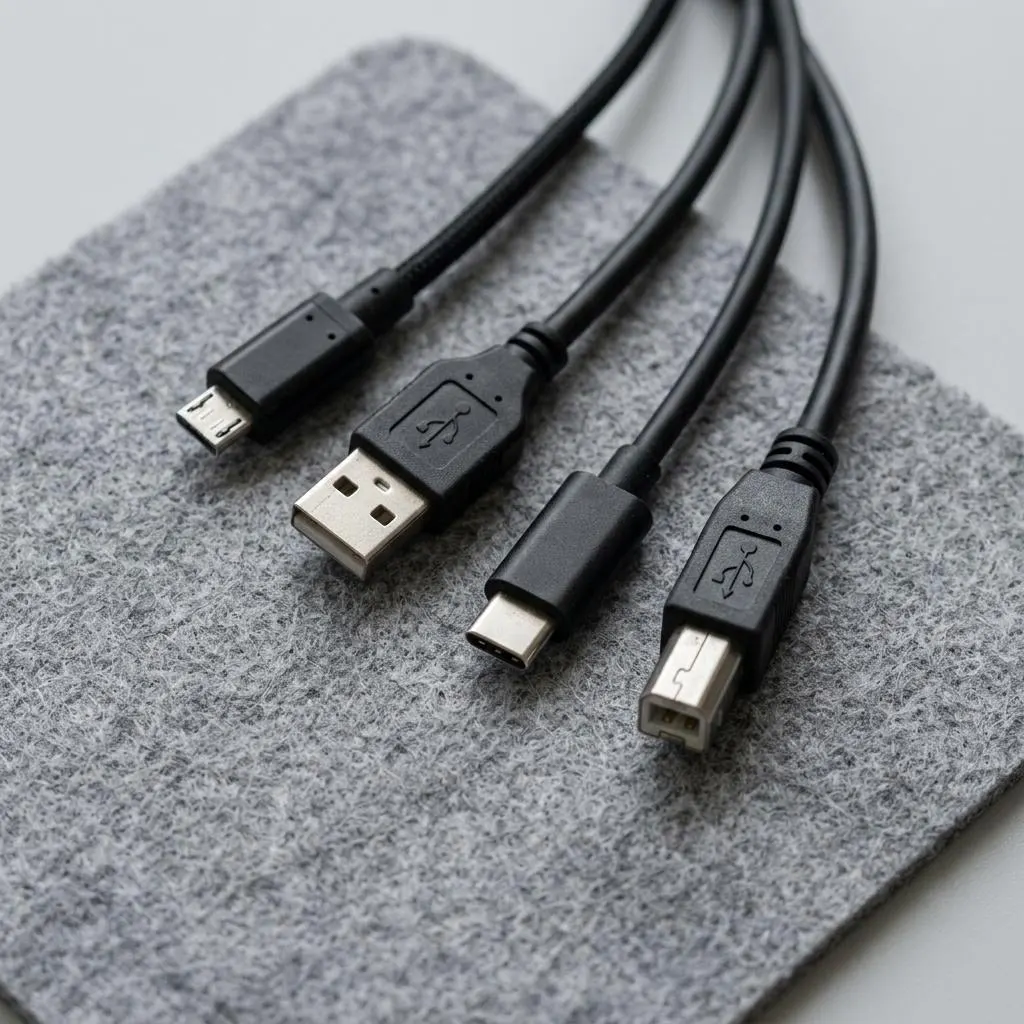
USB connectors differ in shape and often in capability. A USB-C cable may carry charging only, data at several speeds, or video, depending on the cable and the port. Two cables that look identical can behave very differently.
Checking the cable before the driver saves a lot of time. A cable that came with a phone charger may never have had data wires at all, and the device will charge while the computer sees nothing.
- Label cables you know carry data.
- Prefer ports directly on the computer over front-panel ports or hubs when testing.
- Check the computer maker's specifications for which USB-C ports carry video or charging.
Worked example
Example: a webcam that disappears mid-call
Scenario: a USB webcam works for a few minutes and then vanishes from the call app. The UVC video class driver in Windows supports most webcams, so start with power and connection:
- Move the webcam from a hub or monitor port to a port directly on the computer.
- Check Device Manager under Cameras while it drops. If the entry disappears entirely, suspect power or the cable.
- Turn off power saving for the USB Root Hub that the camera uses, then test again.
- Only then check the camera maker's page for firmware or software specific to your model.
If the camera works in the Windows Camera app but not in one call app, the issue is the app's camera choice or permissions, not the driver.
Hubs and docks
When a hub or dock is the weak link
Unpowered hubs share a single port's power among every device plugged in. External drives, webcams and audio interfaces can draw more than that, which causes random disconnects that look like driver faults.
Docks add their own controllers and sometimes their own firmware or display drivers. If a device works directly on the computer but not through a dock, check the dock maker's support page and its power supply before touching the computer's USB drivers.
A quick test settles it: plug the same device straight into the computer with a short cable you trust. If it works there every time, the computer's drivers are fine.
FAQ
Questions people actually ask
Do I need to download a driver for a USB keyboard or mouse?
Normally no. Keyboards and mice follow the USB HID class, and Windows and macOS include drivers for it. Maker software is only for extras such as programmable buttons or lighting.
Why does my USB device disconnect after a few minutes?
Often power saving. Windows can suspend idle USB ports to save power. Unpowered hubs, long cables and worn ports also cause drops. Try a port directly on the computer before changing settings.
Why does one USB-C cable work and another does not?
USB-C cables vary. Some carry charging only, some carry data at different speeds, and some carry video. A charge-only cable can make a working device look broken.
Is it safe to uninstall a USB device in Device Manager?
For a single external device, yes: unplug it, uninstall the entry, and plug it back in so Windows reinstalls it. Avoid uninstalling USB host controllers or root hubs, which can disable your keyboard and mouse until you restart.
Can a USB driver problem damage my data?
The driver itself rarely does, but unplugging a drive while it is writing can. Use Safely Remove Hardware on Windows or Eject on a Mac, and keep backups of anything stored only on a flash drive.