
Troubleshooting
Start with what you notice
Pick the symptom, not the brand. Each guide begins with checks you can undo in seconds, and only reaches for a driver when the evidence points there.
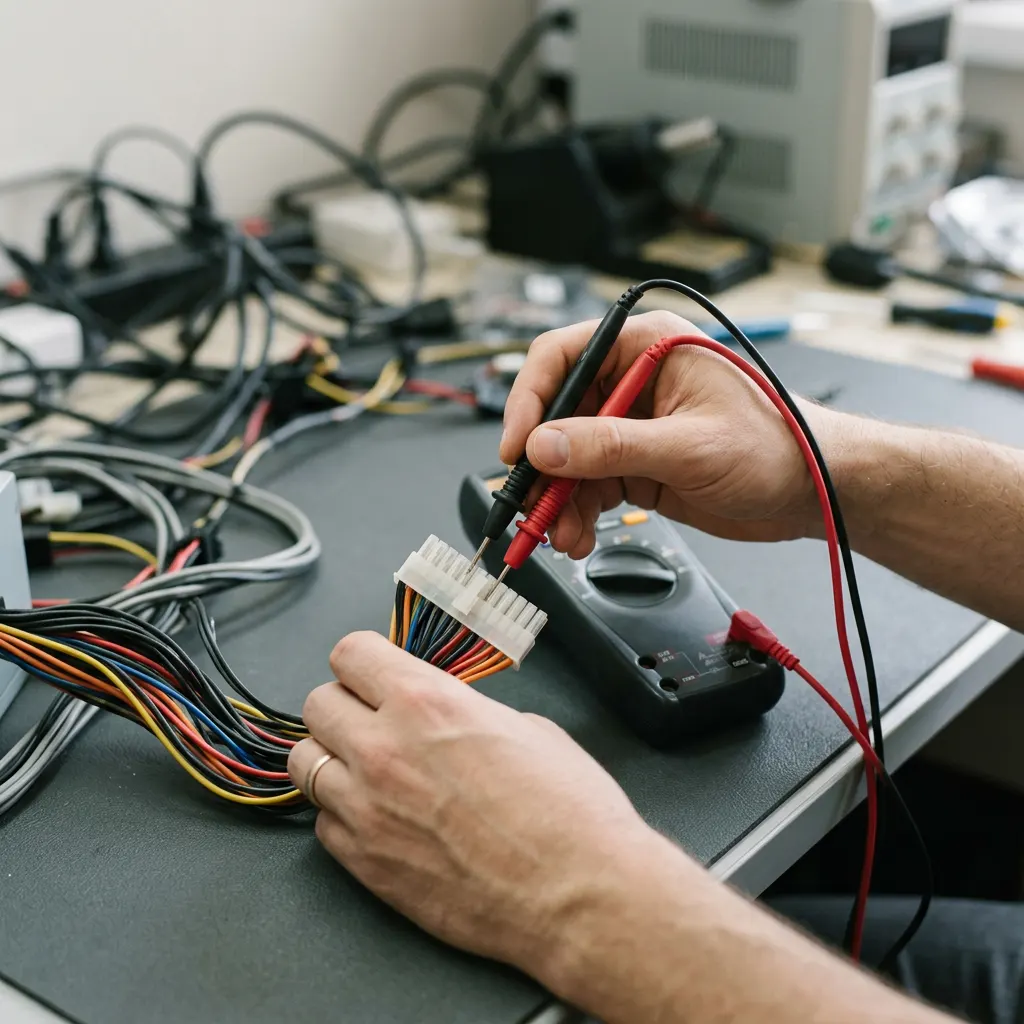
Step one
What is happening?
5 guides live. Each card shows the first thing to try before you even open the guide.
- “The PC stopped on a blue screen and restarted”Blue screen stop-code crashes in Windows 11: what to do firstFirst movePhotograph the stop code and list what changed recently.Read guide →
- “Sound vanished after an update”No sound after an update in Windows 11: a symptom-first fixFirst moveCheck mute and the selected output device.Read guide →
- “Wi-Fi keeps dropping or shows no networks”Wi-Fi keeps dropping or no networks found in Windows 11First moveTest another device on the same network.Read guide →
- “The screen flickers, goes black or looks stretched”Display flickering, black screen or wrong resolution in Windows 11First moveCheck monitor power, input source and cable.Read guide →
- “A USB device is not recognized”USB device not recognized in Windows 11: a careful walkthroughFirst movePlug straight into the PC with a known data cable.Read guide →
How every guide works
Five moves, always in this order
Notice
Name the symptom in plain words. Pick the card above that matches.
Note
Write down error codes, the time it started and anything that changed.
Reversible checks
Settings, cables, power, restarts. Nothing here is hard to undo.
One careful change
Back up, create a restore point, then change one driver for one device.
Know when to stop
Hardware faults and managed PCs belong with the maker or your IT team.
House rules
What these guides will never ask
No guide promises a fix. They aim to keep every step reversible and your files safe.
- Back up first. A restore point returns drivers and settings, not your documents or photos.
- No security switched off. No registry edits, stress tools, firmware flashing or bypassing BitLocker prompts.
- No bulk uninstalls. One device, one change, then test.
- Updating a driver? Follow the five-step safe update method from the Safe updates section.
- Managed PC? Work and school computers often control drivers. Ask your IT team before changing anything.
Narrow it down
Rule out the simple causes first
Many driver-like symptoms are physical. These checks take minutes and change nothing permanent.
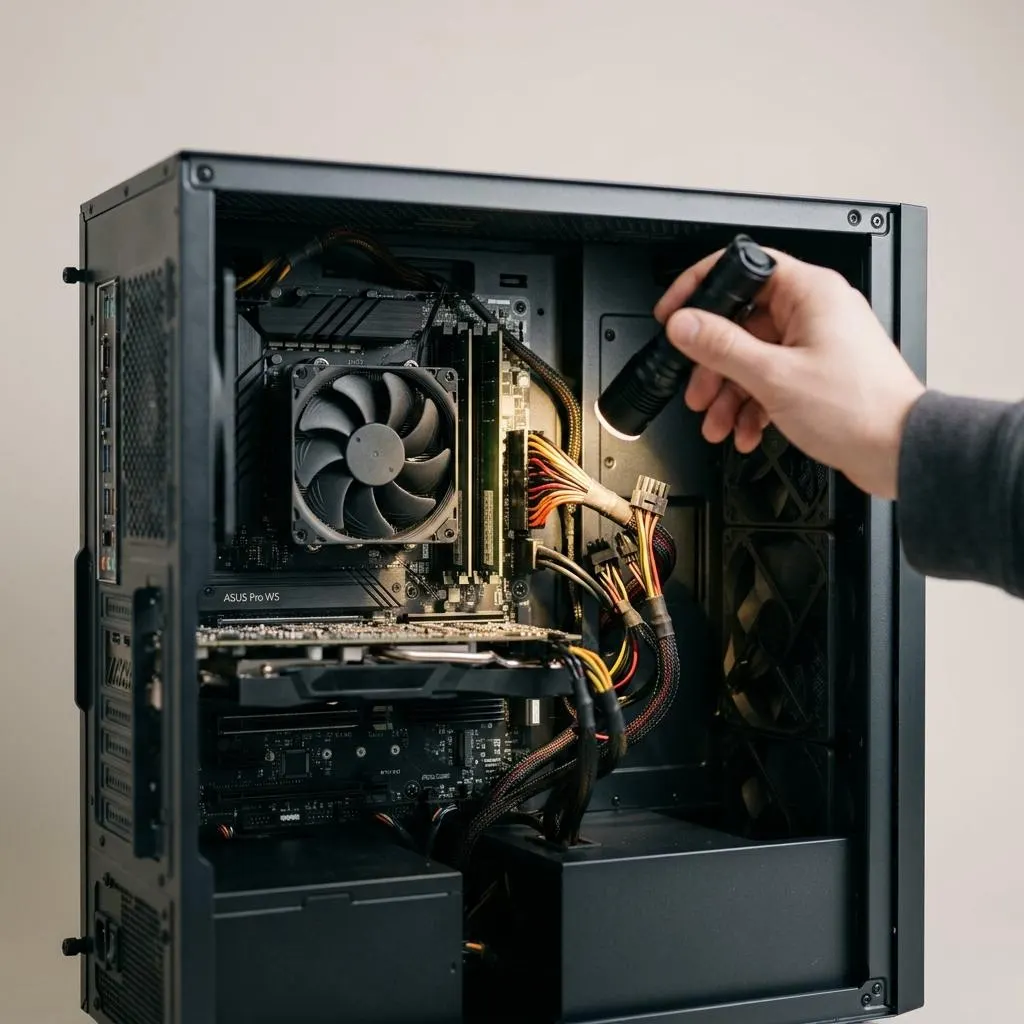
Look before you change
A light and five minutes
Before any driver change, look. Loose cables, half-seated plugs and blocked vents cause flicker, dropouts and crashes. Desktop owners comfortable working inside the case can check connections with the computer off and unplugged; laptop owners should stay outside the case.
- Flicker or black screen: see display flicker and black screens.
- Random crashes: see stop-code crashes.
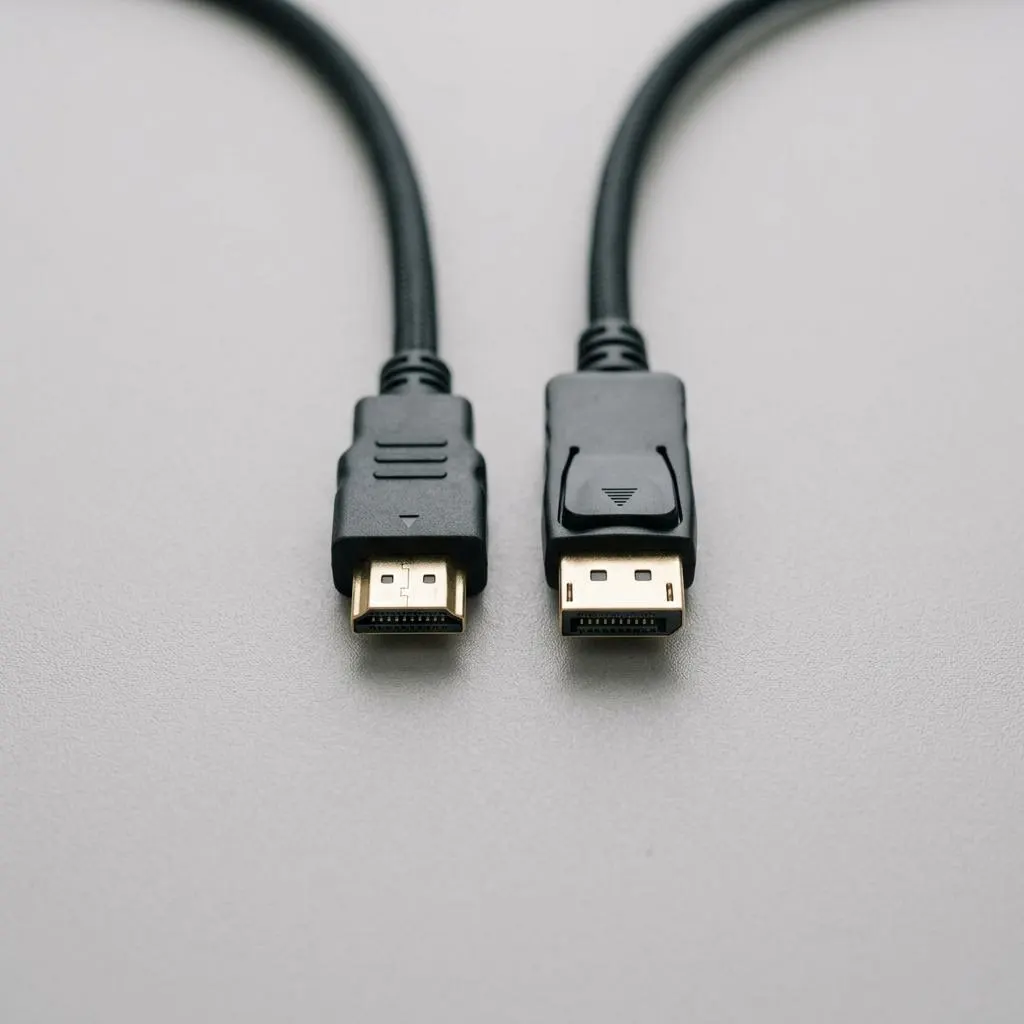
Swap one thing
Swap tests separate hardware from drivers
Swapping a single part, such as a cable, a port or the device itself, is the fastest way to decide whether a driver is involved. If the symptom follows the part, it is hardware. If it stays with the computer, a driver or setting is more likely.
- USB device missing: try another port and cable, then USB not recognized.
- Silent speakers: test them with a phone, then no sound after an update.
- Wi-Fi drops: compare with another device, then Wi-Fi drops.
Keep exploring