
Driver types
Chipset and motherboard drivers: what they do and when to update
What chipset and motherboard drivers do, how to check them on Windows 11 and macOS, when an update helps, and how they differ from motherboard firmware.
What this section covers
Chipset drivers have a reputation as a magic fix for slow or unstable computers. The reality is quieter. This guide explains what the chipset does, what chipset software actually installs, how to check it on Windows 11 and macOS, when an update is worth doing, and how to tell a chipset driver apart from motherboard firmware, which carries much more risk.
How chipset drivers work
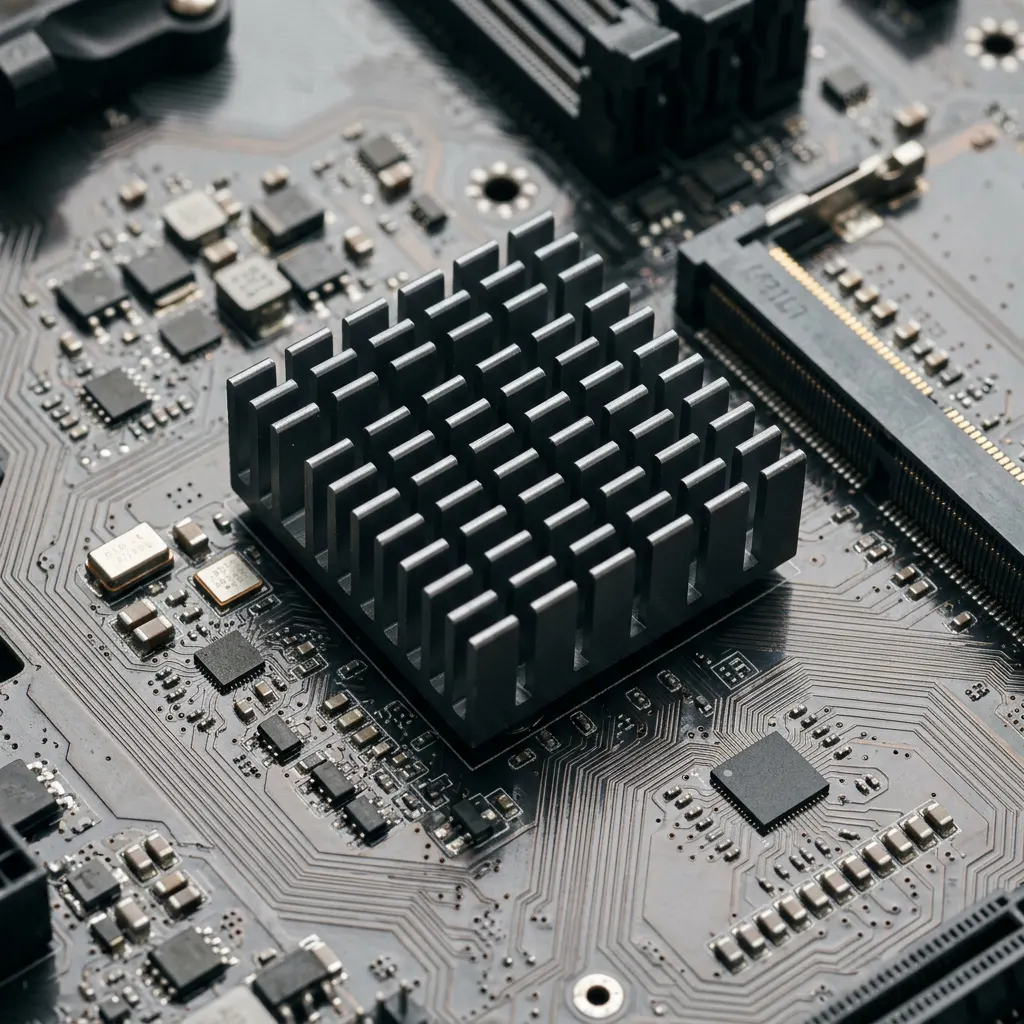
The chipset is a set of controllers on the motherboard that connect the processor to USB ports, SATA and NVMe storage, audio, networking and expansion slots. Windows needs to know exactly which controllers are present so it can load the right driver for each one and manage power correctly.
On Intel systems, much of the “chipset driver” is not a driver in the usual sense. Intel describes its Chipset Device Software as a set of INF files: small text descriptions that tell Windows how to identify chipset components so the correct built-in drivers load and the devices get proper names. It does not replace the drivers for graphics, network or storage, and it is not a performance upgrade. AMD chipset packages include more active components, such as power-management drivers, but the same rule applies: they make the board’s controllers known and managed, not faster.
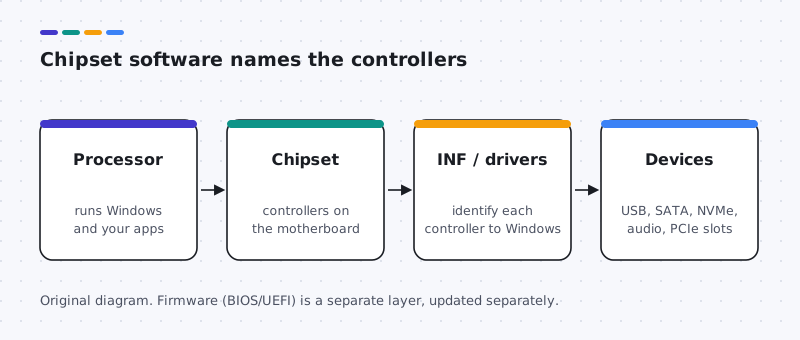
When this layer is missing, symptoms are indirect: “Unknown device” or “PCI Device” entries in Device Manager, ports that are not detected, poor battery life or sleep problems.
How to check your current chipset driver
Windows 11
- Right-click Start and open Device Manager.
- Expand System devices. Entries named after the chipset, such as “Chipset SATA/PCIe controller” or “SMBus”, show the specific controllers are identified.
- Look under Other devices for “Unknown device” or yellow warning marks. Double-click one and open the Driver tab to see the provider and date.
- To find your model, open System Information (search for msinfo32) and read System Model or BaseBoard Product.
macOS
There is no separate chipset driver to check. Apple menu > About This Mac > More Info, then System Report, lists the hardware, and System Settings > General > Software Update keeps this layer current.
How to update chipset drivers safely
- Windows Update. Install offered updates, then check Settings > Windows Update > Advanced options > Optional updates for chipset or system device drivers.
- Your PC or motherboard maker’s support page. Enter your exact model and choose the chipset package for Windows 11. This is the best source for laptops.
- Intel or AMD. For self-built desktops, the chip maker’s package is reasonable when the board maker refers you to it. Read the release notes for supported chipsets.
- One change at a time. Install, restart, and check Device Manager before changing anything else.
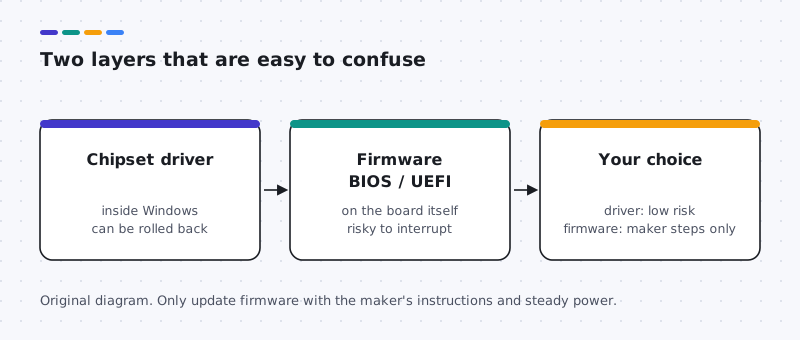
Firmware (BIOS or UEFI) updates are a different job. Only follow the PC or motherboard maker’s written instructions for your exact model, keep a laptop on its charger, and never interrupt the process. If the computer works and the release notes do not mention your problem, it is fine to wait.
Common chipset and motherboard driver problems and how to fix them
Unknown devices after a fresh install
Likely causes: Windows has not yet identified some chipset controllers.
- Run Windows Update, including Optional updates, and restart.
- If unknown devices remain, install the chipset package from your PC or motherboard maker’s page for your exact model.
- Check the device’s Details tab, Hardware Ids, to confirm it is a chipset device rather than, for example, a card reader.
Sleep or battery problems after an update
Likely causes: a power-management component changed.
- In Device Manager, open the recently updated system device and choose Roll Back Driver on the Driver tab if it is available.
- Restart and test sleep for a day before changing anything else.
- Check the maker’s support page for a newer package or a firmware note about sleep.
Peripheral or storage ports not detected
Likely causes: a disabled port in firmware settings, a missing controller identification, or a physical fault.
- Test with another device and cable to rule out the accessory.
- Check Device Manager for warning marks under Universal Serial Bus controllers or Storage controllers.
- Install the chipset package for your model. Do not change storage modes in firmware settings to fix this.
Chipset installer refuses to run
Likely causes: the package is for a different chipset or Windows version.
- Recheck your model in System Information.
- Download the package listed for that exact model and Windows 11.
- If the installer still refuses, your system may simply not need it.
Where it lives
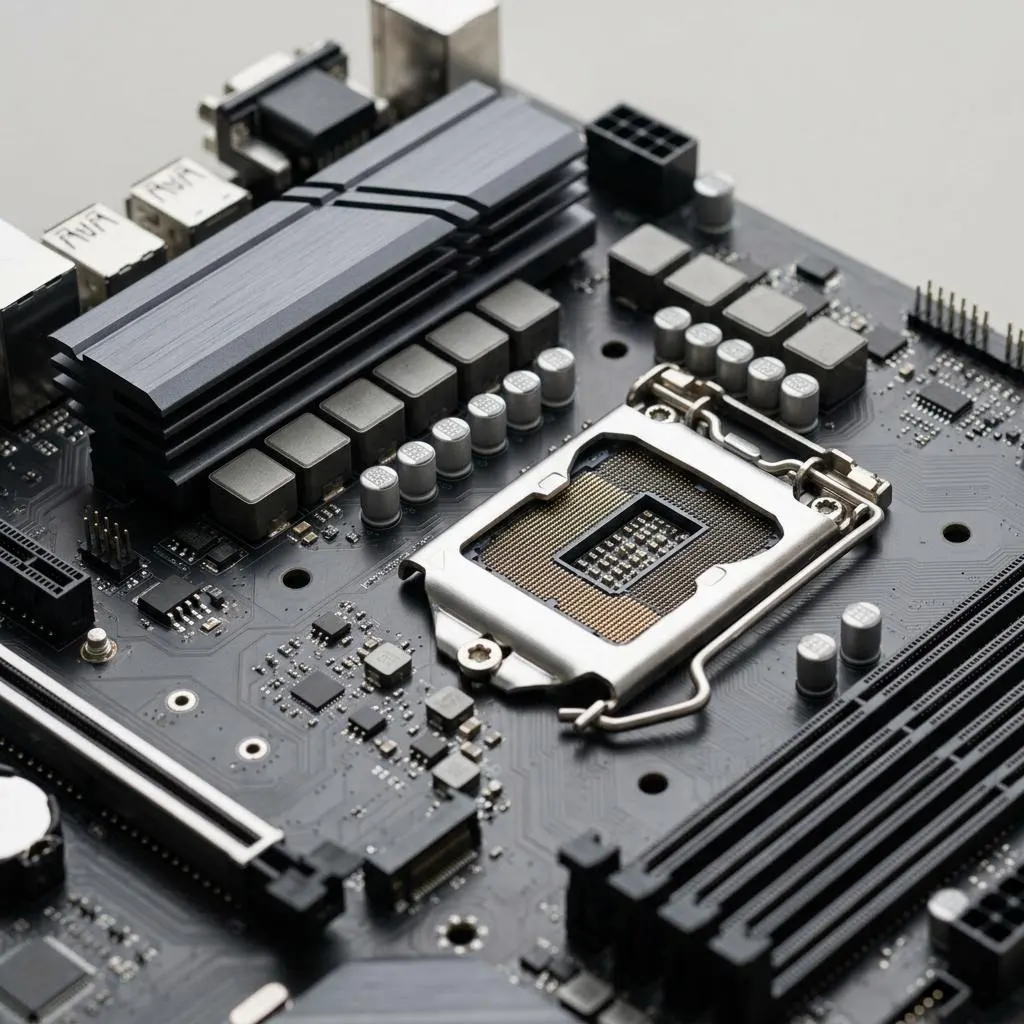
The board around the processor
The chipset ties the processor to USB, storage, audio and expansion slots. Its software is mostly identification and power settings rather than a single visible device, which is why it lives under System devices in Device Manager instead of having its own category.
That also explains why chipset packages rarely produce a visible change. If every device in Device Manager already has a proper name and no warning mark, the identification job is done.
- Laptop or branded desktop: start with the computer maker's support page for your model.
- Self-built desktop: start with the motherboard maker's page, then Intel or AMD if the board maker points there.
- Mac: nothing to install separately; Software Update covers it.
Worked example
Example: an unknown PCI device after reinstalling Windows
Scenario: after a clean Windows 11 install, Device Manager shows an entry called PCI Device under Other devices. A calm order of checks:
- Run Windows Update, including optional updates, and restart. Many unknown entries resolve here.
- If it remains, open the entry, choose the Details tab and select Hardware Ids. The VEN value identifies the maker; 8086 is Intel and 1022 is AMD.
- Install the chipset package for your exact board or PC model from its maker. Restart once.
- If the entry still remains, it may be a different device, such as a card reader or management engine component, listed separately on the same support page.
Do not install several chipset packages one after another hoping one sticks. Install one, restart, check, and stop when the warning is gone.
Know the difference
When a firmware update is the real answer
Some problems that look like chipset driver issues are fixed only by a BIOS or UEFI firmware update: support for a newer processor, a memory compatibility fix, or a sleep bug. The maker's release notes say so explicitly.
Firmware updates carry more risk than drivers because they rewrite the board's own startup code. Read the instructions for your exact model, use the maker's own method, keep laptops on mains power, and never switch off during the update. If your computer is stable and the notes do not mention your issue, waiting is a reasonable choice.
FAQ
Questions people actually ask
Will a chipset driver make my computer faster?
Usually not. Intel describes its Chipset Device Software as INF files that tell Windows how to identify chipset components, not as a performance driver. A missing package can leave devices unidentified, but installing one on a working system rarely changes speed.
Do I need to install chipset drivers after a fresh Windows install?
Often Windows Update supplies everything. After installing, check Device Manager for unknown devices or warning marks. If any remain, use the support page for your exact PC or motherboard model.
Is a chipset driver the same as a motherboard firmware update?
No. A chipset driver lives inside Windows and can be rolled back. Motherboard firmware runs on the board itself, and an interrupted firmware update can stop the computer starting. Treat them as separate decisions.
Do Macs need chipset drivers?
No separate package. On a Mac this layer is part of macOS and its firmware, delivered through Software Update.
Should I use the chip maker's package or my PC maker's package?
On laptops and branded desktops, start with the PC maker's support page, because it lists what was tested with your model. On self-built desktops, the motherboard maker's page is the usual source, and Intel or AMD packages are an alternative when the board maker points to them.