
Troubleshooting
Blue screen stop-code crashes in Windows 11: what to do first
A calm, symptom-first route through Windows 11 stop-code crashes: record the code, undo recent changes, use Safe Mode, and know when a driver is really to blame.
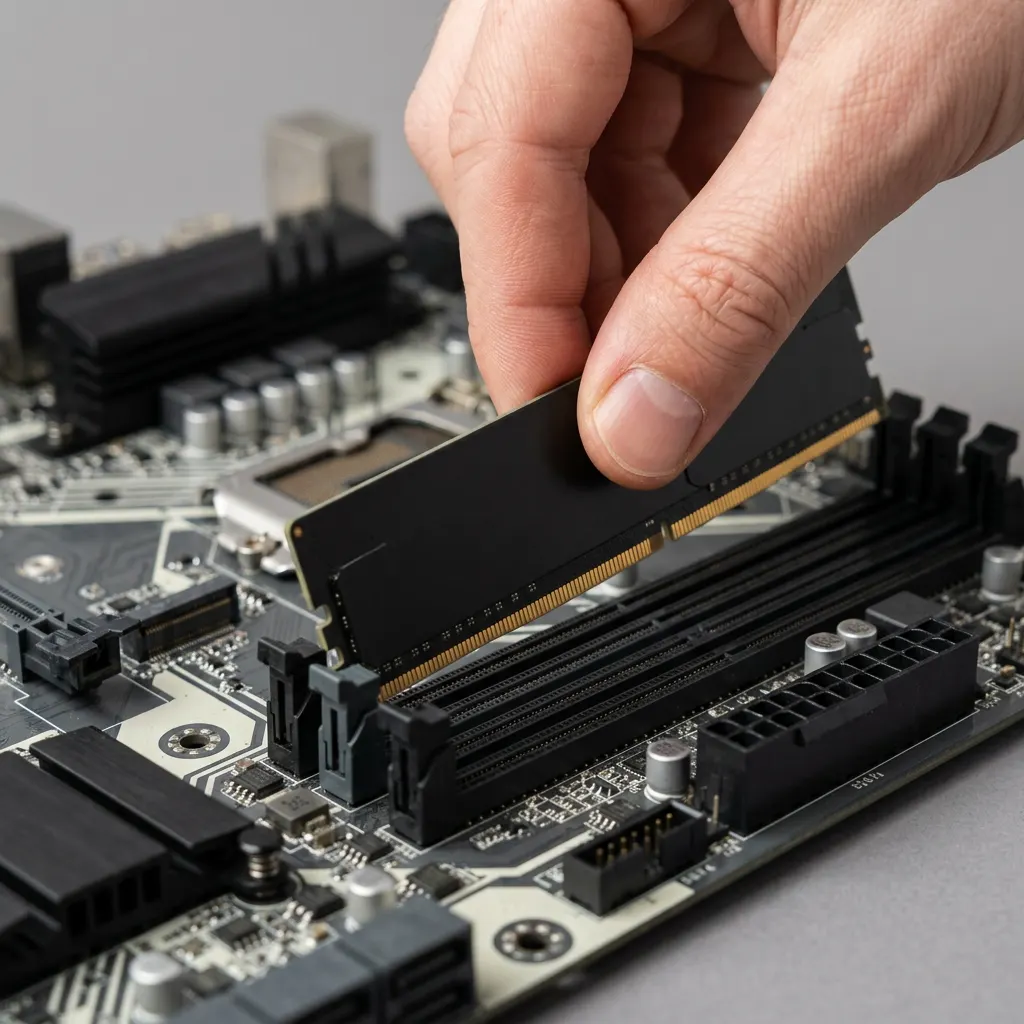
What this section covers
A stop-code crash, often called a blue screen, is Windows halting on purpose because something went wrong that it could not safely recover from. The screen shows a short message, a QR code and a stop code, then the PC restarts. This guide is for Windows 11. It explains what to record, which reversible checks to make first, how to reach Safe Mode when Windows will not start normally, and when a driver change is actually justified. It does not promise a fix for every crash: some come from failing hardware that needs repair.
Record the crash before you change anything
The most useful thing you can do in the first minute costs nothing: write down what you saw. A blue screen does not tell you the cause on its own, but the stop code combined with what changed recently narrows it down a lot.
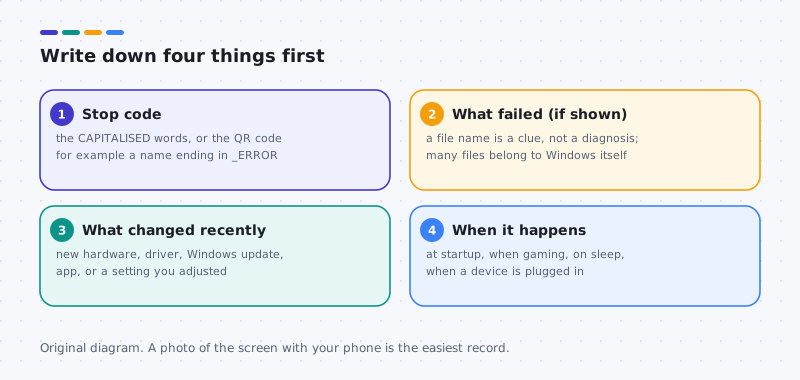
- Photograph the screen with your phone if it appears again. Capture the stop code (the words in capitals with underscores) and any “What failed” line.
- List recent changes: new hardware, a driver installed from a maker’s website, a Windows update, new security or tuning software, or a changed setting. Check Settings > Windows Update > Update history for dates.
- Note the pattern: at startup only, when gaming, when waking from sleep, or when a particular device is connected. Outcome: you now have something specific to match against the steps below.
If Windows still starts: reversible checks first
These steps follow the order Microsoft suggests for stop-code errors, with notes on when to stop.
- Remove new hardware. If you added a device, drive, memory or adapter before the crashes began, shut down, disconnect it, and restart. If the crashes stop, the hardware or its driver is the suspect; check the device maker’s site for a compatible version before reconnecting.
- Check free space and install Windows updates. Open Settings > Windows Update and select Check for updates. Install what is offered, including items under Advanced options > Optional updates only if they relate to the device you suspect. Restart and use the PC normally for a day.
- Undo one recent driver change. If a driver for one device changed just before the crashes started, open Device Manager, find that device, and use Roll Back Driver on the Driver tab. Change one device only, then test. Our roll back guide covers greyed-out buttons.
- Uninstall the most recent app if crashes began after installing it, especially software that adds its own drivers, such as tuning, recording, virtual drive or third-party security tools. Use Settings > Apps > Installed apps.
- Check for a newer driver from the computer maker for the device you suspect, following our manual install guide. Create a restore point first, and remember it is not a backup of your files. Stop point: if crashes continue with no pattern after these steps, hardware testing by the maker is the sensible next move.
If Windows will not start normally
After two or three failed starts, Windows usually opens the recovery environment by itself. Avoid repeatedly holding the power button to force this unless the PC is completely frozen and nothing else works.
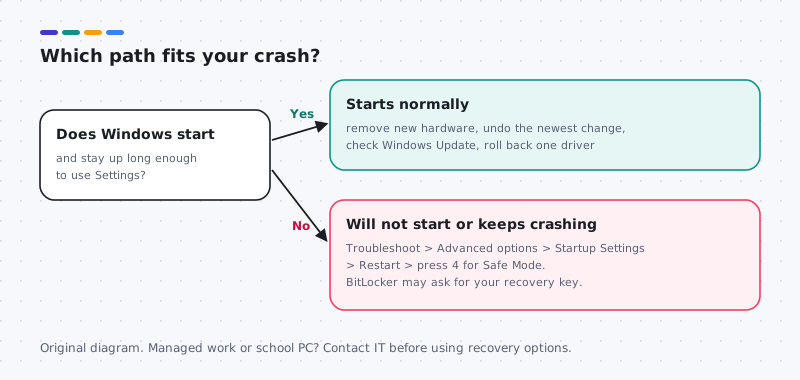
- Open Safe Mode. On the blue Choose an option screen, select Troubleshoot > Advanced options > Startup Settings > Restart. After the restart, press 4 (or F4) for Safe Mode, or 5 for Safe Mode with Networking. From a working desktop you can reach the same screen by holding Shift while selecting Restart.
- In Safe Mode, undo the most likely change: roll back the one suspect driver, or uninstall the app installed just before the crashes. Restart normally and test.
- Use System Restore if a restore point exists. From Troubleshoot > Advanced options > System Restore, pick a point from before the problem. Do not assume one exists; System Protection may have been off.
What not to do
- Do not run driver stress tools, registry edits or “cleaner” utilities found in forums. They can turn an occasional crash into a PC that will not start.
- Do not turn off antivirus, Secure Boot or other security features to make a crash go away.
- Do not flash firmware or BIOS as a troubleshooting guess; leave that to the computer maker’s instructions for a specific, documented issue.
- Do not uninstall many drivers at once, and do not use third-party updater tools.
macOS note
Macs do not show stop codes. If a Mac restarts with a message that it restarted because of a problem, the same principles apply: note recent changes and disconnect new accessories. Mac-specific steps are outside this Windows 11 guide.
Hardware suspects
Memory and recent hardware changes
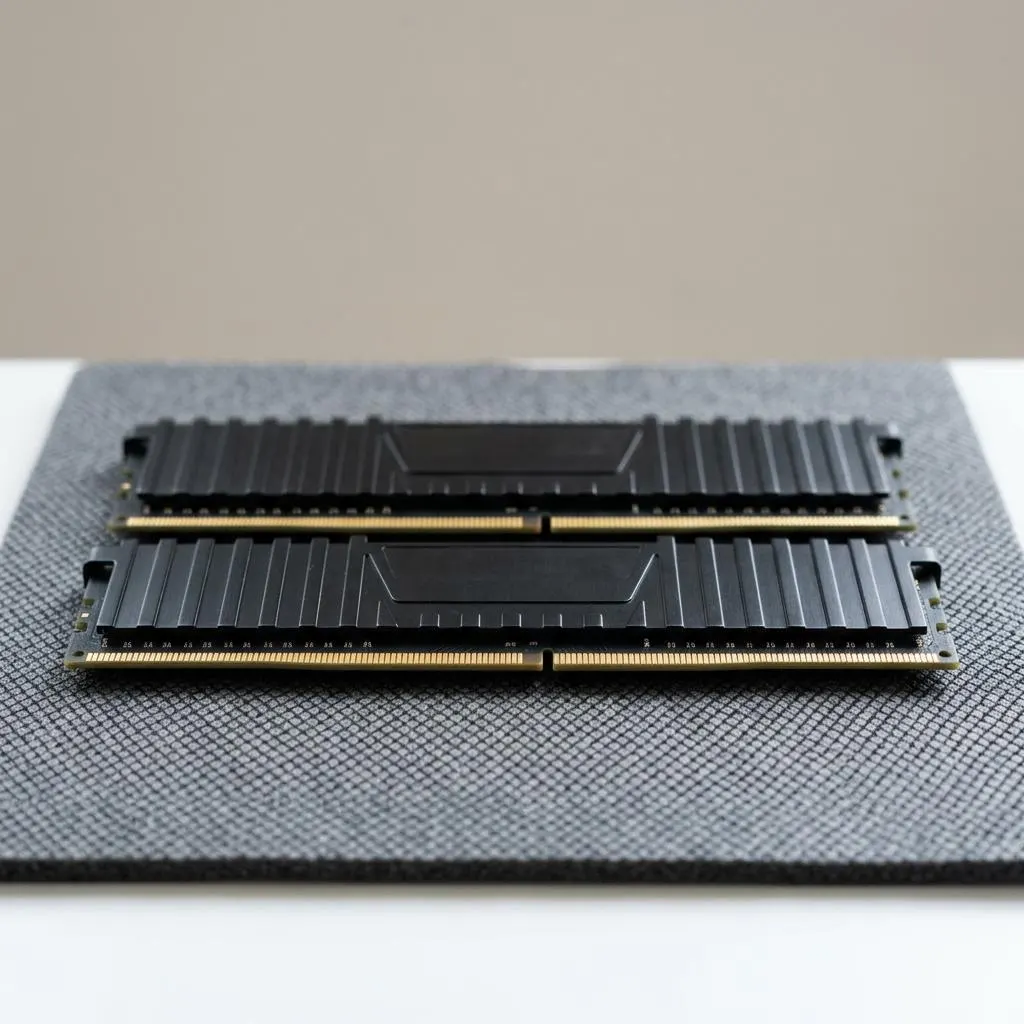
When stop codes vary from crash to crash and no single driver is named, memory is a common suspect. Windows includes Windows Memory Diagnostic, which you can find by searching the Start menu. It restarts the computer to run a test and reports the result after Windows starts again.
Think also about recent changes. A memory upgrade, a new graphics card or a moved computer can loosen connections. Reverting the most recent hardware change is often more productive than any driver step.
- Do not open a laptop to reseat memory; many have it soldered and opening can void the warranty.
- On a desktop, reseating memory is a job for shut down, unplugged, with anti-static precautions, or for someone experienced.
Worked example
Example: using Reliability Monitor to find the pattern
Scenario: the computer crashes every few days and you never catch the stop code. Reliability Monitor keeps a timeline of crashes and installs.
- Search the Start menu for reliability history and open View reliability history.
- Look for red critical events on the days of the crashes. Selecting one shows details, including any stop code recorded.
- Look at the information events on the same or preceding days, such as successful driver installs.
- If crashes started right after one driver installed, that driver is a strong candidate for a single-device roll back.
Reliability Monitor shows correlation, not proof. If no change lines up, follow the memory and hardware checks rather than updating every driver at once.
Power and heat
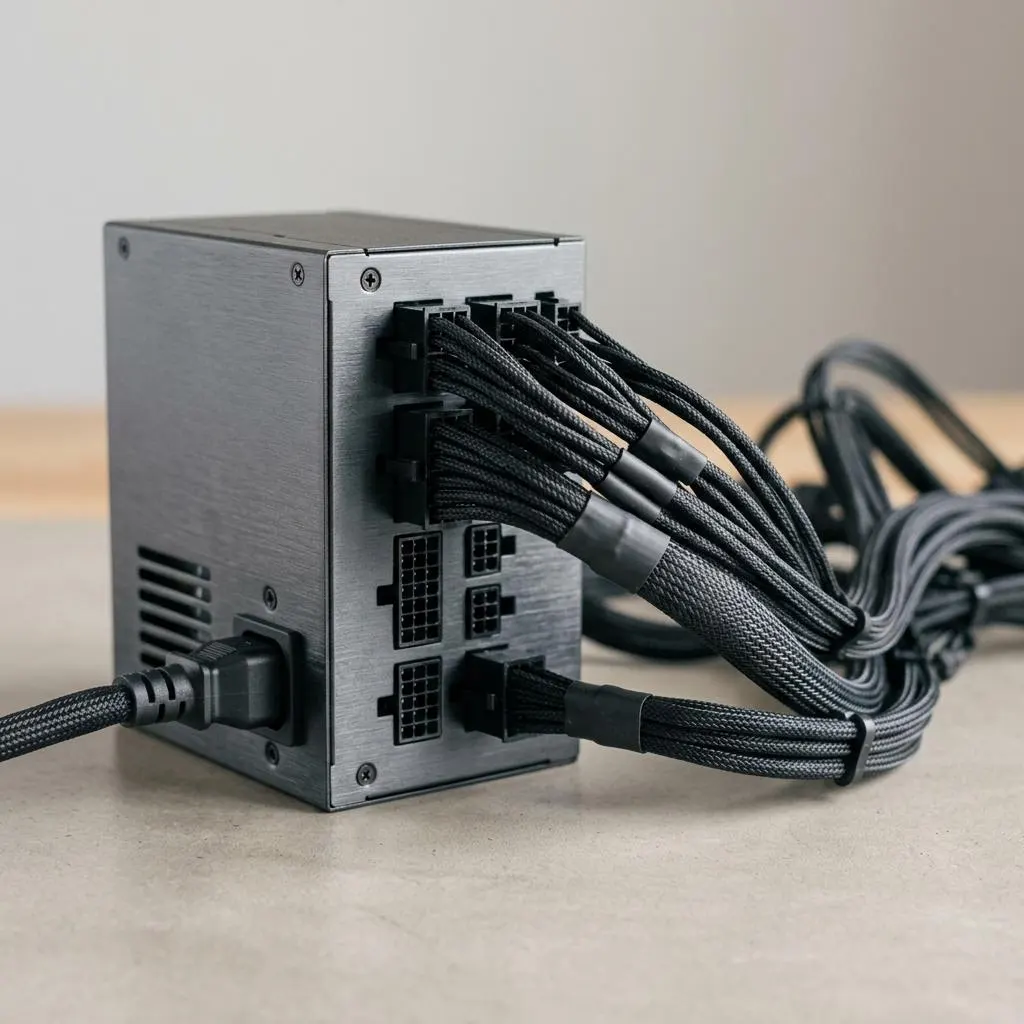
Power supply and connections inside a desktop
Crashes that happen mostly under heavy load, such as games or video export, can point to power delivery or heat rather than a driver. A partially seated graphics card power cable, a power supply near its limit, or a clogged cooler can all produce stop codes.
Practical, low-risk checks: make sure vents are clear and fans spin, and listen for a fan running unusually loud. On a desktop that you are comfortable working inside, with it shut down and unplugged, check that power connectors to the graphics card and motherboard are firmly seated.
Do not test a power supply with tools unless you are trained to; for desktop power supplies, a repair service is the right step. Driver updates should not be used to fix a power problem; they will not help.
FAQ
Questions people actually ask
Does a blue screen always mean a bad driver?
No. Drivers are a common cause, but stop codes can also come from failing memory or storage, overheating, power problems, a damaged Windows file, new hardware, or a faulty update. That is why this guide starts with recording the code and recent changes instead of replacing drivers.
The crash screen named a file. Should I delete or replace it?
No. A file name on the crash screen is a clue about where the failure was noticed, not proof of the cause. Many listed files belong to Windows itself. Deleting or swapping system files can stop Windows from starting. Note the name and match it against recent changes.
Why is my PC asking for a BitLocker recovery key?
Some recovery options and hardware changes make an encrypted device ask for its recovery key to protect your data. Enter the key if you have it; it is often saved to the Microsoft account used on the PC, or held by your IT department on work devices. Do not look for ways around the prompt.
Will Safe Mode or System Restore delete my files?
Safe Mode does not change your files; it only starts Windows with fewer drivers and services. System Restore leaves personal files alone but can remove apps and drivers installed after the restore point. Neither is a backup, so copy important files elsewhere when you can.