
Setup
How to update drivers through Windows Update, and when to skip optional ones
How Windows Update installs recommended drivers automatically, where optional driver updates live in Windows 11, and how to choose them carefully.
What this section covers
For most Windows 11 computers, Windows Update is the simplest and safest way to keep drivers current. It installs recommended drivers automatically, alongside security and quality updates, and it also lists optional driver updates that you can choose by hand. This guide explains the difference, shows exactly where each lives in Settings, and helps you decide when an optional driver is worth installing. It applies to Windows only; on a Mac, built-in drivers arrive with macOS through Software Update.
Automatic versus optional
Recommended drivers are matched to your hardware and installed without you doing anything. For a working computer, that is usually all you need.
Optional driver updates are different. They are offered, not required. Some fix a specific problem; others add features you may never use. Microsoft’s own advice is that if you have a specific problem, an optional driver may help. Otherwise, the automatic updates keep your drivers in good shape.
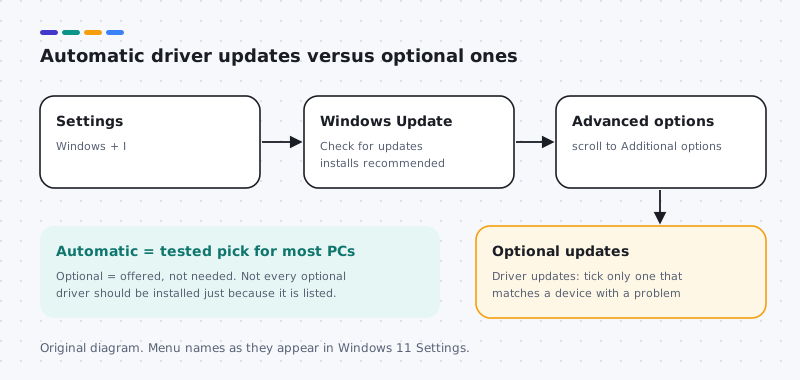
Get recommended drivers
- Open Settings with Windows + I.
- Select Windows Update, then Check for updates.
- Let Windows download and install what it finds, and restart when prompted.
- To confirm what arrived, select Update history and expand Driver updates. Each driver is listed with the date it was installed.
Choose an optional driver carefully
Only follow these steps if a specific device has a specific problem, such as a webcam that stopped working or a display that flickers.
- Create a restore point. Search for “Create a restore point” and open the System Protection tab. Check that protection for your system drive is On; it may be off. If needed, select Configure and turn it on, then select Create. A restore point covers system files, drivers and settings, not your documents or photos.
- Go to Settings > Windows Update > Advanced options.
- Under Additional options, select Optional updates, then expand Driver updates.
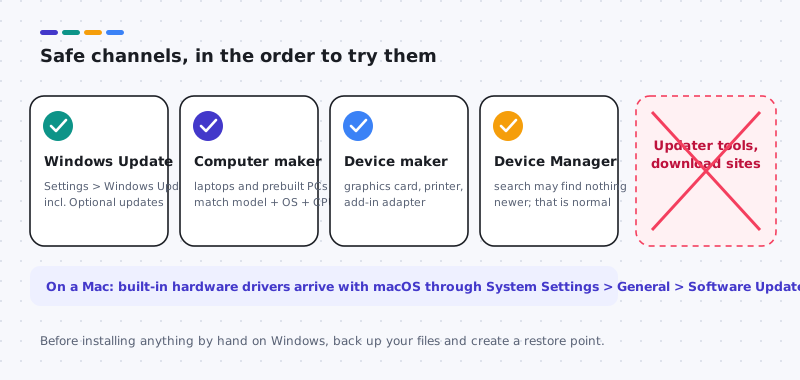
- Read each entry. Tick the box only for the driver that matches the device with the problem. Leave the rest unticked.
- Select Download and install, then restart when asked.
- Test the device. If it is fixed, you are done. If it is worse, roll the driver back through Device Manager.
When Windows Update is not enough
Windows Update does not always carry the newest driver for every device. Laptops and prebuilt desktops often get tuned drivers from their computer maker first, especially for graphics, audio and touchpads. If Windows Update offers nothing and the problem persists, check your computer maker’s page for your exact model.
Device Manager’s Search automatically for drivers option does not replace this check either. It looks at drivers already stored on your PC and may report that the best driver is installed even when a newer one exists elsewhere.
Managed and restricted computers
On work or school computers, updates are often controlled by the organization. Optional updates may be hidden, and installing drivers may need permissions you do not have. That is intentional. Ask your IT department rather than trying another route.
If a driver keeps coming back
Occasionally Windows Update reinstalls a driver that you rolled back. You can pause updates for a short period from Settings > Windows Update > Pause updates while you check your computer maker’s site or wait for a corrected release. Remember to resume, because pausing also delays security updates.
Windows Update is designed to be boring, and that is its strength. Let the automatic updates do their job, open the optional list only with a reason, and change one thing at a time.
Plan the moment
Let driver updates finish on mains power
Driver updates from Windows Update usually install alongside other updates and finish with a restart. Interrupting that restart, or letting a laptop battery run flat in the middle of it, is the scenario worth avoiding.
Practical habits help. Plug a laptop into its charger before checking for updates. Save open work. If the computer relies on Wi-Fi and the update includes a network driver, being on a wired connection or having the network driver package saved from the maker gives you a way back online if the new one misbehaves.
- Set active hours in Settings, Windows Update, Advanced options so restarts happen when you are not working.
- After the restart, check the device you care about before installing anything else, so a problem has one likely cause.
Worked example
Example: an optional driver appears for a touchpad
Scenario: Optional updates lists a driver for your touchpad, while the touchpad works fine. Optional means Windows does not consider it needed for most people.
- Read the entry name. It usually names the hardware maker and component. If it names hardware you do not recognize at all, skip it.
- Ask what you would gain. If the touchpad works and you are not chasing a specific bug, skipping is reasonable.
- If you do have a touchpad issue, check the laptop maker's support page first. Laptop touchpad drivers are often tuned per model, and the maker's notes may mention your issue.
- If you install it, create a restore point first, install only that one driver, restart and test gestures and scrolling.
If it makes things worse, roll back that driver from Device Manager. Microsoft also provides a troubleshooter package to hide a specific update; check its current availability on Microsoft's support site.
Accessories
Docks, adapters and accessories through Windows Update
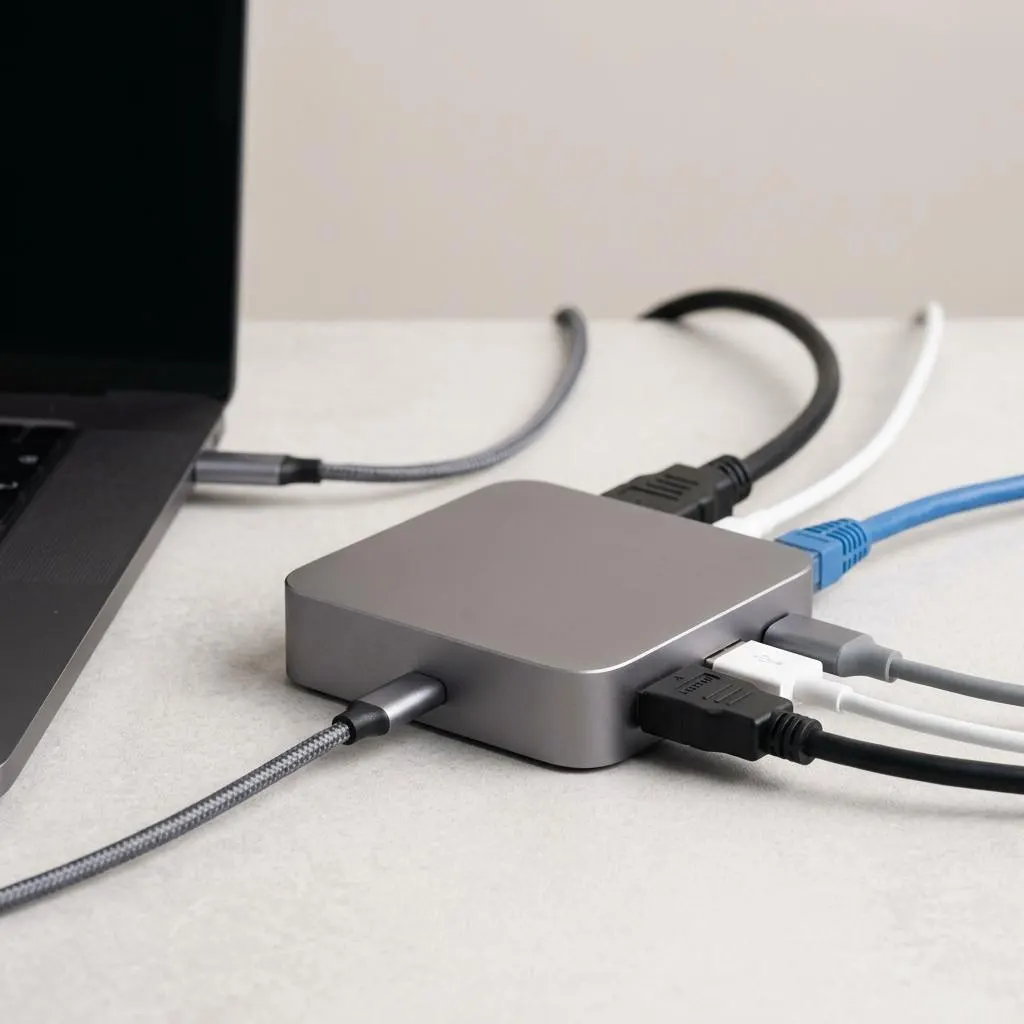
A USB-C dock is really a bundle of devices: a USB hub, often an Ethernet adapter, sometimes an audio device and video output. Windows Update installs drivers for many of these automatically when you connect the dock, which is why a new dock can show several brief notifications.
Dock firmware is different. It lives in the dock itself and, where updates exist, usually comes from the dock or laptop maker's utility or support page, not as a regular driver. Some docks that use DisplayLink technology also need a separate video driver from the maker.
If a dock behaves oddly after an update, test the laptop's own ports first. If direct connections work, the dock path is the place to look, and the dock maker's support page is the right source for both drivers and firmware notes.
FAQ
Questions people actually ask
Should I install every optional driver update Windows offers?
No. Optional driver updates are not needed for a computer that works properly. Install one only when it matches a device that has a specific problem, and install it on its own so you can tell whether it helped.
Why does Windows Update offer a driver older than my computer maker's version?
Windows Update and your computer maker publish on different schedules. The version offered through Windows Update has been chosen for broad compatibility, while a maker's site may carry a newer release for your model. Neither is automatically better; compare the version for your exact model.
Can Windows Update replace a driver I installed myself?
Yes. If Windows Update considers a different driver a better match, it may install it. If that causes a problem, roll back the driver, then pause updates briefly while you check with your computer maker.
Why can't I see Optional updates on my work laptop?
Organizations often manage updates centrally, which can hide or block optional updates. On a managed computer, ask your IT department before installing drivers by any route.