
Setup
How to get and install a driver from your device maker's website
Match the maker, model, Windows version and processor type, then install a driver package by installer or INF folder, with notes for Mac owners.
What this section covers
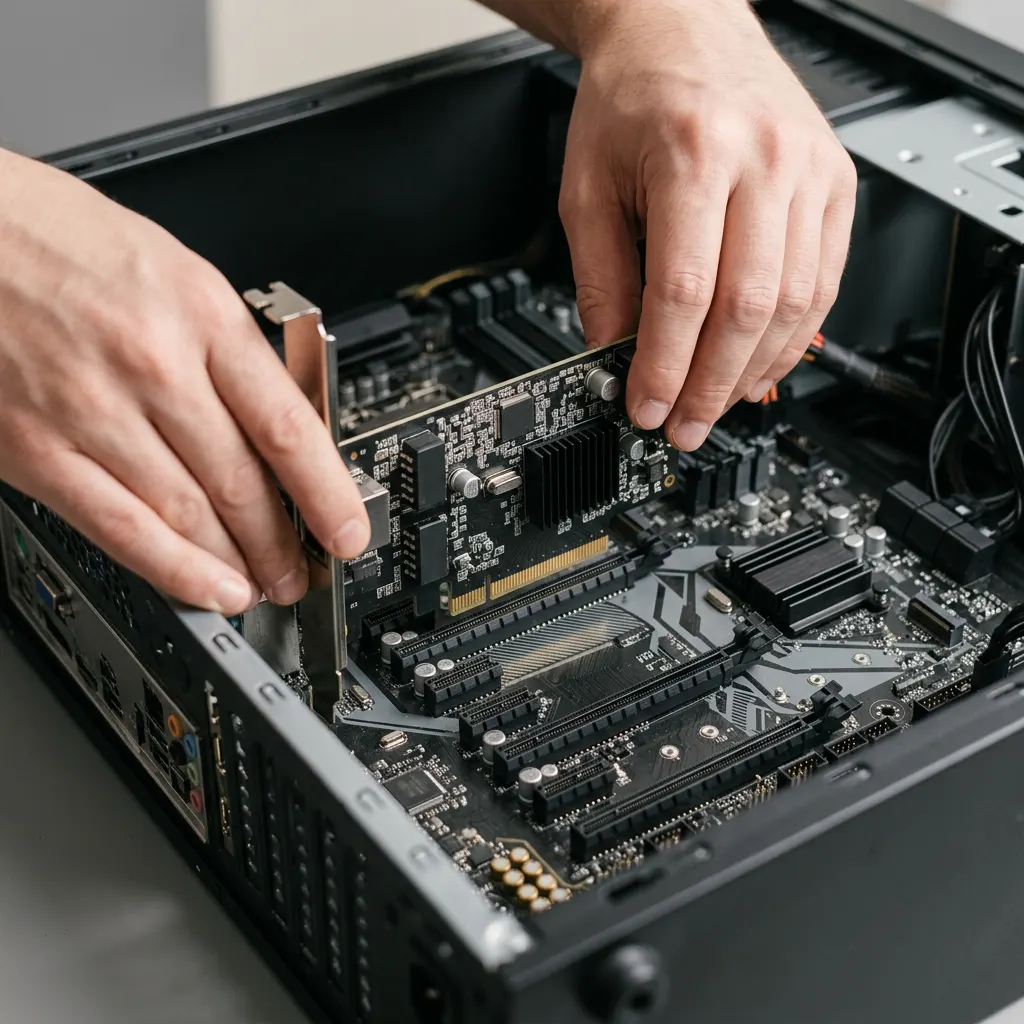
Sometimes Windows Update has nothing for a device, or your computer maker has a version that fixes a known problem. Then the right move is to get the driver directly from the maker’s website. This guide shows how to identify exactly what you have, find the matching package, and install it either with an installer program or from an extracted folder through Device Manager. It ends with what Mac owners should do instead, because Windows packages do not apply to a Mac.
Never get drivers from download sites or updater tools. The maker of your computer or device is the only source you need.
Step one: identify exactly what you have
A driver must match four things. Get any of them wrong and it may refuse to install or, worse, install and misbehave.
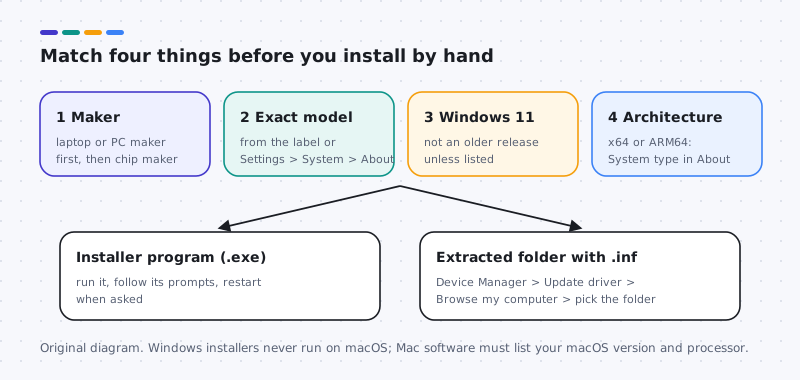
- Find the maker and exact model. On a laptop or prebuilt desktop, check the label underneath or on the back, or open Settings > System > About. Note the full model name and, if shown, the serial number or service tag; many maker sites use it to find your exact configuration.
- Check your Windows version. The same About page shows the edition and version under Windows specifications.
- Check the architecture. Under Device specifications, System type says whether you have an x64-based or ARM-based processor. Drivers built for one will not work on the other.
Step two: find and save the package
- Go to your maker’s driver page and enter your model or serial number.
- Select Windows 11 and the right architecture if the site asks.
- Open the category you need, such as Audio or Network, and read the release notes. Look for a fix that matches your problem. Note the version and release date.
- Save the package to your Downloads folder. It will be either an installer program, usually ending in .exe, or a compressed folder you need to extract.
Step three: prepare a way back
- Record the current driver’s provider, version and date from the Driver tab in Device Manager.
- Back up your personal files. A backup protects your documents; a restore point does not.
- Create a restore point. Search for “Create a restore point”, and on the System Protection tab confirm protection is On for your system drive. It can be off. Turn it on with Configure if needed, then select Create.
You will need administrator rights to install drivers. On a work or school computer, ask your IT department first; they may install it for you or block it by design.
Step four: install
If you have an installer program
- Double-click it and approve the prompt asking for administrator permission.
- Follow the on-screen steps. Decline any optional extra software you do not want.
- Restart when asked, even if the device seems to work already.
If you have a folder with an INF file
- Right-click the compressed folder and choose Extract All.
- Open Device Manager, right-click the device, and choose Update driver.
- Choose Browse my computer for drivers, select the extracted folder, keep Include subfolders ticked, and select Next.
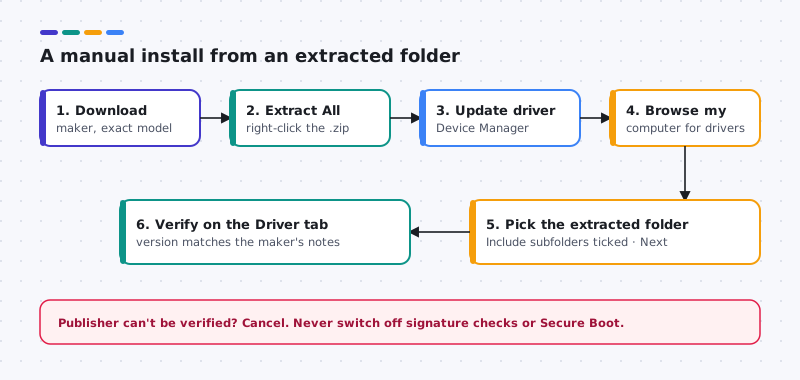
- After restarting, check the Driver tab again. The version should match the one you installed. Test the device properly before calling it done.
Notes for Mac owners
On a Mac, drivers for built-in hardware come with macOS, and you update them through System Settings > General > Software Update. There is no generic Windows installer to run on a Mac.
For add-on hardware such as a printer, scanner or audio interface, check the maker’s site for Mac software that lists your macOS version and your processor type, Apple silicon or Intel. If macOS asks you to allow the software in Privacy & Security, that is normal approval. If instructions ask you to lower startup security or turn off protections, do not; look for an updated version instead.
If something goes wrong
If the device behaves worse after the install, use Roll Back Driver on the Driver tab, or reinstall the version you recorded earlier from the maker’s site. Change one device at a time, and you will always know what to undo.
Know the exact part
Same function, different chip
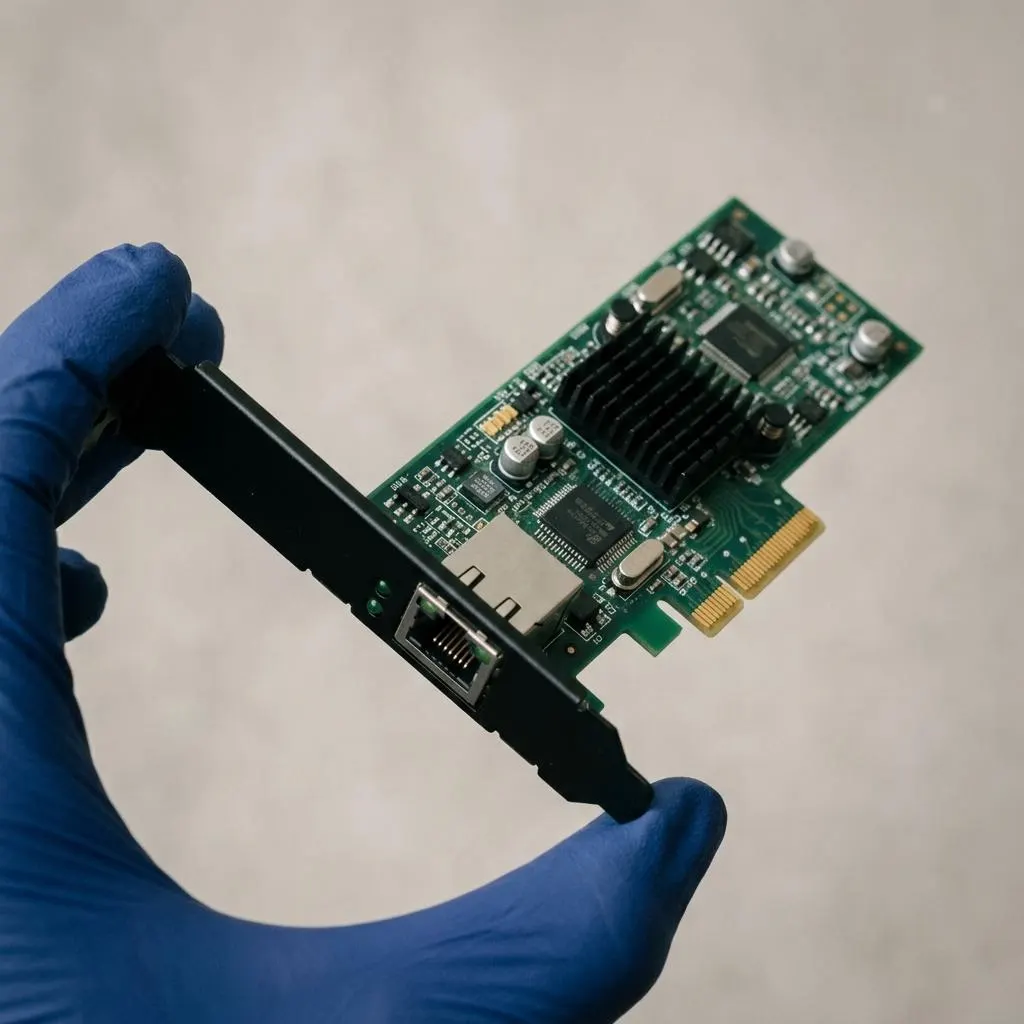
Two network cards that look nearly identical can use different controller chips from different makers, each needing a different driver. Model names on retail boxes do not always reveal the chip, and some products change chips between hardware revisions.
That is why the hardware ID matters. In Device Manager, open the device's Properties, Details tab, and choose Hardware Ids. The VEN or VID value identifies the chip vendor and DEV or PID identifies the device. You can use those values to confirm that a download page lists your hardware.
- Built into a laptop or prebuilt desktop: start with the computer maker's support page for your model or service tag.
- Separate card or accessory: start with the card or accessory maker's page for your exact model and revision.
Worked example
Example: reading a download page before you click
Scenario: your laptop maker's support page lists three audio downloads. Choosing well is about reading, not speed.
- Confirm the page is for your exact model, ideally entered by serial number or service tag, and for Windows 11 rather than an older version.
- Compare the listed version and date with what Device Manager shows. If yours is the same or newer, you probably do not need it.
- Read the release notes or fixes list. A package that mentions your exact symptom is a better candidate than the newest one.
- Prefer packages from the computer maker over generic chip-vendor packages for built-in parts.
If the page offers a support assistant app, it is optional. You can download the single driver directly instead.
Small devices
Accessories that work without any download
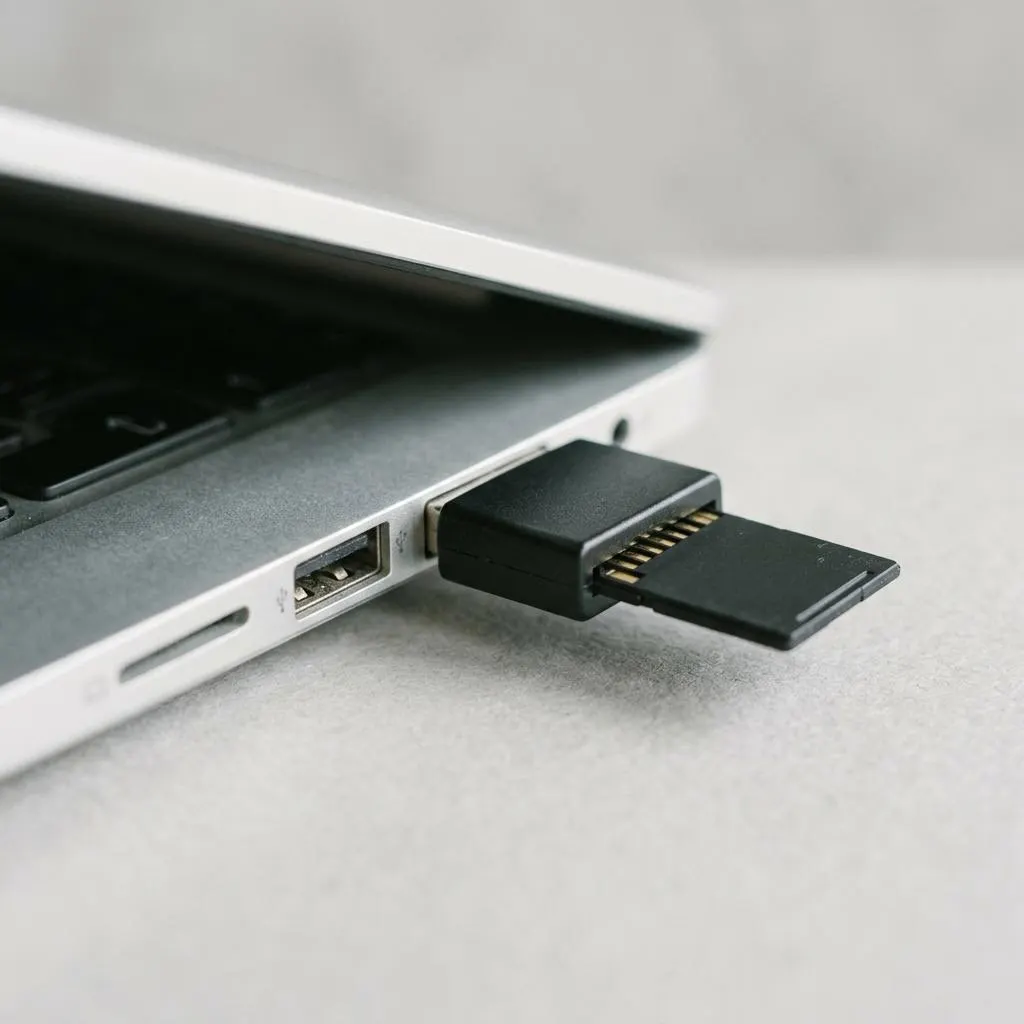
Many accessories follow standard USB device classes: storage such as card readers and flash drives, keyboards and mice, webcams, and basic audio. Windows 11 and macOS include class drivers for these, so the device should work as soon as it is connected, with no download needed.
If a simple class device such as a card reader does not appear, a maker driver is rarely the answer. Check the cable and port, try another card, and see whether the reader appears in Device Manager or, on a Mac, in System Information.
Maker software for such devices usually adds extra features, for example camera effects or extra mouse buttons. It is optional. Skip it if the device already does what you need.
FAQ
Questions people actually ask
Should I get a laptop driver from the chip maker or the laptop maker?
Start with the laptop maker. Laptops often use customized parts, power settings and audio tuning, and the laptop maker packages drivers that account for them. Use the chip maker's generic driver only if the laptop maker has nothing suitable and the chip maker says it supports your device.
What is the difference between an installer and an INF file?
An installer is a program that copies the driver and sometimes extra software for you. An INF file is the instruction file inside an extracted driver folder; you point Device Manager to that folder and Windows installs the driver from it.
Can I install a Windows driver on my Mac?
No. Windows installers do not run on macOS. Built-in Mac hardware gets its drivers from macOS through Software Update. For add-on hardware, look on the maker's site for Mac software that lists your macOS version and processor type.
What if the installer asks me to turn off a security feature?
Stop. Legitimate drivers for current systems do not need you to disable signature checks, Secure Boot or Mac security protections. Look for a newer version from the maker, or treat the hardware as unsupported on your system.