
Safe updates
When not to update a driver, and when you still should
A working driver often needs no change, but security advisories and OS requirements come first. How to decide, without ever blocking security updates.
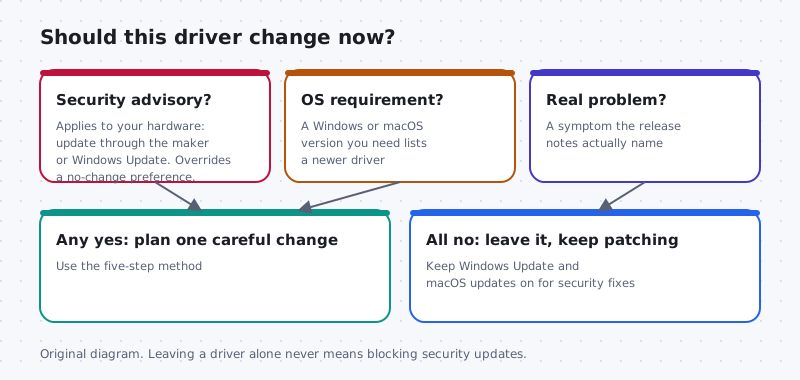
What this section covers
“If it works, don’t touch it” is half right. Changing a driver that is doing its job adds risk with little reward. But a stable computer can still have a security hole, and a Windows or macOS version you need may require a newer driver. This guide sets out when leaving a driver alone is the careful choice, the three situations that override that preference, and how to hold back optional changes on Windows 11 without blocking security updates. Mac differences have their own section.
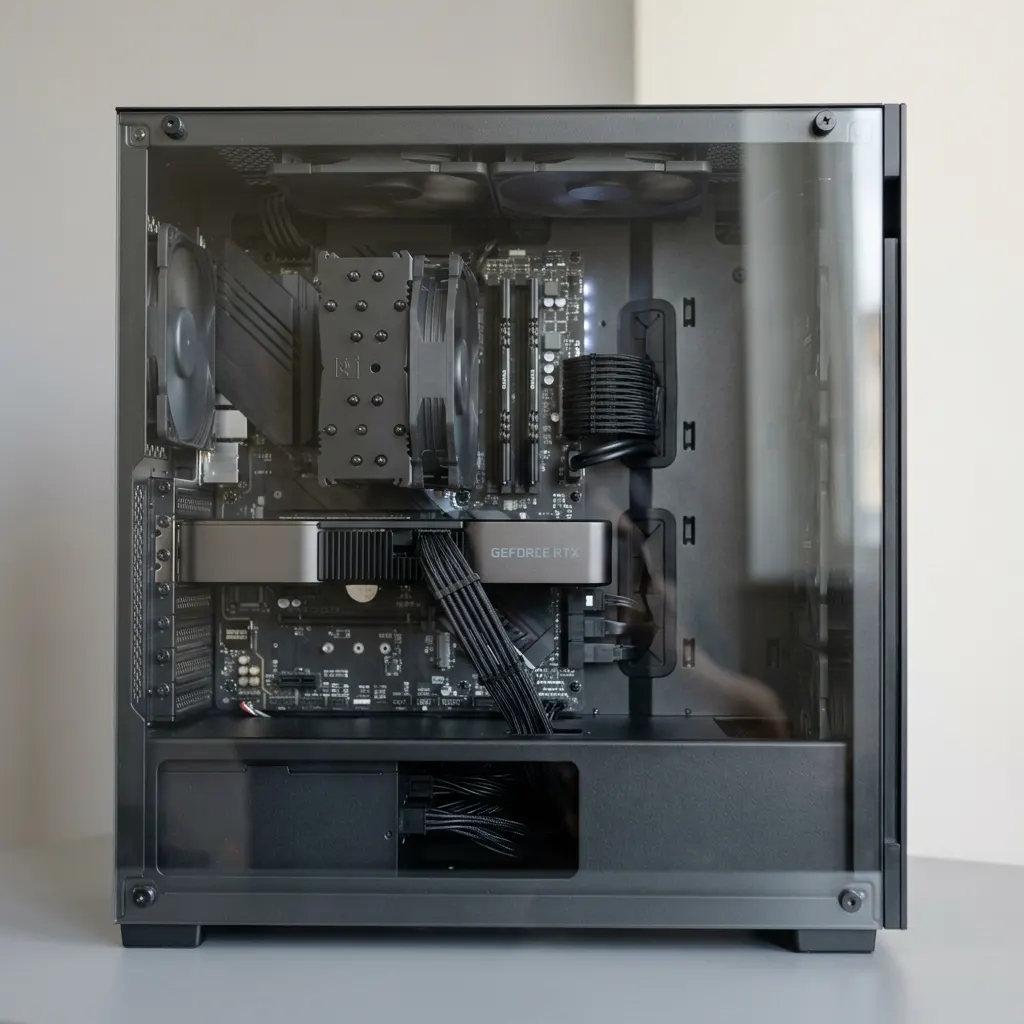
Good reasons to leave a driver alone
- The device works and nothing names it. No symptom, no advisory, no OS requirement. A newer file existing somewhere is not a reason.
- The only argument is the date or number. As we explain in understanding driver versions and dates, an old-looking date is not proof of an obsolete driver.
- A tool says it is outdated. Result counts from generic scanners are not evidence. See why third-party updater tools carry risk.
- The release notes fix someone else’s problem. A fix for a game you do not play or hardware you do not own changes nothing for you.
- You rely on the computer right now. Before a deadline, a trip or a presentation, wait until you have time to test and undo.
Three things that override “leave it alone”
1. A security advisory that applies to you. Drivers often run with deep system access, so their vulnerabilities matter. If your computer maker, the part maker or Microsoft publishes an advisory naming your hardware or driver, plan the update even though the device works. A stable system can still need patches.
2. An operating system requirement. A Windows 11 feature update or a macOS version you need may require a newer driver for some hardware. The maker’s notes or the OS will say so.
3. A real symptom the release notes name. A device that crashes, drops out or misbehaves, with a fix described in the notes, is the classic good reason.
Any one of these turns “leave it” into “plan one careful change” using the five-step safe update method.
Holding back optional changes on Windows 11
Windows 11 already separates routine updates from optional driver updates, so you rarely need to do anything special.
- Open Settings > Windows Update and keep normal updates installing, including security updates.
- Under Advanced options > Optional updates, expand Driver updates. Nothing here installs unless you tick it. Leave items unticked unless they match a reason above.
- If a driver from Windows Update breaks a device, use Roll Back Driver for that device, as shown in our roll back guide.
- Before any change you do decide to make, back up personal files and create a restore point, confirming that System Protection is on and the restore point was created.
- Change one device at a time, then test before touching another.
- Keep a short note of what you changed and when. It makes any later problem much easier to trace.
When an update is risky enough to wait
Some changes deserve extra caution even with a good reason: drivers for storage controllers, chipset packages, and anything that arrives as part of a firmware or BIOS update. Firmware changes are not undone by Roll Back Driver or a restore point. If your computer maker’s notes do not describe a problem you have or a security issue that applies, it is reasonable to wait and read their guidance first rather than act on impulse.
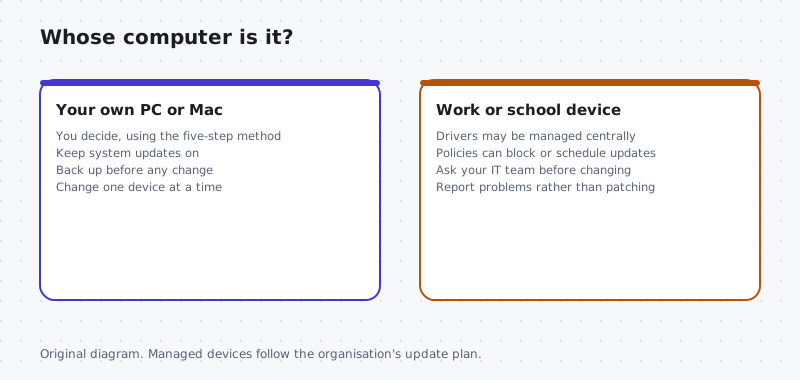
Work and school computers
Organisations often manage drivers centrally, test them before release and schedule updates. They may block manual installs on purpose. On a managed device, do not try to hold back or force updates yourself. Tell your IT team what you noticed and let them decide.
macOS note
On a Mac, the choice looks different. Drivers for built-in hardware are part of macOS, so you cannot keep one driver while updating the rest. Security fixes and driver changes travel together through System Settings > General > Software Update. It is reasonable to wait a short while before a major macOS upgrade, for example to confirm that add-on hardware such as an audio interface or scanner is listed as compatible by its maker. Keep installing security updates for your current macOS version in the meantime, and back up with Time Machine before any major upgrade. A Mac has no System Restore. Do not lower startup security or disable System Integrity Protection to keep old software running.
Keep going
When a change is justified, the five-step safe update method shows how to make it carefully. Our other guides explain driver versions and dates and the risks of third-party updater tools.

Production machines
Audio and creative setups that need stability
If a computer runs a recording setup, a video editing workstation or anything else you rely on for paid work, the reason to update needs to be stronger. A working audio interface driver with stable latency is valuable, and an update in the middle of a project adds risk without obvious gain.
A practical approach: update between projects, not during them. Read the interface maker's notes for compatibility with your recording software, and keep the previous driver package so you can return to it.
- Security fixes still count. If the maker flags a security issue, plan the update sooner.
- Windows feature updates can require newer drivers; check the maker's compatibility notes before a major Windows upgrade.
Worked example
Example: deciding on a graphics update before a deadline
Scenario: a new graphics driver is available, and you have a presentation in two days on a laptop that works fine.
- Ask whether the new driver fixes something you experience. If not, the expected gain is small.
- Check whether it addresses a security issue in the maker's notes. If so, plan it after the presentation, or sooner if the notes are urgent.
- Make a note to revisit the update after the deadline, when you have time to test and roll back if needed.
Waiting is a choice, not neglect. The aim is to update when you can handle a problem, not to never update.
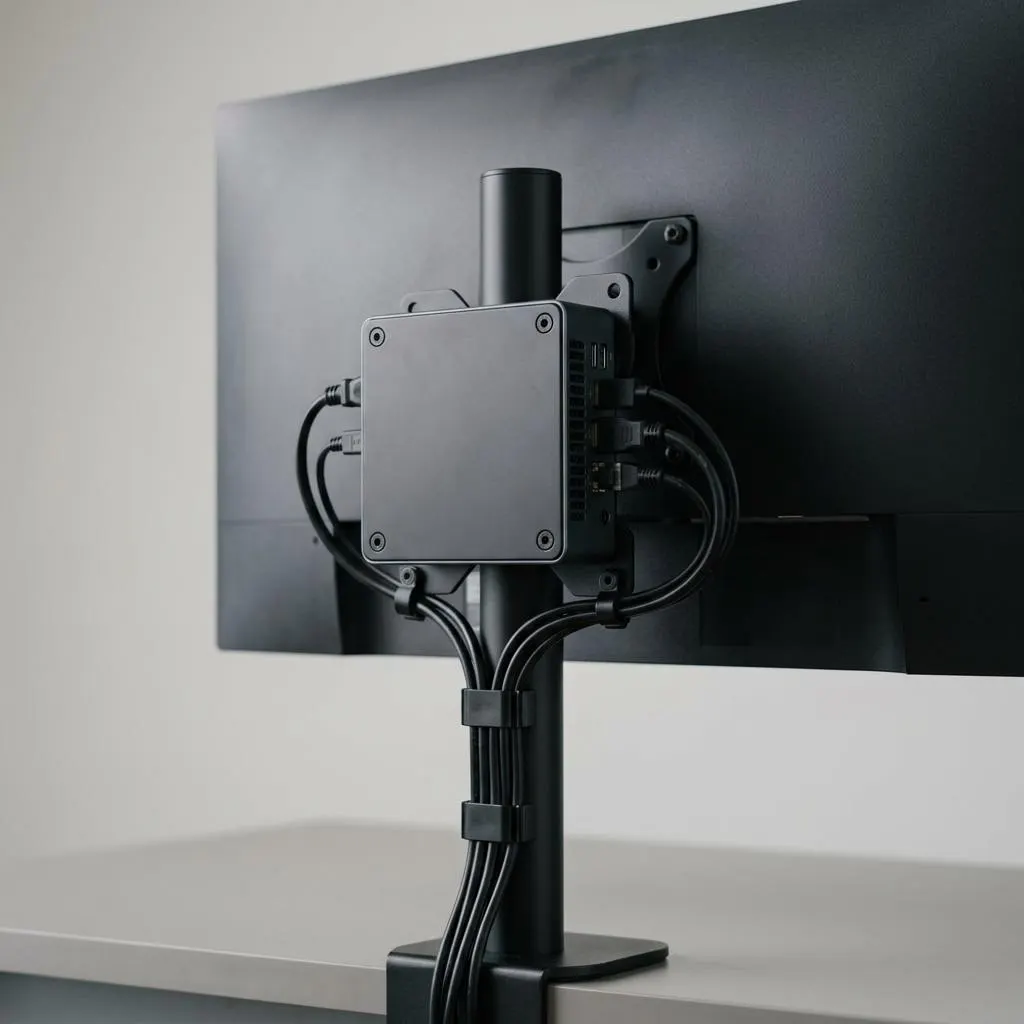
Single-purpose computers
Kiosks, media players and older dedicated devices
Some computers do one job: a mini PC behind a screen showing a calendar, a media player, or an older machine running one piece of equipment software. If it works and is not exposed to risk, leaving drivers alone is reasonable.
There are limits. If the computer is connected to the internet, security updates for Windows still matter, and those can include drivers. If the equipment software requires a specific driver version, its vendor's documentation is the authority, not general advice.
Write down what is installed and how to reinstall it. For a single-purpose computer, that record is often more valuable than any update.
FAQ
Questions people actually ask
If my computer works, should I turn off Windows Update?
No. Windows Update delivers security fixes for Windows and, increasingly, for drivers. A stable system still needs patches. Choosing not to install optional driver updates by hand is reasonable; blocking or indefinitely pausing system updates is not.
Does a security advisory override my preference to leave a driver alone?
Yes. If a maker or Microsoft publishes an advisory that names your hardware or driver, plan the update even though the device works. Use Windows Update or your computer maker's page for your model, and follow the five-step method so you have a way back.
Should I install every optional driver update in Windows 11?
No. Optional driver updates are there for a specific reason, such as fixing a known problem. Install one when its description matches a problem you have or your computer maker recommends it. Leave the rest.
How do I know if a driver update is a security fix?
Read the release notes on your computer maker's page, which usually say when a release addresses a security issue, and check the maker's security advisories page for your model. Windows Update descriptions and Microsoft's documentation also identify security releases.